Add PowerScale Probe License Keys
Introduction
Eyeglass supports two categories of license key for a PowerScale cluster: a DR-enabled key and an event-monitoring-only (probe) key. Which one you install determines what Eyeglass can do with that cluster.
DR-Enabled vs. Event-Monitoring-Only Keys
- DR-enabled keys (Disaster Recovery Edition) provide full failover and failback automation for the cluster, plus DR state information for replicating cluster pairs — including failover status, RPO status, and compliance reporting.
- Event-monitoring-only (probe) keys provide event monitoring for a PowerScale cluster without DR automation. Use this key type for clusters you want visibility into (alarms, events) but do not intend to fail over with Eyeglass — for example, a cold/DR-only cluster that is not itself a failover source, or a cluster monitored for compliance purposes only.
A cluster licensed for event monitoring only can be upgraded to a DR-enabled license later without being removed and re-added to Eyeglass — apply the new license key and the cluster's available DR functionality follows from the license type.
Retrieve and Install License Keys
-
Retrieve your license keys from the Superna Support Portal.
-
Install the keys following the same procedure used for any Eyeglass license: see License Keys for the retrieval and application steps.
-
Once installed, confirm the license in License Management — each managed cluster's license type (DR, Ransomware Defender, AirGap Vault Agent, and so on) is listed with its quantity, expiry, and EMC token.
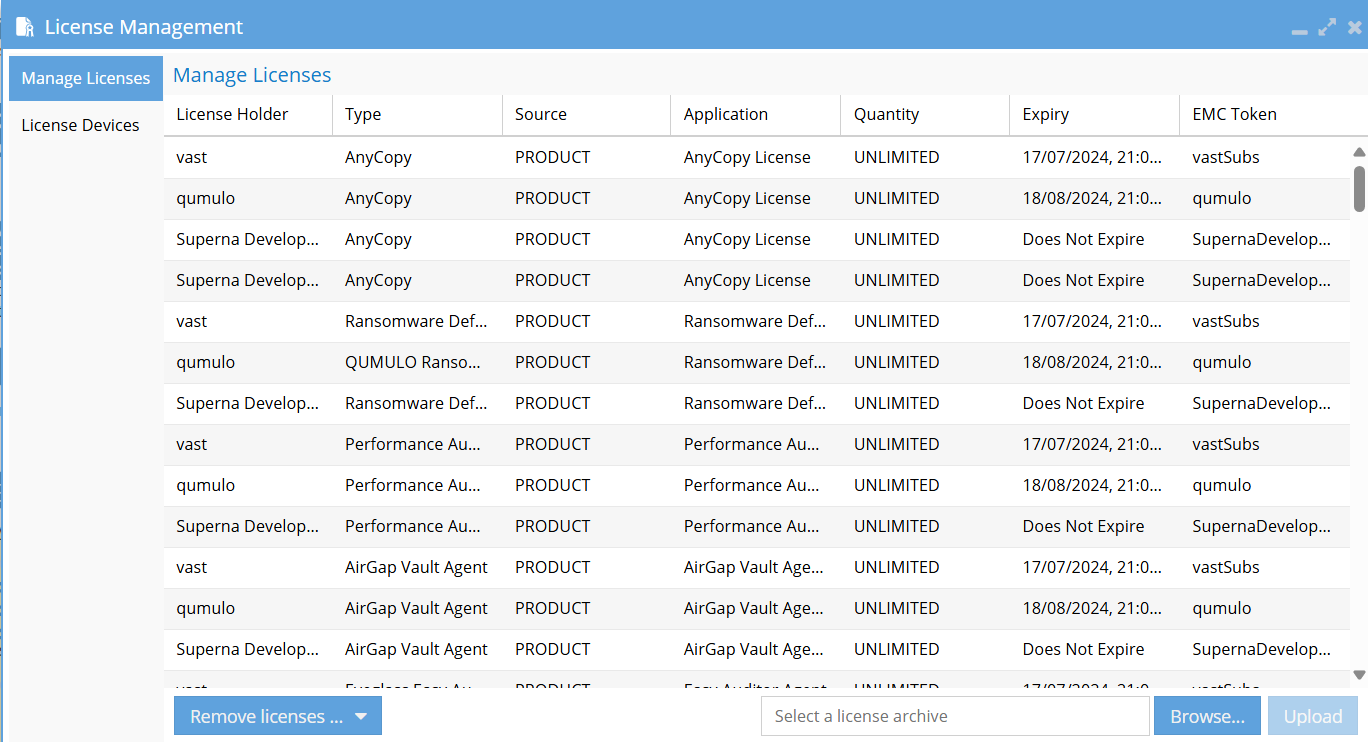
Do not unzip the license file before uploading it — upload the .zip file as provided.
See Also
- Add Clusters – Add a PowerScale cluster to Eyeglass as a managed device once the appropriate license key is installed.
- Appliance Check – Verify overall appliance health after a license change.