What's New in 2.15.1
Version 2.15.1 builds on the redesigned 2.15.0 user interface with a first-run welcome message, safer device editing, and several platform improvements.
Highlights in this release include:
- Welcome Message shown once per user the first time the new GUI is opened
- Device Change Confirmation in Inventory, showing exactly what an edit will change before it is saved
- Delete Action for ECA Nodes in Health Check → Manage Services
- Additional User Roles in the New GUI, so users who are not administrators can sign in to the new GUI
- Nutanix AHV Deployment support for the appliances
Welcome Message in the New GUI
The first time you open the new GUI, a welcome overview appears with a short tour of its main areas: Platform (Alarms, Jobs, Inventory, Licensing, and Health Check), Cybersecurity (Ransomware Defender, Auditing, and Security Integrations), Disaster Recovery, and AirGap. It also notes that feature availability depends on your licensed products and role, and that you can switch back to the Legacy UI at any time. The overview is shown once per user and applies to new and existing customers alike — closing it settles the question on every browser and device that user signs in from.
Confirmation Before Saving Device Changes
Editing a device on the Inventory page now asks you to confirm before your changes take effect. After you select Update on the Edit Device form, a Confirm Device Changes dialog lists exactly what is about to change: the old and new values for the address, port, username, Max RPO, and load balancer, and a Licensed For comparison showing which licenses are added, removed, and kept. Passwords are never displayed — if the password changes, the dialog simply notes that it will be updated — and a warning appears when license assignments change, because that can affect active Disaster Recovery and security configurations. The dialog appears only when something actually changed, and Cancel returns you to the form with your input intact. The Edit Device form is also now pre-populated with the device's stored settings, so you can see the current values you are changing; the password is still re-entered each time.
Delete ECA Nodes from Manage Services
Health Check → Manage Services now has a Delete column with a confirmation dialog, so you can remove an ECA node's entry from the new GUI the same way you could in the Legacy UI. The Eyeglass entry itself has no Delete action.
A running ECA node re-registers itself with Eyeglass on its next heartbeat, within about a minute, so deleting a live node's entry is expected to be undone on its own. Delete is intended for cleaning up stale entries — nodes that are stopped, decommissioned, or no longer pointed at this appliance.
Additional User Roles in the New GUI
The new GUI is no longer limited to users with the Administrator role. Users with other roles can now sign in to the new GUI, and what each user can see and do follows the permissions of their role.
Nutanix AHV Deployment
Nutanix AHV is now supported as a deployment platform for the appliances. See the Prerequisites and Installation sections for the deployment requirements and steps.
Previous Release - 2.15.0
A Redesigned DR Experience
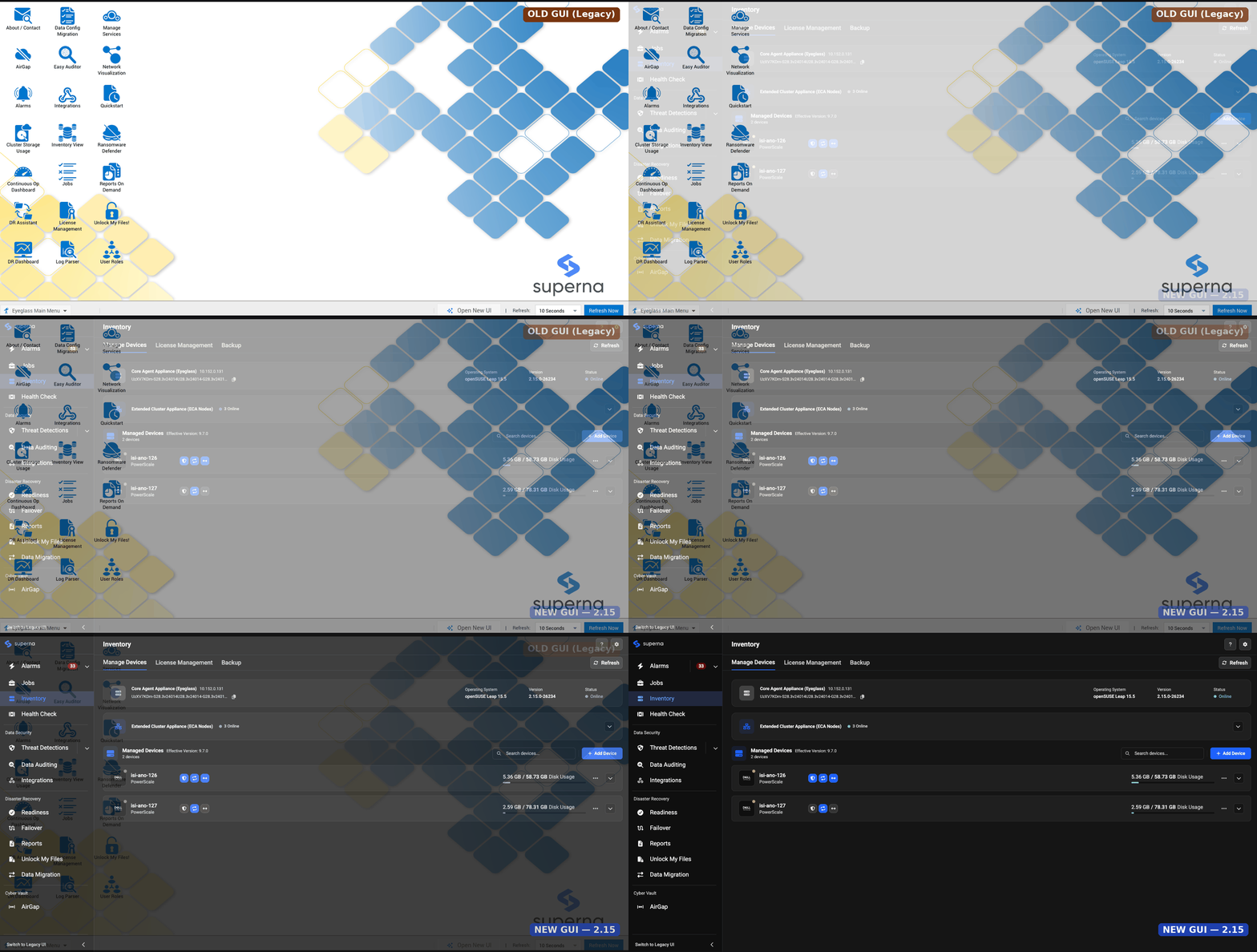
Disaster Recovery Edition also moves to the completely redesigned 2.15.0 user interface introduced across the Cyberstorage for Dell product line. The DR Dashboard, failover workflows, and readiness views have been rebuilt with a cleaner, more modern design and reorganized navigation, so day-to-day tasks — checking readiness, reviewing failover history, and taking action during a real event — are easier to find and faster to work through.
This is one of the most visible changes in 2.15.0, and we're looking forward to hearing what customers think as they move to the new experience. We'll continue refining workflows and visual details based on that feedback in upcoming releases.
See Also
Need Help?
- Contact Support: Reach out to Superna Support for configuration assistance or troubleshooting help.