Sumo Logic SOAR Integration
Support Statement
This documentation is provided "as is" without support for 3rd party software. The level of support for this integration guide is best effort without any SLA on response time. No 3rd party product support can be provided by Superna directly. 3rd party components require support contracts. See EULA for more details.
Overview
Customers using Sumo Logic SOAR can leverage a native integration with playbooks and integrations that enables Cyber Storage protection. Customers can augment the capabilities of Sumo Logic SOAR with threat intelligence and Cyber Storage capabilities of Superna Security Edition.
Solution Overview
Superna Defender Zero Trust API enables native playbooks and integrations within Sumo Logic Cloud SOAR or Sumo Logic automations within the SIEM platform.
Advanced Zero Trust Capabilities
-
Snapshot critical NAS data — Creates an immutable rollback point that Data Security Edition can use to recover data from a cyber attack with automated single-file recovery and compromised data quarantine.
-
User lockout workflow — Triggers a user account permissions lookup and blocks the user's access to data when credentials are compromised.
noteUnblocking a user can be completed from the Data Security Essentials Active Alert incidents interface.
What Is Sumo Logic SOAR?
Sumo Logic Cloud SOAR provides security analysts and SOC managers with enhanced visibility across the enterprise to understand the scope and context of an attack. Streamlined workflows and automated playbooks extend Cyber Storage protection to Sumo Logic customers for better incident response outcomes.
Integration Architecture
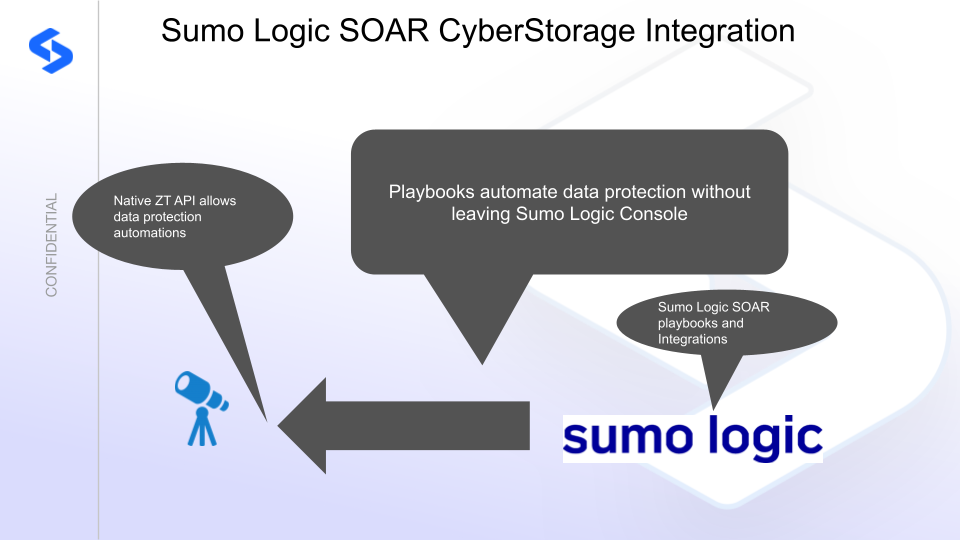
Solution Configuration in Sumo Logic SOAR
Prerequisites
- Installed Security Edition
- Eyeglass OS appliance version 15.5 or later — verify with
cat /etc/os-release - License key for the Zero Trust API
- Zero Trust API token from Eyeglass
- Sumo Logic SOAR or Sumo Logic base SIEM product with Automation Bridge installed
Configuration in Sumo Logic SOAR
Import Integration YAML Files
-
Log in to the Sumo Logic console and open Automation → Integrations.
-
Click the + Integration button to import a YAML file definition.
-
Download and unzip the YAML files for Snapshot Automation of NAS data.
-
Import both YAML files. This imports an integration and an HTTP POST API action.
-
Edit the Resource defaults (
snapshotapidata) on the integration:- Enter the IP address of the Eyeglass VM.
- Update the HTTP headers section with the API key from Eyeglass.
To create an API token: log in to the Eyeglass VM → Integrations icon → API token tab → + to create a new token → enter a name → copy the token value.
In the headers field, replace the placeholder with your API token:
api_key: <your-api-token>, Content-Type: application/json -
Scroll down and select the Automation Bridge name to use for proxying API calls to the on-premises endpoint.
-
Click Save.
Import the Playbook
- Navigate to Automation → Playbooks and click + to import a playbook.
- Download the playbook compressed file.
- Click the upload button and provide the
.tar.gzfile as input. This imports all files needed to create the playbook.
How to Test the Integration with Sumo Logic SOAR
- Open the imported playbook and click the three-dot menu.
- Change the dropdown to Custom.
- Click Run.
A successful execution shows the API call results and a green success indicator.
Sumo Logic SOAR Alert Monitor Playbook Integration
The Sumo Logic SOAR automation playbooks can be integrated with Alert Monitors. The examples below provide pre-built Alert Monitors that can be imported and used with the integration and playbooks.
Prerequisites
Installed and configured all Superna integrations and playbooks as per the steps in this guide.
Critical Data NAS Snapshot Alert Monitor
- Open the Alert Monitor UI in the Sumo Logic console.
- Import a new Monitor definition:
- Download the JSON definition of the Superna Critical with Snapshot playbook monitor (right-click, save as).
- Open the file to import the playbook definition.
- The monitor is enabled by default. Click Subscribe on the playbook action menu to be notified when the monitor triggers.
- Edit the monitor and scroll down to the Automated Playbooks section. Confirm the playbook is listed (
Superna Zero Trust Snapshot). You may need to paste the name again and save the monitor to link the playbook ID with your instance's ID.
The snapshot playbook can be associated with other Monitor definitions for any scenario where protecting data is a required next step — for example, when a user account has been phished or multiple failed login attempts indicate a brute force attack.