Veeam Backup Integration
Support Statement
This documentation is provided "as is" without support for 3rd party software. The level of support for this integration guide is best effort without any SLA on response time. No 3rd party product support can be provided by Superna directly. 3rd party components require support contracts. See EULA for more details.
Overview
This integration uses Superna's Zero Trust API with Veeam Backup and Replication to create immutable snapshots on PowerScale storage before each backup job runs. Using Veeam's built-in pre-script option, the integration ensures a point-in-time recovery snapshot exists on the backup repository before backup data is written, protecting against bad actors that target backup infrastructure.
The integration creates a rollback point before any job runs to back up corporate data. This is done using the pre-script option in Veeam and leverages the Zero Trust API to create critical snapshots on the PowerScale storage where the backup data is stored.
Solution Components
- Veeam Backup and Replication
- Ransomware Defender for PowerScale
- Ransomware Defender Zero Trust API license
- PowerScale storage used as the Veeam backup repository (SMB or NFS protocol)
Solution Deployment Diagram
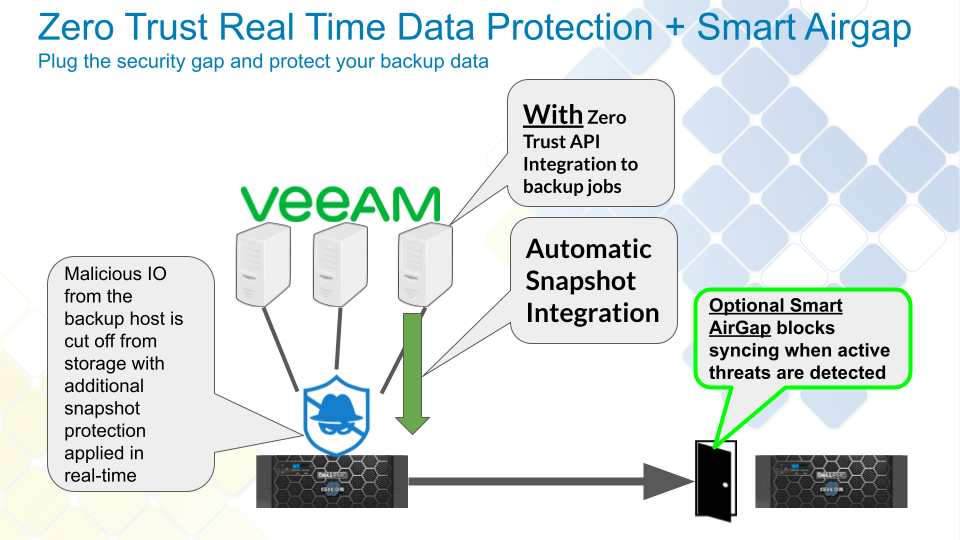
Solution Configuration Steps
Step 1: Create the SMB Share
Create an SMB share on PowerScale to store Veeam backup data. For example, create the share named Veeam at path /ifs/veeam.
Step 2: Create the PowerScale Backup Repository in Veeam
In Veeam Backup and Replication, configure a new backup repository using the PowerScale SMB share created in Step 1.
Step 3: Create the Zero Trust API Token
- Log in to Eyeglass as admin.
- Navigate to Main Menu → Eyeglass REST API.
- Click Create token and enter
veeamas the token name. - Click the newly created token to copy it to the clipboard.
Step 4: Get the curl Command
- Select the API Explorer tab.
- Paste the token into the token field.
- Scroll to Ransomware Defender v2 APIs.
- Click Try out — this triggers a snapshot on all configured critical paths.
- Copy the curl syntax from the API Explorer to a file for use in the script.
Step 5: Configure Critical Path Snapshots in Ransomware Defender
- Log in to Eyeglass.
- Open Ransomware Defender.
- Click the Snapshots tab.
- Enable the Critical paths checkbox.
- Click + to add a critical path.
- Enter the path where the Veeam backup repository is stored.
- Select the cluster name where the SMB share was created.
Step 6: Create the Pre-Backup Script on the Veeam Backup Server
-
Create the scripts directory on the Veeam backup server:
c:\zero-trust-scripts -
Optional: If the host OS does not include curl, download it from curl-7.64.1.cab:
- Right-click and extract all files.
- Copy the files from the
i386folder toc:\zero-trust-scripts\curl.
-
Create
c:\zero-trust-scripts\zerotrust.batwith the curl command copied from the API Explorer. Apply the following modifications:- Replace all single quotes (
') with double quotes (") — required by Windows batch files - Add
-d ""to provide an empty POST body - Add
-kto ignore self-signed certificates - Modify the curl binary path to match the OS and installation location
Example script:
curl\curl.exe -k -d "" -X POST --header "Content-Type: application/json" --header "Accept: application/json" --header "api_key: igls-1sbevrp1mogkeg9q6r2usit6fpbkdk9md4umtlpinvm51cnbndqu" "https://172.31.1.102/sera/v2/ransomware/criticalpaths" >> log.txtThe
>> log.txtredirect appends each execution result toc:\zero-trust-scripts\log.txtfor audit purposes. - Replace all single quotes (
Step 7: Configure the Backup Job to Use the Pre-Backup Script
- Open the Veeam backup job settings.
- Ensure the Backup Repository selected is the PowerScale storage repository.
- Click the Advanced button on the Storage tab.
- Select the Scripts tab.
- Click Before the job and browse to select
c:\zero-trust-scripts\zerotrust.bat. - Enter the remaining fields for your backup job definition and click Apply.
Integrate with all scheduled backup jobs to ensure snapshots are created before every backup run.
Solution Results
Run a Test Backup Job
Right-click the backup job and run a test backup.
Check the Log File
Open c:\zero-trust-scripts\log.txt. A successful API call returns the job ID running on Ransomware Defender.
A return value containing the Ransomware Defender job ID confirms the Zero Trust API was reached and the snapshot job started successfully.
Verify Snapshot Creation
After the backup job completes, log in to PowerScale and confirm that a new critical paths snapshot exists for the Veeam backup repository path.
Snapshot Hold-Off Timer
If another backup job runs within the same hour, the Zero Trust API has a hold-off timer that blocks additional snapshots from being created until the timer expires. This prevents too many snapshots from accumulating on the critical paths.
- The default hold-off timer is 1 hour — a maximum of 1 snapshot is created per hour per critical path.
- Each snapshot has an expiry of 4 hours and auto-deletes after that time.