Sumo Logic SIEM Zero Trust Alert Integration
Support Statement
This documentation is provided "as is" without support for 3rd party software. The level of support for this integration guide is best effort without any SLA on response time. No 3rd party product support can be provided by Superna directly. 3rd party components require support contracts. See EULA for more details.
Overview
Customers using Sumo Logic SIEM can leverage a native integration that initiates native ingestion API alerts from Security Edition Zero Trust alerts. Customers can augment the capabilities of Sumo Logic SIEM with threat intelligence and Cyber Storage capabilities of Superna Security Edition.
Solution Overview
Superna Defender Zero Trust API receives webhook alerts and parses the key data into HTTPS API payload events that are sent to the SIEM collector endpoint URL. Sumo Logic SIEM is a modular architecture that provides real-time visibility of your IT infrastructure for threat detection and prioritization.
Advanced Zero Trust Capabilities
- Webhook to native HTTPS collector API alarm integration
What Is Sumo Logic SIEM?
Sumo Logic Cloud SIEM provides security analysts and SOC managers with enhanced visibility across the enterprise to understand the scope and context of an attack. Streamlined workflows automatically triage alerts to detect known and unknown threats faster.
Integration Architecture
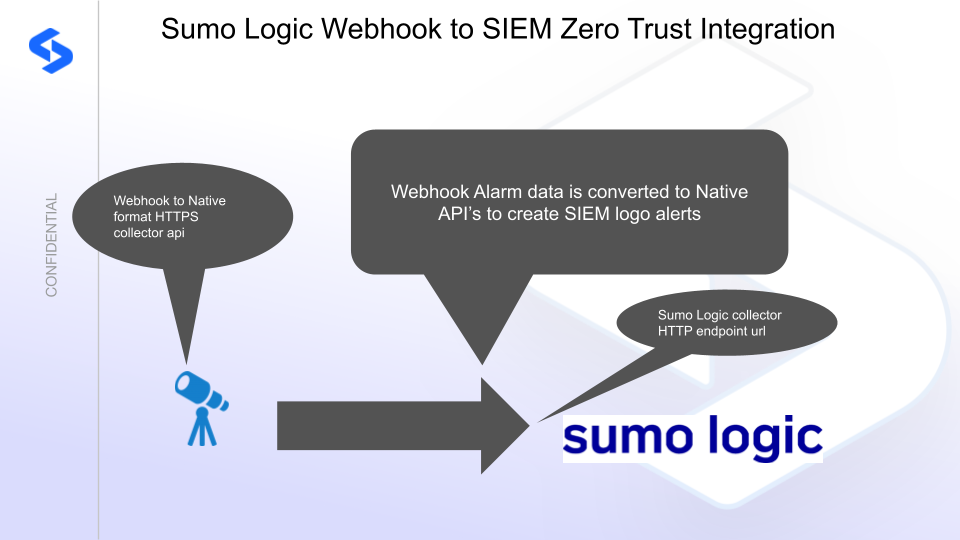
Solution Configuration in Sumo Logic SIEM and Defender Zero Trust
Prerequisites
- Installed Security Edition
- Eyeglass OS appliance version 15.5 — verify with
cat /etc/os-release - License key for the Zero Trust API
- Sumo Logic SIEM
Configuration in Sumo Logic SIEM
- Log in to Sumo Logic.
- Navigate to Manage Data → Collection → Add Source.
- Click Add Collector and select Hosted Collector to collect data from an HTTP source.
- Within the Hosted Collector, click Add Source and select HTTP Logs and Metrics as the source type.
- Configure the HTTP Source:
- Name: Enter a descriptive name (for example,
Webhook Data Ingest) - Source Category: Use a meaningful category (for example,
webhook/sumo_logic) - Click Save
- Name: Enter a descriptive name (for example,
- Copy the HTTP Endpoint URL — save this URL to update the integration code in the steps below.
Configuration Steps on Eyeglass Virtual Machine
High-Level Steps
- Create the Python location to run the application on the Eyeglass VM.
- Create the Python main application script.
- Create the Linux systemd service and set it to auto-start.
- Create the Zero Trust configuration in Defender.
- Update the main script to customize it with Sumo Logic SIEM Python code.
- Test the script is running as a service.
- Create a test event in Defender to validate alerts appear as indexed parsed events in Sumo Logic SIEM.
Configure the Service Start and Python Integration Files
Log in to the Eyeglass VM via SSH as the admin user:
ssh admin@<your-vm-ip>
Become root:
sudo -s

mkdir -p /opt/superna/cgi-bin

chown -R sca:users /opt/superna/cgi-bin

chmod -R u+rwX,g+rwX /opt/superna/cgi-bin
Switch to the SCA user:
sudo -u sca -s

cd /opt/superna/cgi-bin
Create a Python virtual environment for the integration:
python3 -m venv venv-sumologic

source venv-sumologic/bin/activate
Install required Python packages:
pip install flask boto3 requests logging

deactivate
Create integration script files:
touch sumologic.py

touch sumologic.sh

chmod +x sumologic.py

chmod +x sumologic.sh
Create the sumologic.sh launch script:
nano /opt/superna/cgi-bin/sumologic.sh
Paste the following content into the file:
#!/bin/bash

export PATH="/opt/.pyenv/bin:$PATH"

source /opt/superna/cgi-bin/venv-sumologic/bin/activate

exec python /opt/superna/cgi-bin/sumologic.py
Make the script executable:
chmod +x /opt/superna/cgi-bin/sumologic.sh
Exit back to root:
exit

whoami # confirm you are root
Create the systemd service unit file:
nano /etc/systemd/system/sumologic.service
Paste the following content into the file:
[Unit]
Description=Webhook listener for Zero Trust API translations and integrations
After=network.target

[Service]
Type=simple
User=sca
Group=users
WorkingDirectory=/opt/superna/cgi-bin
ExecStart=/bin/bash /opt/superna/cgi-bin/sumologic.sh
Restart=always
RestartSec=5

[Install]
WantedBy=multi-user.target
Reload systemd to register the new service:
systemctl daemon-reload
Enable the service to start on boot (do not start it yet):
systemctl enable sumologic
Configure Python Packages and Customize the Integration Code
-
Download the Python template code from the link to download (right-click, save as).
-
Open the Python template file in a text editor. Only replace the placeholder values — do not delete any commas.
-
Locate the following section and replace the placeholder with the Sumo Logic endpoint URL recorded above:
SUMO_LOGIC_URL = "https://endpoint4.collection.sumologic.com/receiver/v1/http/{unique endpoint}" -
Open the production file on the Eyeglass VM:
nano /opt/superna/cgi-bin/sumologic.py -
Open the template file locally in Notepad, select all (Ctrl+A), and copy.
-
Paste the clipboard into the SSH terminal session with the open nano editor.
-
Save the file:
- Press Ctrl+X
- Answer Yes to save and exit
-
Start the service and verify it is running:
systemctl start sumologic

systemctl status -l sumologic
Verify the service returns "active and running". If the service does not start, do not proceed — double-check the steps above.
Configure Defender Zero Trust Webhooks
-
Configure the Zero Trust endpoint in the Ransomware Defender Zero Trust tab.
Recommended ConfigurationSend only Critical and Major events, and only webhooks that set lockout or delayed lockout. The goal is to send findings rather than a list of alarms that do not pinpoint a security incident. Customers can customize based on specific requirements.
-
The endpoint URL uses localhost and sends webhooks to the application service listening on port 5000:
http://localhost:5000/webhook -
Add the Content-Type header with value application/json to complete the webhook configuration.
-
Click Save to commit the configuration.
-
Click Save on the main Webhook configuration page.
How to Test the Integration with Sumo Logic SIEM
- Install the Sumo Logic SIEM agent on a test machine and record its IP address.
- Get the IP address of the Eyeglass VM.
- Download the curl command template and open it with a text editor. Locate the IP address of Eyeglass at the very end of the text and replace it with the IP address of your Eyeglass VM.
- Copy all the text in the text editor.
- SSH to the Eyeglass VM as the admin user.
- Paste the entire CLI command to the SSH prompt to send sample data to the running Zero Trust application.
A successfully processed webhook test returns the following text in the SSH terminal:
done sending event to sumologic and check for http 200 and success count in response
To review the process logs from the web application:
sudo -s

journalctl -f -u sumologic
To log to a file and review with nano, showing only the most recent 250 lines:
journalctl -f -n 250 -u sumologic > /tmp/sumologic.log

nano /tmp/sumologic.log
The response code from the Sumo Logic SIEM API call should show HTTP 200 status code and successCount 1 to indicate the event was successfully created.
Log in to Sumo Logic SIEM and verify that log events are visible in the log event viewer.
Sumo Logic SIEM SecOps Administrators Integration Experience
Once configured, alerts sent to the collector endpoint URL are fully parsed and visible in the log viewer.
To search for all events from a collector, open the Collector UI tab and open a search from the HTTP collector icon.
How to Create an Alert Monitor
- Navigate to the Alert Monitor section in the left menu.
- Click Add and select Import.
- Download the monitor JSON file (right-click, save as), copy all the contents into the import field, and click Save.
- Edit the monitor to change the Notifications as required.
This enables a policy to look for critical Superna events every 5 minutes and raise an alert for each event. Once it fires, the Alert list displays an alert.
Use the testing procedure to create a webhook for testing log creation and Monitor alerts.