How to Backup and Restore an Audit Database
Introduction
A key advantage of the Easy Auditor architecture is using PowerScale native features to protect the audit data. This page covers how to back up and restore the audit database locally, on the same cluster, using SnapshotIQ.
For an off-cluster backup and disaster recovery copy instead, see Backup and DR for Audit Database with SyncIQ to a Remote Cluster.
Backup the Audit Database with SnapshotIQ
Create a scheduled snapshot of the HDFS root directory that contains the audit database directory, using PowerScale SnapshotIQ.
- Recommended schedule: daily at noon, 7 days a week, with 30-day retention.
- Access zone base path for the audit database:
/ifs/data/igls/analyticsdb - HDFS root directory:
/ifs/data/igls/analyticsdb/eca - Audit database directory:
/ifs/data/igls/analyticsdb/eca - Snapshot path:
/ifs/data/igls(do not use the access zone base path above for the snapshot path)
If creating a manual snapshot with the PowerScale GUI, don't leave the snapshot name blank — a default name (e.g. Snapshot: 2017Nov09, 10:59 PM) is applied automatically, and that format isn't supported by the ECA cluster due to HDFS special-character restrictions. It will prevent the ECA cluster from coming up. Give the snapshot a normal name, and avoid the : character.
The same applies to a scheduled snapshot: avoid a name pattern containing : (e.g. ScheduleName_Duration_%Y-%m-%d_%H:%M). That format is not supported by the ECA cluster and will prevent it from coming up — use a name pattern without :.
See the PowerScale documentation for creating a snapshot, including creating a SnapRevert domain — the restore procedure below requires one.
Restore the Audit Database with SnapshotIQ
-
SSH to the ECA master node (node 1) and log in as
ecaadmin. -
Run:
ecactl cluster downWait until all nodes are down.
-
On PowerScale, run the SnapRevert domain mark job first if it hasn't already been done, using Cluster Management → Job Operations → Start a Job:
- Name:
DomainMark - Description: Associate a path and its contents with a domain.
- Allow Duplicate Jobs: leave unchecked.
- Priority:
5(default). - Impact Policy:
LOW(default). - Domain Root Path: the path being reverted (use Browse... to select it).
- Type of domain:
SnapRevert
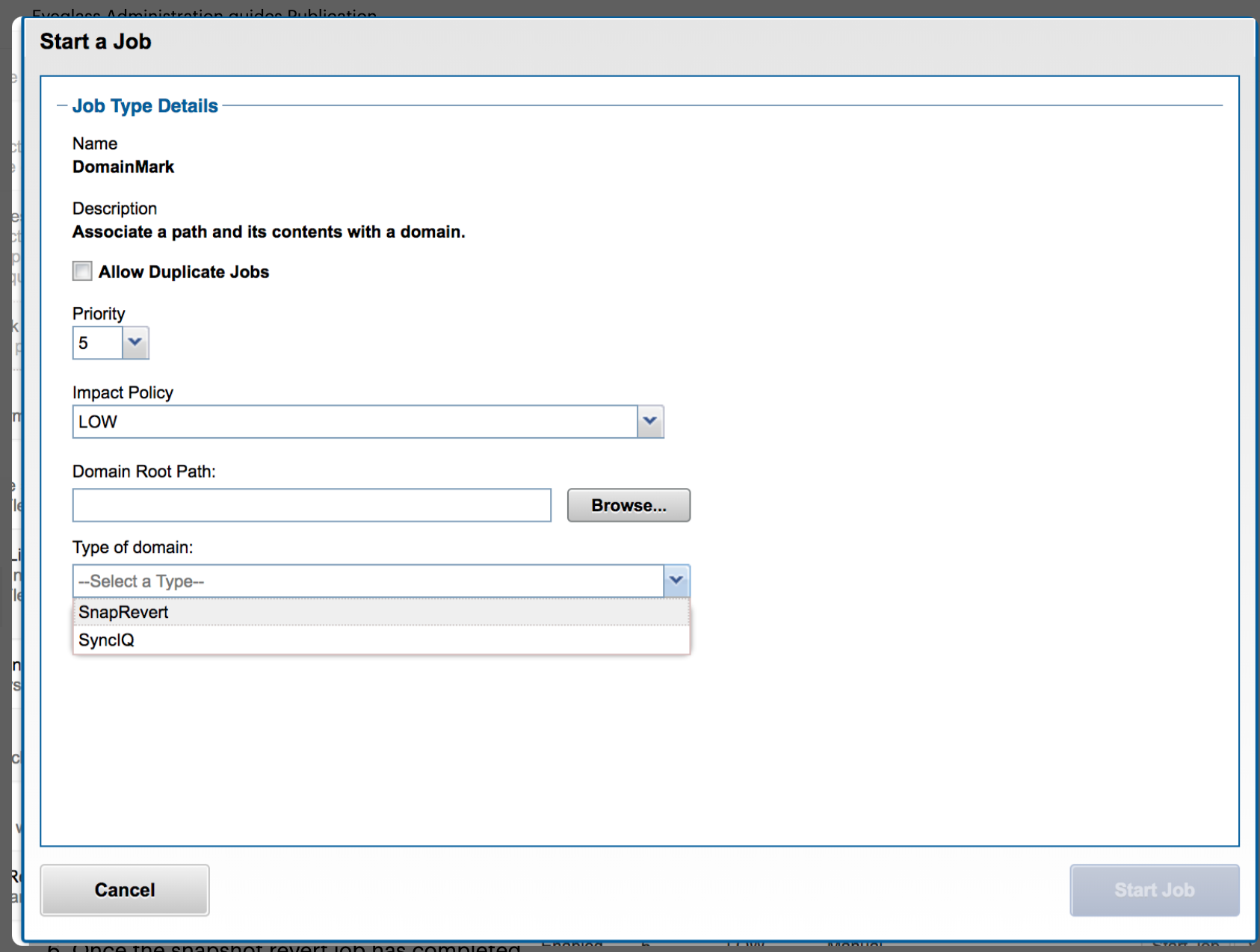
Then start the snapshot revert job:
isi job jobs start snaprevert --snapid xxxx(verify the correct snapshot ID for the snapshot you're reverting to).
- Name:
-
Check the revert job's status:
isi job jobs list -
Once the snapshot revert job has completed, bring the ECA cluster back up:
ecactl cluster upnoteDuring cluster up, uncommitted transactions are replayed to the database — you can watch this from the HBase Region Server GUI logs at
http://x.x.x.x:16030(ECA node 1). This can take longer than usual to start up the cluster. -
Verify the ECA cluster is up and the audit database status returns no error:
ecactl db shellThen type
statusand press Enter. HBase isn't fully operational until the status looks like this:HBase Shell; enter 'help<RETURN>' for list of supported commands.
Type "exit<RETURN>" to leave the HBase Shell
Version 1.2.6, rUnknown, Mon May 29 02:25:32 CDT 2017
hbase(main):001:0> status
1 active master, 2 backup masters, 3 servers, 0 dead, 2.6667 average load
See Also
- Backup and DR for Audit Database with SyncIQ to a Remote Cluster — off-cluster backup and disaster recovery, replicating to a remote cluster.
- ECA Cluster Failover Configurations — ECA cluster behavior during a PowerScale disaster recovery failover.