Microsoft Defender XDR Integration
Support Statement
This documentation is provided "as is" without support for 3rd party software. The level of support for this integration guide is best effort without any SLA on response time. No 3rd party product support can be provided by Superna directly. 3rd party components require support contracts. See EULA for more details.
Overview
Customers using Microsoft Defender XDR can leverage a native integration that initiates an automated alert and investigation against a host detected as infected by Security Edition Zero Trust alert API. Customers can augment the capabilities of Microsoft Defender XDR with threat intelligence and Cyber Storage capabilities of Superna Security Edition.
Limitations
Superna Security Edition and Zero Trust integration only supports client machines registered with the XDR onboarding process that contain the same IP address information used when connecting to storage platforms. The matching of the threat source IP address must match an onboarded and licensed Defender XDR endpoint protection host in the XDR portal.
Solution Overview
Superna Defender Zero Trust API receives webhook alerts, parses the key information from the alert, and initiates API calls to Defender XDR to match the infected host to a host registered with the Defender Endpoint protection portal. Once the host mapping has been validated, an automated investigation alert is created with all Zero Trust threat information included in the alert in the XDR portal. The type and threat level is set to high.
Advanced Zero Trust Capabilities
-
Host isolation — an inbound Zero Trust alert that contains a user lockout status also triggers a machine isolation to ensure the host cannot continue to attack other systems within the IT infrastructure.
To enable this function, locate the settings section in the Python code and change the global variable:
host_isolation = 'true'
What Is Microsoft Defender XDR?
A SaaS offering that provides an enterprise endpoint security platform designed to help enterprise networks prevent, detect, investigate, and respond to advanced threats. It includes third-party integrations to provide additional threat intelligence to augment the detection vectors available to protect hosts and customer data.
Integration Architecture
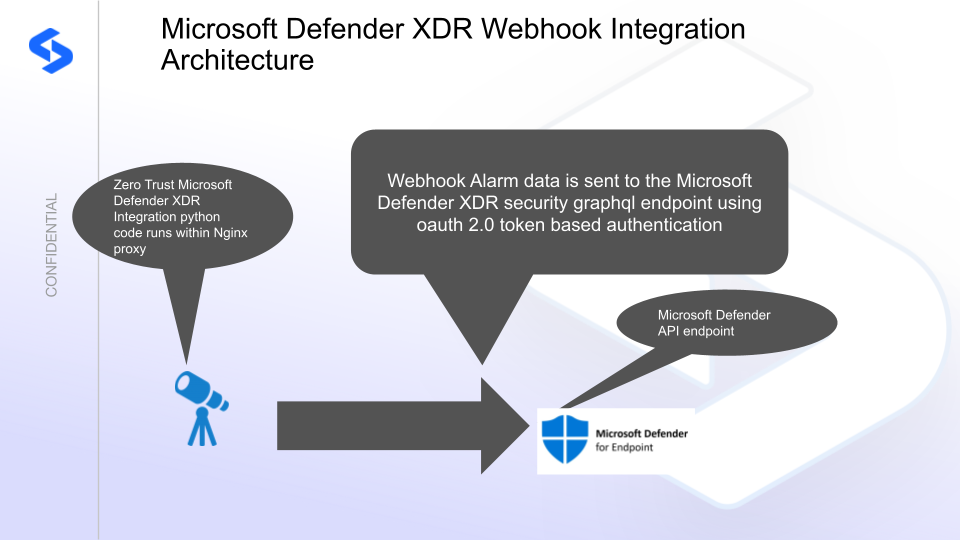
Solution Configuration in Microsoft Defender XDR and Defender Zero Trust
Prerequisites
- Installed Ransomware Defender and/or Easy Auditor or Defender for AWS
- Eyeglass OS appliance version 15.5 — verify with
cat /etc/os-release - License key for the Zero Trust API
- Microsoft Defender XDR: client token, client secret, and tenant token
- Microsoft Azure application definition with correct scope and permissions to Graph Security and Defender APIs
Configuration in Microsoft Defender XDR
-
Register an application in Azure with API permissions to access Defender Endpoint and XDR APIs. Follow this guide to create the application and add API permissions. This process creates the authentication values needed for the integration script to authenticate using OAuth 2.0.
The minimum permission needed is the WindowsDefenderATP application permission, found in the My APIs or the All Applications list in Azure API permissions.
-
Record the tenant ID, client ID, and client secret values once the steps are completed.
Configuration Steps on Eyeglass Virtual Machine
High-Level Steps
- Create the Python location to run the application on the Eyeglass VM.
- Create the Python main application script.
- Create the Linux systemd service and set it to auto-start.
- Create the Zero Trust configuration in Defender.
- Update the main script to customize it with Microsoft Defender XDR Python code.
- Test the script is running as a service.
- Create a test event in Defender to validate alerts appear as indexed parsed events in Microsoft Defender XDR.
Configure the Service Start and Python Integration Files
Log in to the Eyeglass VM via SSH as the admin user:
ssh admin@<your-vm-ip>
Become root:
sudo -s

mkdir -p /opt/superna/cgi-bin

chown -R sca:users /opt/superna/cgi-bin

chmod -R u+rwX,g+rwX /opt/superna/cgi-bin
Switch to the SCA user:
sudo -u sca -s

cd /opt/superna/cgi-bin
Create a Python virtual environment for the integration:
python3 -m venv venv-msxdr

source venv-msxdr/bin/activate
Install required Python packages:
pip install flask boto3 requests logging

deactivate
Create integration script files:
touch msxdr.py

touch msxdr.sh

chmod +x msxdr.py

chmod +x msxdr.sh
Create the msxdr.sh launch script:
nano /opt/superna/cgi-bin/msxdr.sh
Paste the following content into the file:
#!/bin/bash

export PATH="/opt/.pyenv/bin:$PATH"

source /opt/superna/cgi-bin/venv-msxdr/bin/activate

exec python /opt/superna/cgi-bin/msxdr.py
Make the script executable:
chmod +x /opt/superna/cgi-bin/msxdr.sh
Exit back to root:
exit

whoami # confirm you are root
Create the systemd service unit file:
nano /etc/systemd/system/msxdr.service
Paste the following content into the file:
[Unit]
Description=Webhook listener for Zero Trust API translations and integrations
After=network.target

[Service]
Type=simple
User=sca
Group=users
WorkingDirectory=/opt/superna/cgi-bin
ExecStart=/bin/bash /opt/superna/cgi-bin/msxdr.sh
Restart=always
RestartSec=5

[Install]
WantedBy=multi-user.target
Reload systemd to register the new service:
systemctl daemon-reload
Enable the service to start on boot (do not start it yet):
systemctl enable msxdr
Configure Python Packages and Customize the Integration Code
-
Download the Python template code from the link to download (right-click, save as).
-
Open the Python template file in a text editor. Only replace the placeholder values — do not delete any commas.
-
Locate the following section and replace the placeholder values with the authentication values created above:
# Tenant ID, Client ID, and Client Secret
tenant_id = "xxxxxxxxx"
client_id = "yyyyyyy"
client_secret = "zzzzzzzzzz" -
Open the production file on the Eyeglass VM:
nano /opt/superna/cgi-bin/msxdr.py -
Open the template file locally in Notepad, select all (Ctrl+A), and copy.
-
Paste the clipboard into the SSH terminal session with the open nano editor.
-
Save the file:
- Press Ctrl+X
- Answer Yes to save and exit
-
Start the service and verify it is running:
systemctl start msxdr

systemctl status -l msxdr
Verify the service returns "active and running". If the service does not start, do not proceed — double-check the steps above.
Configure Defender Zero Trust Webhooks
-
Configure the Zero Trust endpoint in the Ransomware Defender Zero Trust tab.
Recommended ConfigurationSend only Critical and Major events, and only webhooks that set lockout or delayed lockout. The goal is to send findings rather than a list of alarms that do not pinpoint a security incident. Customers can customize based on specific requirements.
-
The endpoint URL uses localhost and sends webhooks to the application service listening on port 5000:
http://localhost:5000/defenderxdr -
Add the Content-Type header with value application/json to complete the webhook configuration.
-
Click Save to commit the configuration.
-
Click Save on the main Webhook configuration page.
How to Test the Integration with Microsoft Defender XDR
- Download the curl command template and open it with a text editor.
- Copy all the text.
- SSH to the Eyeglass VM as the admin user.
- Paste the entire CLI command to the SSH prompt to send sample data to the running Zero Trust application.
A successfully processed webhook test returns the following text in the SSH terminal:
done sending event to msxdr and check for http 200 and success count in response
To review the process logs from the web application:
sudo -s

journalctl -f -u msxdr
To log to a file and review with nano, showing only the most recent 250 lines:
journalctl -f -n 250 -u msxdr > /tmp/ztwebhook.log

nano /tmp/msxdr.log
The response code from the Microsoft Defender XDR API call should show HTTP 200 status code and successCount 1 to indicate the event was successfully created.
Log in to the Microsoft Defender XDR Main Dashboard and view the Alerts tab to view the investigation against the infected host computer detected by Superna Security Edition Zero Trust API integration.
Microsoft Defender XDR SecOps Administrators Integration Experience
Once the integration has been tested, machine automated investigation alerts can be viewed from the Alerts Dashboard. The investigation steps involve assigning a SecOps analyst to log in to Security Edition to view the details of the incident.
If Advanced Host Isolation is enabled, the incident is updated to indicate host isolation has been initiated.
When the host has been remediated and is authorized to re-join the network, Microsoft Defender Endpoint XDR can release the host isolation command.