Fortinet FortiAnalyzer Zero Trust to Incident Sync
Support Statement
This documentation is provided "as is" without support for 3rd party software. The level of support for this integration guide is best effort without any SLA on response time. No 3rd party product support can be provided by Superna directly. 3rd party components require support contracts. See EULA for more details.
Overview
Customers using FortiAnalyzer can leverage this integration to send real-time Zero Trust alerts using webhooks and maintain full payload parsing using JSON-defined fields. The FortiAnalyzer Alert Ingestion Connector capability within the platform allows inbound webhook JSON payloads to be parsed and turned into host status updates.
Limitations
- Does not look up the endpoint ID to set the client IP to an endpoint ID, or look up the end user ID to set the end user ID. These entities must already exist or be created in FortiAnalyzer.
Solution Overview
Superna Data Security Edition Zero Trust API is the cornerstone technology used to integrate with SIEM and SOAR platforms. This integration maps Zero Trust alerts to a NAS storage host created in the FortiAnalyzer platform.
What Is FortiAnalyzer?
FortiAnalyzer provides an AIOps-ready, business-aware IT monitoring platform that offers unified, end-to-end observability across complex, converging infrastructures from cloud to edge, for organizations of all sizes.
Integration Architecture
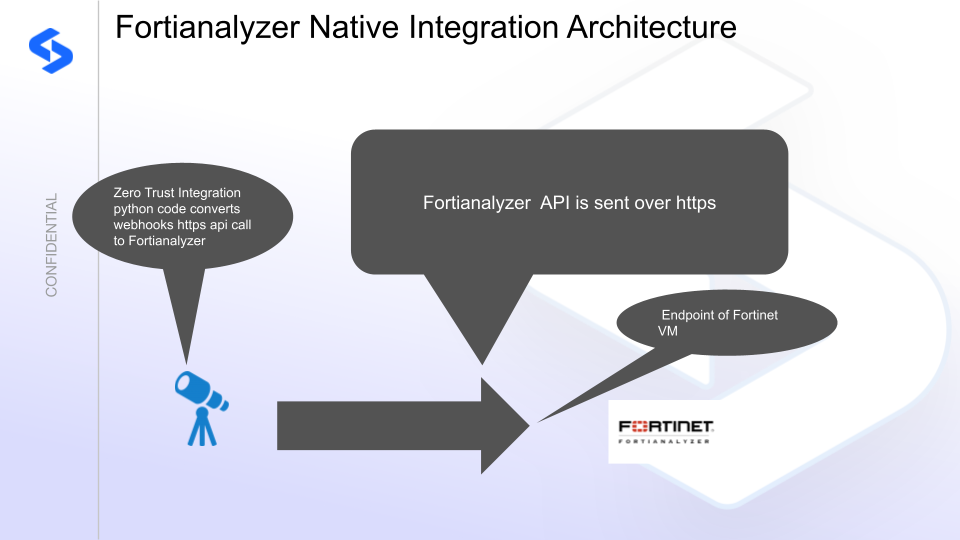
Solution Configuration in FortiAnalyzer and Defender Zero Trust
Prerequisites
- Installed Data Security Edition subscription product
- Eyeglass OS appliance version 15.5 — verify with
cat /etc/os-release - License key for the Zero Trust API
- FortiAnalyzer on-premises configured with HTTPS
Features
- Sends native Incident API calls with severity mapping from Superna to FortiAnalyzer
- Fields mapped to FortiAnalyzer incident fields
- Updates to existing incidents in Superna Data Security Edition do not generate duplicate incidents in FortiAnalyzer
- Updates are not appended as comments — no API support exists for comment updates
Configuration in FortiAnalyzer
-
Log in to the FortiAnalyzer console and navigate to Settings → Administrators.
-
Create an administrator profile with read-write permissions for Incidents & Events. Consult Fortinet documentation for profile creation steps.
-
Create an API admin user and assign the profile created above:
- Add the trusted host IP section and enter the IP address of the Eyeglass VM.
- Set the admin profile to the profile created above.
- Set JSON API Access to Read-Write.
- Enter the name of the Administrative domain you configured and select it from the list.
- Record the API token that is generated.
noteIf the GUI returns an IPv6 error, use the CLI to create the user account. This assumes the admin profile has already been created and named
Superna-Zero-Trust. Replace the trusthost IP with the IP address of the Eyeglass VM.config system admin user
edit "superna"
set user_type api
set profileid "Superna-Zero-Trust"
set trusthost1 172.31.1.102 255.255.255.255
next
end
execute api-user generate-key supernaRecord the API key generated from the last command.
Configuration Steps on Eyeglass Virtual Machine
High-Level Steps
- Create the Python location to run the application on the Eyeglass VM.
- Create the Python main application script.
- Create the Linux systemd service and set it to auto-start.
- Create the Zero Trust configuration in Defender.
- Update the main script to customize it with FortiAnalyzer Python code.
- Test the script is running as a service.
- Create a test event in Defender to validate alerts appear as indexed parsed events in FortiAnalyzer.
Install the Integration
-
From the Superna support site, download the integration
.runfile. -
Copy the file to the Eyeglass VM using SCP or WinSCP.
-
Log in to the Eyeglass VM as admin over SSH.
-
Run the following commands:
sudo -s

chmod 777 /path/to/integration.run

./integration.run -
The installer launches an interactive Text User Interface (TUI). Enter your configuration values.
-
Press V to validate the inputs.
-
Press I to install.
-
Review any errors. When prompted to start the service, answer Yes.
Configure Defender Zero Trust Webhooks
-
Configure the Zero Trust endpoint in the Ransomware Defender Zero Trust tab.
Recommended ConfigurationSend only Critical and Major events, and only webhooks that set lockout or delayed lockout. The goal is to send findings rather than a list of alarms that do not pinpoint a security incident. Customers can customize based on specific requirements.
-
The endpoint URL uses localhost and sends webhooks to the application service listening on port 5000:
http://localhost:5000/webhook -
Add the Content-Type header with value application/json to complete the webhook configuration.
-
Click Save to commit the configuration.
-
Click Save on the main Webhook configuration page.
How to Test the Integration with FortiAnalyzer
- Download the curl command template and open it with a text editor.
- Copy all the text.
- SSH to the Eyeglass VM as the admin user.
- Paste the entire CLI command to the SSH prompt to send sample data to the running Zero Trust application. This sends test data directly to the application to be processed and sent to FortiAnalyzer.
A successfully processed webhook test returns an HTTP 200 status code and successCount: 1 in the log.
To review the process logs from the web application:
sudo -s

journalctl -f -u fortianalyzer
To log to a file and review with nano, showing only the most recent 250 lines:
journalctl -f -n 250 -u fortianalyzer > /tmp/ztwebhook.log

nano /tmp/ztwebhook.log
Log in to the FortiAnalyzer main dashboard to search for Superna Zero Trust events using sourcetype="supernaZT".
FortiAnalyzer SecOps Administrators Integration Experience
Once the integration is complete, SecOps administrators can view incidents generated by Zero Trust alerts in the FortiAnalyzer console. An exported incident PDF example is available in the legacy portal.
FortiAnalyzer Playbook Integration
Configuration of Connector
-
Navigate to Automations → Create New.
-
Select Generic.
-
Fill in the fields and replace the IP address with the IP of your Eyeglass VM:
- Click Add custom HTTP header and enter
api_keyas the header name. - Paste an API token created from the Eyeglass Integrations icon as the value.
- Set the URL to:
https://x.x.x.x/sera/v2/ransomware/criticalpaths - Click Add custom HTTP header and enter
-
Click OK to create the connector.
-
Click Playbooks → Create new playbook.
-
Select the on-demand trigger option, then click Save.
-
Drag an arrow from the on-demand block to add an action:
- Select Generic webhook.
- Fill in the fields as required for your environment.