Troubleshooting Guide
This guide provides useful tips and solutions for common issues encountered when working with the Threat Hunting module.
Tips
Adjusting Alarm Frequency
Trigger alarms more frequently by updating the <confidence_score> in /opt/superna/sca/conf/system.xml under <threat_hunting>.
Restarting a Component
-
Get the pod name
kubectl -n seed-ml get pods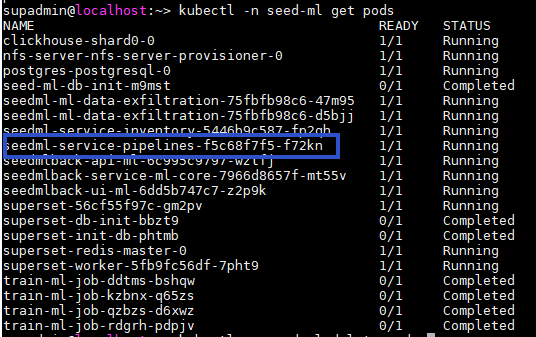
-
Delete the pod to restart it
kubectl -n seed-ml delete pod <component_name>tipKubernetes will automatically create a new pod to replace the deleted one, effectively restarting the component.
Checking ML Module Server Logs
Logs are essential for diagnosing issues with the ML module components. Follow these steps to access logs:
-
List all pods to identify the component
kubectl -n seed-ml get pods -
View logs for a specific component
kubectl -n seed-ml logs <pod_name>
Updating YAML Files and Restarting Components
When you need to modify configuration for ML module components, follow these steps:
-
Update the YAML file with your required changes
-
Run the Helm upgrade command to apply changes:
helm upgrade --install <component_name> chart-seed-ml/charts/<component_name> -n seed-ml --create-namespace -f <component_name>-onprem-values.yamlExample for seedmlback:
helm upgrade --install seedmlback chart-seed-ml/charts/seedmlback -n seed-ml --create-namespace -f seedmlback-onprem-values.yaml -
Get the pod name, including ID:
kubectl -n seed-ml get pods -
Manually restart the component:
kubectl -n seed-ml delete pod <pod_name_with_id>Example:
kubectl -n seed-ml delete pod seedmlback-service-ml-core-7966d8657f-k4lrhtipKubernetes will automatically create a new pod with the updated configuration.
YAML File to Component Mapping:
For each YAML file update, restart the corresponding pods:
YAML File Components to Restart clickhouse-onprem-values.yaml
• clickhouseseedml-onprem-values.yaml
• ml-data-exfiltration
• inventory
• pipelinesseedmlback-onprem-values.yaml
• ui-ml
• api-ml
• service-ml-coresuperset-onprem-values.yaml
• superset
Troubleshooting
Kafka Topic Connection Failure
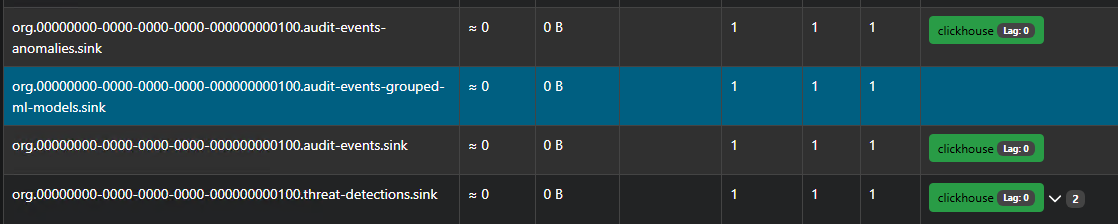
Issue: Kafka topic org.<tenant>.audit-events-grouped-ml-models.sink does not connect to data-pipelines-app
Solution:
Restart the seedml-service-pipelines component (read Configure Machine Learning Module for Eyeglass Threat Hunting | Restart a component)
Helm Repository Timeout Error
Issue: Timeout error on adding bitnami to helm repo
Example Error:
helm repo add bitnami https://charts.bitnami.com/bitnami
Error: looks like "https://charts.bitnami.com/bitnami" is not a valid chart repository or cannot be reached: Get "https://charts.bitnami.com/bitnami/index.yaml": dial tcp: lookup charts.bitnami.com: i/o timeout
Solution:
Rerun the command. You may find it was actually added despite the error.
Example Success:
helm repo add bitnami https://charts.bitnami.com/bitnami
"bitnami" already exists with the same configuration, skipping
Regenerating ML Kafka Topics After ECA Upgrade
Issue: After upgrading ECA and restarting the cluster, ML Kafka topics need to be regenerated for proper communication between ECA and the ML module.
Solution:
Connect to your ML module server and restart the data pipelines:
# List all pods to find the pipelines pod ID
kubectl -n seed-ml get pods
# Delete the pipelines pod to force a restart
kubectl -n seed-ml delete pod seedml-service-pipelines-<id>
Replace <id> with the actual pod identifier from the previous command output.
Kubernetes will automatically create a new pod to replace the deleted one, which will regenerate the necessary Kafka topics for proper communication with ECA.
See Also
- Threat Hunting Installation - Go back to the main installation guide
- Configure ML Module - ML module configuration steps
- Connect to ECA - Steps to connect ML module to ECA