ECA VM Installation
Introduction
The Eyeglass Clustered Agent (ECA) is a tool that facilitates auditing and ransomware defense through the deployment of virtual machines (VMs) across different platforms, including Hyper-V, VMware, and Mini-ECA. This guide provides step-by-step instructions for deploying the ECA VM on various environments, ensuring that the auditing of critical data is carried out efficiently, with support for both centralized and distributed cluster modes.
One key deployment option in this guide is the Mini-ECA, designed specifically for environments that require distributed cluster mode. The Mini-ECA enhances security by forwarding audit data from remote sites to a central cluster, making it particularly useful in scenarios where remote site processing is necessary due to high latency or slow WAN connections.
Deployment Scenarios
Centralized with NFS over WAN
In this setup, a central ECA cluster accesses audit data from remote PowerScale OneFS clusters over a WAN link using NFS. This configuration is ideal for metro WAN environments where latency is low.
Centralized with Remote Mini-ECA
If your WAN connection has higher latency (>10 ms RTT) or is slow, deploying a Mini-ECA at remote sites helps mitigate these issues. In this configuration, the Mini-ECA locally collects audit data via NFS and forwards it to the central ECA cluster for processing.
Mini-ECA is optional: Before proceeding with its setup, assess your environment’s network conditions to determine if Mini-ECA is necessary. Installing it in environments with low latency may lead to unnecessary configurations.
Requirements
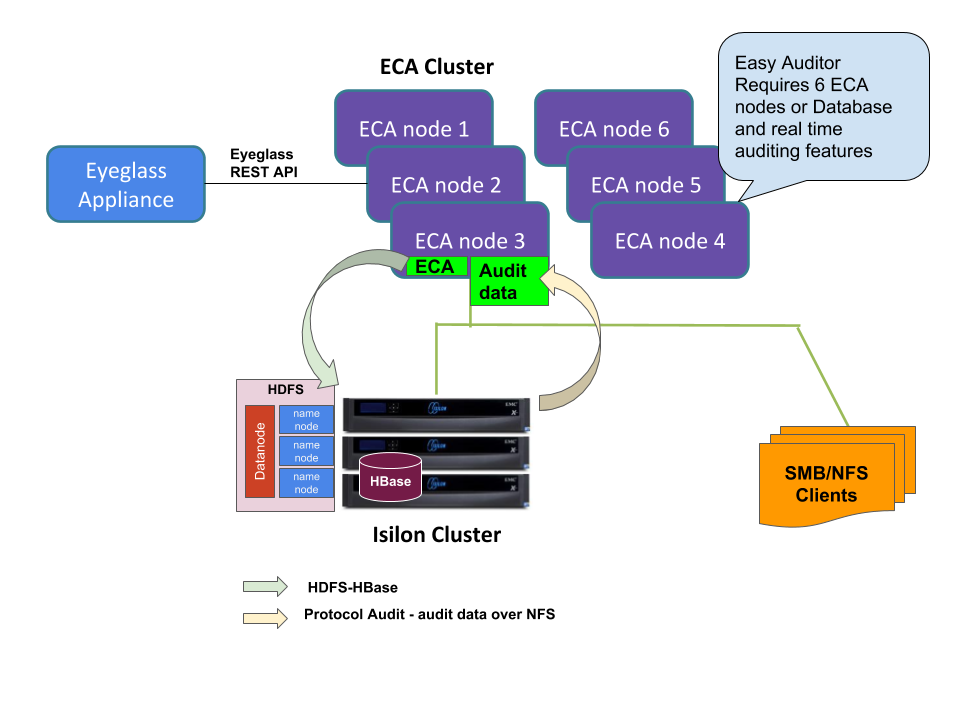
The Eyeglass appliance is required for installation and configuration. The ECA Cluster operates in a separate group of VMs from Eyeglass.
Key Components
- Eyeglass: Responsible for taking actions on the cluster and notifying administrators.
- PowerScale Cluster: Stores the analytics database (can be the same cluster that is monitored for audit events).
- Licenses:
- Eyeglass Appliance: Requires either Data Security Agent Licenses, Easy Auditor Agent Licenses, or Performance Auditor Licenses.
- HDFS License (for Easy Auditor):
- PowerScale cluster requires an HDFS license to store the analytics database for Easy Auditor.
noteData Security deployments no longer require an HDFS pool.
System Requirements and Network Latency Considerations
ECA Hyper-V
The ECA appliance uses two disks: one for the OS and one for data.
- OS Disk: Requires 20 GB (default disk).
- Data Disk: Requires 80 GB. (Read the instructions below on how to create the data disk).
OVA Install Prerequisites
The OVA file will deploy 3 VMs. To build a 6-node cluster, deploy the OVA twice and move the VMs into the first Cluster object in vCenter. Follow the instructions below to correctly move the VMs into a single vApp in vCenter.
| Configuration Item |
|---|
| see scaling section |
| vSphere 6.x or higher |
| 1x IP address on the same subnet for each node |
| Gateway |
| Network Mask |
| DNS IP |
| NTP server IP |
| IP Address of Eyeglass |
| API token from Eyeglass |
| Unique cluster name (lower case, no special characters) |
Mini-ECA
Latency Requirements
- Latency between the main ECA cluster and the remote mini ECAs must be below a ping time of 80 ms.
- Latency above 80 ms may not be supported.
Required Mounting Method
- The FSTAB method is required for mounting the cluster audit folder.
- See detailed instructions in the following section.
Network Impact Calculation
-
To calculate the bandwidth requirement, you need to know the audit event rate for the cluster.
-
Run the following command to get the average disk operations per PowerScale OneFS node:
-
Command:
isi statistics query current --nodes=all --stats=node.disk.xfers.rate.sum -
This command returns the average per node at the bottom of the results. Use this value in the calculation below.
-
-
Calculate the network bandwidth by taking the following steps:
- Take the average per node and multiply by the number of nodes.
- Example: If the command reports an average of 2200 and there are 7 nodes:
2200 * 7 = 15,400
- Example: If the command reports an average of 2200 and there are 7 nodes:
- Divide this number by the ratio of audit events to disk transfers (1.83415365 in this case).
-
Example:
15,400 / 1.83415365 = 8396 events/second
-
- Take the average per node and multiply by the number of nodes.
-
Use the following calculation to compute the required network bandwidth to forward events to the central site for processing:
-
Given: 5 Mbps of network traffic @ 1000 events/sec
-
Example for 8396 events/sec:
-
(8396 / 1000) * 5 Mbps = 40 Mbps
-
infothe required network bandwidth is 40 Mbps to handle the audit event traffic.
-
ECA Cluster Sizing and Performance Considerations
ECA clusters can consist of 3 to 12 nodes or more, depending on the following factors:
- The applications running on the cluster.
- The number of events generated per second.
- The number of cluster nodes producing audit events.
Minimum ECA Node Configurations
The supported minimum configurations for all ECA deployments are listed below.
New applications or releases with features that require additional resources may necessitate expanding the ECA cluster to handle multiple clusters or new application services.
- PowerScale Only
- VAST Only
- Qumulo Only
- VAST and Qumulo Only
| Environment Size | Number of VM Nodes Required | ESX Hosts to Split VM Workload and Ensure High Availability | ECA Node VM Size | Network Latency NFS Mount For Ransomware Defender & Easy Auditor | EZA DB Network Latency Between ECA and Storing the DB | Host Hardware Configuration Requirements |
|---|---|---|---|---|---|---|
| <18K events per second | - 1 VM for Core Agent (Eyeglass) - 6 ECA VMs | 26 | 4 x vCPU, 16G Ram, 30G OS partition + 80G disk | < 10 ms RTT | < 5 ms RTT | 2 socket CPU 2000 GHZ or greater, Disk IO latency average read and write < 20 ms |
| >18K events per second | - 1 VM for Core Agent (Eyeglass) - 9 ECA VMs | 36 | 4 x vCPU, 16G Ram, 30G OS partition + 80G disk | < 10 ms RTT | < 5 ms RTT | 2 socket CPU 2000 GHZ or greater, Disk IO latency average read and write < 10 ms |
| Large node count clusters >20 nodes | - 1 VM for Core Agent (Eyeglass) - 9 ECA VMs (20-30 nodes) / 12 ECA VMs (>30 nodes) | 36 | 4 x vCPU, 16G Ram, 30G OS partition + 80G disk | < 10 ms RTT | < 5 ms RTT | 2 socket CPU 2000 GHZ or greater, Disk IO latency average read and write < 10 ms |
| Environment Size | Number of VM Nodes Required | ESX Hosts to Split VM Workload and Ensure High Availability | ECA Node VM Size | Network Latency NFS Mount For Ransomware Defender & Easy Auditor | EZA DB Network Latency Between ECA and Storing the DB | Host Hardware Configuration Requirements |
|---|---|---|---|---|---|---|
| <18K events per second | - 1 VM for Core Agent (Eyeglass) - 3 ECA VMs - 1 VM audit database | 26 | 4 x vCPU, 16G Ram, 30G OS partition + 80G disk | 2 socket CPU 2000 GHZ or greater, Disk IO latency average read and write < 10 ms | ||
| >18K events per second | - 1 VM for Core Agent (Eyeglass) - 6 ECA VMs - 1 VM audit database | 36 | 4 x vCPU, 16G Ram, 30G OS partition + 80G disk | 2 socket CPU 2000 GHZ or greater, Disk IO latency average read and write < 10 ms | ||
| Large node count clusters >20 CNodes | - 1 VM for Core Agent (Eyeglass) - 9 ECA VMs - 1 VM audit database | 36 | 4 x vCPU, 16G Ram, 30G OS partition + 80G disk | 2 socket CPU 2000 GHZ or greater, Disk IO latency average read and write < 10 ms |
It is recommended to allocate more resources for the TA responsible for receiving events from Qumulo, as a single TA will be handling the entire event load.
| Environment Size | Number of VM Nodes Required | ESX Hosts to Split VM Workload and Ensure High Availability | ECA Node VM Size | Network Latency NFS Mount For Ransomware Defender & Easy Auditor | EZA DB Network Latency Between ECA and Storing the DB | Host Hardware Configuration Requirements |
|---|---|---|---|---|---|---|
| <18K events per second | - 1 VM for Core Agent (Eyeglass) - 3 VMs for ECA - 1 VM audit database (after 4.0) | 26 | 4 x vCPU, 16G Ram, 30G OS partition + 80G disk | 2 socket CPU 2000 GHZ or greater, Disk IO latency average read and write < 10 ms | ||
| >18K events per second | - 1 VM for Core Agent (Eyeglass) - 6 ECA VMs - 1 VM audit database | 36 | 4 x vCPU, 16G Ram, 30G OS partition + 80G disk | 2 socket CPU 2000 GHZ or greater, Disk IO latency average read and write < 10 ms |
It is recommended to allocate more resources for the TA responsible for receiving events from Qumulo, as a single TA will be handling the entire event load.
| Environment Size | Number of VM Nodes Required | ESX Hosts to Split VM Workload and Ensure High Availability | ECA Node VM Size | Network Latency NFS Mount For Ransomware Defender & Easy Auditor | EZA DB Network Latency Between ECA and Storing the DB | Host Hardware Configuration Requirements |
|---|---|---|---|---|---|---|
| <18K events per second | - 1 VM for Core Agent (Eyeglass) - 6 VMs for ECA nodes - 1 VM audit database (after 4.0) | 26 | 4 x vCPU, 16G Ram, 30G OS partition + 80G disk | 2 socket CPU 2000 GHZ or greater, Disk IO latency average read and write < 10 ms | ||
| >18K events per second | - 1 VM for Core Agent (Eyeglass) - 9 ECA VMs - 1 VM audit database | 36 | 4 x vCPU, 16G Ram, 30G OS partition + 80G disk | 2 socket CPU 2000 GHZ or greater, Disk IO latency average read and write < 10 ms | ||
| Large node count clusters >20 VAST CNodes | - 1 VM for Core Agent (Eyeglass) - 12 ECA VMs - 1 VM audit database | 36 | 4 x vCPU, 16G Ram, 30G OS partition + 80G disk | 2 socket CPU 2000 GHZ or greater, Disk IO latency average read and write < 10 ms |
ECA Appliance Platforms
VMware OVA and Microsoft Hyper-v VHDX are available appliance platforms.
Low Event Rate Environments
Contact support for reduced footprint configuration with 3 VMs only for low event rate environments.
-
OVA Resource Limits: The OVA default sets a resource limit of 18000 MHz, shared by all ECA VM nodes in the cluster. This limit can be increased if the audit event load requires more CPU processing. Consult support before making any changes in VMware.
-
Real-Time Distributed Processing: ECA clusters must operate in the same Layer 2 subnet with low latency between VMs. Splitting VMs across data centers is not supported. The only supported distributed mode is the Mini-ECA deployment architecture covered in this guide.
-
Resource Requirements for Additional Applications: Unified Data Security, Easy Auditor, and Performance Auditor require additional resources beyond event rate sizing requirements. Add 4 GB of RAM and 2 additional vCPUs per ECA node. High event rates may require further resource increases. Consult the EyeGlass Scalability table for RAM upgrade requirements.
-
Audit Data Retention: Retaining audit data for more than 1 year increases database size, requiring at least 3 additional ECA VMs to maintain performance. Data retention longer than 365 days requires extra resources and VMs.
-
High Availability (HA) Requirements: For HA, multiple physical hosts are required. ECA clusters with 3 VMs can tolerate N-1 VM failures, clusters with 6 VMs can tolerate N-2 failures, and larger clusters tolerate N-3 failures.
-
OneFS 8.2 or Later: Customers using OneFS 8.2 or later must disable directory open and directory close events to reduce the audit rate and the ECA VM footprint.
-
VMware Settings: Storage vMotion, SDRS, and DRS should be disabled, as ECA VMs are real-time processing systems.
-
Archiving GZ Files: To maintain performance, old gz files collected on OneFS nodes must be archived. Performance degrades when the gz file count exceeds 5000. Follow the procedures provided, or use the auto-archive feature in OneFS 9.x.
-
Database Save Rates: Database save rates exceeding 1000 events per second per ECA node require additional database VMs to handle save operations efficiently.
IP Connection and Pool Requirements for Analytics database Requires HDFS on the Cluster (Easy Auditor)**
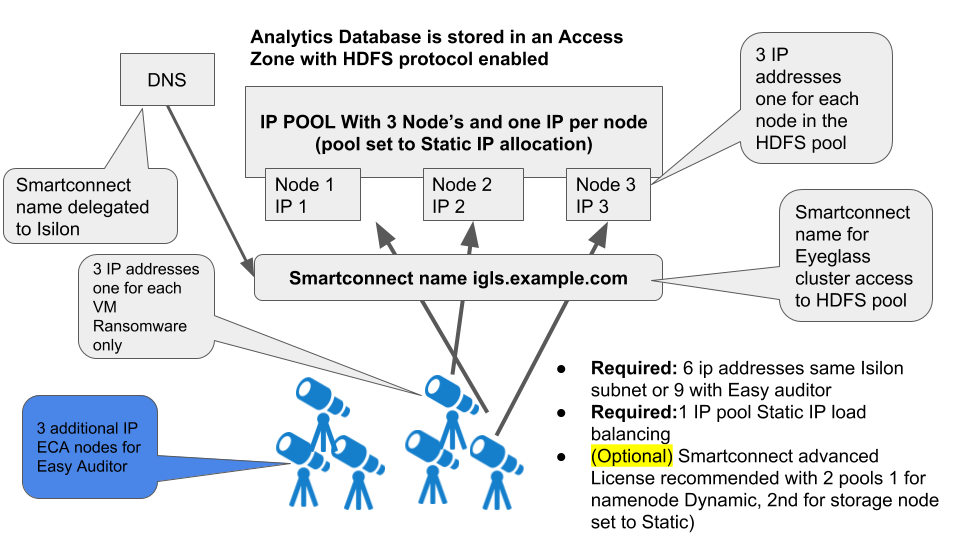
ECA Cluster Network Bandwidth Requirements to PowerScale OneFS (Data Security, Easy Auditor, Performance Auditor)
Each ECA node processes audit events and writes data to the Analytics Database using HDFS on the same network interface. Therefore, the combined TX (Transmit) and RX (Receive) data flow constitutes the peak bandwidth requirement per node.
Below is a table that provides minimum bandwidth requirements per ECA VM based on an example calculation for HDFS Bandwidth. This includes estimates and guidelines for Analytics Database network bandwidth access to PowerScale OneFS.
| Product Configuration | Audit Event rate Per Second | Peak Bandwidth requirement - Events per second per ECA cluster (input NFS Reading events from PowerScale OneFS to ECA cluster) | Peak Bandwidth requirement - Audit data Writes Mbps per ECA cluster (output HDFS writing events) |
|---|---|---|---|
| Data Security only | 2000 evts | Input to ECA → 50 Mbps | Out of ECA ← \< 150 Mbps |
| Unified Ransomware and Easy Auditor - Steady state storing events | > 4000 evts | Input to ECA → 125 Mbps | Out of ECA ← 500 Mbps - 1.2 Gbps |
| Easy Auditor Analysis Reports (long running reports) | NA | Input to ECA (HDFS from PowerScale OneFS) ← 800 Mbps - 1.5 Gbps while report runs |
Hyper-V or VMware Requirements
VMware ESX Host Compute Sizing for ECA nodes (Data Security, Easy Auditor, Performance Auditor)
For VMware environments with DRS and SDRS, it is best practice to exempt the ECA and vApp from dynamic relocation. This is because ECA is a real-time application with time synchronization requirements between VMs for processing and database operations.
While DRS movement of running VMs can negatively affect these processes, it is acceptable to migrate VMs for maintenance purposes as needed.
| Number of active concurrent Users per cluster ¹ | ECA VM per Physical Host Recommendation | Estimated Events Guideline |
|---|---|---|
| 1 to 1000 | 1 Host | =5000 * 1.25 = 6,250 events per second |
| 5000 - 10000 | 2 Host | =10,000 * 1.25 = 12,500 events per second |
| > 10000 | 3 Host | = Number of users * 1.25 events/second |
Active TCP connection with file IO to the cluster.
Firewall Configurations
Security - Firewall Port Requirements Data Security , Easy Auditor and Performance Auditor
Firewall Rules and Direction Table
These rules apply to both incoming and outgoing traffic for the virtual machines (VMs). It is important to ensure that all ports remain open between VMs. Private VLANs and firewalls between VMs are not supported in this configuration.
To enhance the security of the Eyeglass Clustered Agent (ECA), we recommend the following measures:
-
Firewall Configuration:
- Configure firewalls to restrict access to the ports between the Eyeglass VM and the ECA VM.
- No external access is required for the ECA, aside from SSH access for management purposes.
- This is the most important step to secure the ECA.
-
Securing Troubleshooting GUIs:
- Limit access to the troubleshooting tools (HBASE, Spark, and Kafka) by configuring them to only be accessible on a management subnet.
Eyeglass GUI VM (Applies to Data Security & Easy Auditor)
| Port | Direction | Function |
|---|---|---|
| Operating System Open Suse 15.x | It is customer responsibility to patch the operating system and allow Internet repository access for automatic patching. The OS is not covered by the support agreement | |
| TCP 443 | Eyeglass → VAST/Qumulo | Authenticated access to the API |
| TCP 443 | Eyeglass → VAST | Authenticated access to the API |
| TCP 8080 | Eyeglass → Powerscale | Authenticated access to the API |
| TCP 9090 | Eyeglass → ECA | Prometheus database for event stats |
| 2181 (TCP) | Eyeglass → ECA | Zookeeper |
| 9092 (TCP) | Eyeglass → ECA | Kafka |
| 5514 (TCP) as of 2.5.6 build 84 | ECA → Eyeglass | Syslog |
| 443 (TCP) | ECA → Eyeglass | TLS messaging |
| 514 | Qumulo → ECA | Syslog information from Qumulo to ECAs |
| NFS v3 UDP/TCP port 111, TCP and UDP port 2049 and TCP/UDP 300 | ECA → Storage Platform | NFS export mounting audit data folder on managed clusters (NOTE: Kerberized NFS is not supported) |
| NFS 4.x TCP port 2049 | ECA → Storage Platform | NFS export mounting audit data folder on managed clusters |
| SMB TCP 445 | Eyeglass → Storage Platform | Security Guard |
| REST API 8080 TCP | ECA → Powerscale (OneFS mandatory) | Needed for REST API audit log monitoring |
| NTP (UDP) 123 | ECA → NTP server | Time sync |
| ICMP | ECA VMs using REST API mode → Powerscale nodes in system zone | Used to provide reachability check and filter out nodes in the SmartConnect pool that are not reachable via ping ICMP |
| SMTP 25 (TCP) | Eyeglass → Email Server | Used by default in Notification center |
| SSH 22 (TCP) | → ECA, → Eyeglass | Port used to connect to ECA, Eyeglass using SSH |
Additional Ports for Easy Auditor
| Port | Direction | Function |
|---|---|---|
| 8020 AND 585 (TCP) | ECA → PowerScale | HDFS (NOTE: Encrypted HDFS is not supported) |
| 18080 | Eyeglass → ECA node 1 only | Hbase history required for Easy Auditor |
| 16000, 16020 | Eyeglass → ECA | Hbase |
| TCP 1433, 4022, 135, 1434, UDP 1434 | ECA → VAST and Qumulo | SQL Database |
| 6066 (TCP) | Eyeglass → ECA | Spark job engine |
| 7077 | Eyeglass → ECA node 1 and 3 | Spark job submission |
| 9092 (TCP) | Eyeglass → ECA | Kafka broker |
| 443 (TCP) | Admin browser → ECA | Secure access to management tools with authentication required. |
| 443 (TCP) | Eyeglass → Superna | Phonehome |
AirGap
| Port | Direction | Function |
|---|---|---|
| ICMP | Vault cluster → prod cluster(s) | AirGap Solution: Enterprise Edition Description of port: Ping from prod cluster to vault cluster Comments: Used to assess network reachability and vault isolation |
| 15000 (TCP) | ECA → Eyeglass | Transferring vaultagent logs to Eyeglass |
Firewall for Mini ECA
| Port | Direction |
|---|---|
| 22 ssh | ECA main cluster \\<--> mini ECA admin pc --> mini ECA |
| 2181, 2888 TCP | ECA main cluster \\<--> mini ECA |
| 9092, 9090 TCP | ECA main cluster \\<--> mini ECA |
| 5514 (TCP) as of 2.5.6 build 84 | mini ECA --> Eyeglass |
| 443 (TCP) | mini ECA --> Eyeglass admin pc --> mini ECA |
| NFS UDP/TCP port 111, TCP and UDP 2049, UDP 300 (NFSv3 only) | mini ECA --> cluster |
| NTP (UDP) 123 | mini ECA --> NTP server |
| DNS UDP 53 | mini ECA --> DNS server |
| TCP port 5000 for node 1 ECA (during upgrades only) | all ECA and mini ECA --> node 1 main ECA cluster IP |
Eyeglass VM Prerequisites
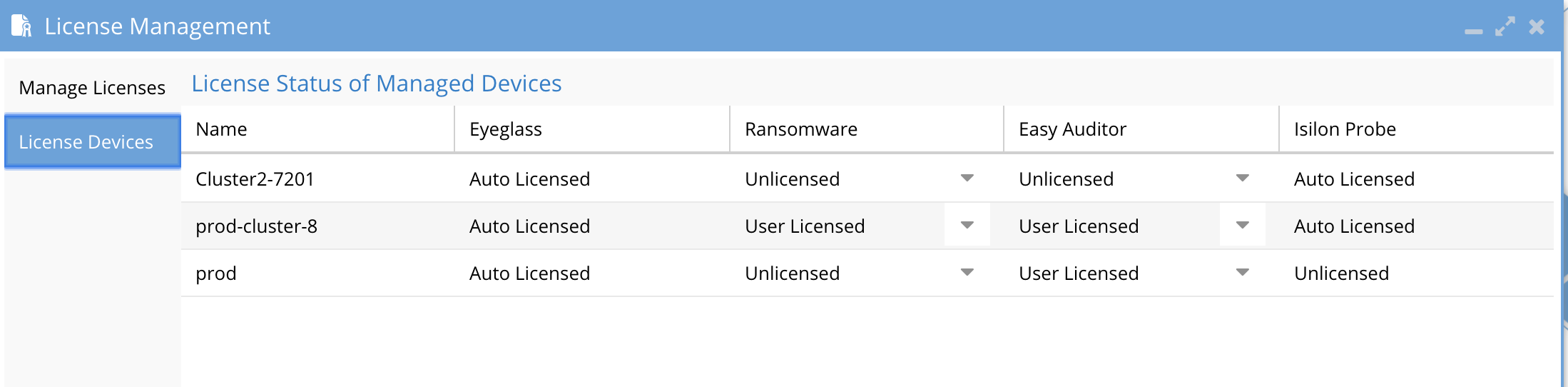
To ensure proper deployment of Eyeglass with the Eyeglass Clustered Agent (ECA), follow these steps to add licenses for Easy Auditor or Data Security to the Eyeglass VM.
Steps to Add Eyeglass Licenses
-
Verify Compatibility:
- Ensure that Eyeglass is deployed or upgraded to the compatible release version for the ECA release being installed.
-
Login to Eyeglass:
- Access the Eyeglass interface.
-
Open the License Manager:
- Click on the License Manager icon.
-
Download License Key:
- Follow the instructions to download the license key using the email token provided with your purchase.
-
Upload License Key:
- Upload the license key zip file obtained in Step 4.
- Once uploaded, the webpage will refresh automatically.
-
Open License Manager Again:
- After the page refreshes, open the License Manager.
-
Set License Status:
- Navigate to the Licensed Devices tab.
- For each cluster you wish to monitor using Data Security or Easy Auditor, set the license status to User Licensed.
- For clusters that should not be licensed, set the license status to Unlicensed. This ensures licenses are applied correctly and prevents them from being used on unintended clusters.
ECA VM Deployment
Step-by-Step Guide for Hyper-V Deployment
Create ECA Hyper-V Virtual Machine
Follow the steps below to create an Eyeglass Clustered Agent (ECA) Virtual Machine on Hyper-V:
-
Download ECA VHDX File:
- Visit the Superna Support Portal and download the ECA Hyper-V vhdx file.
-
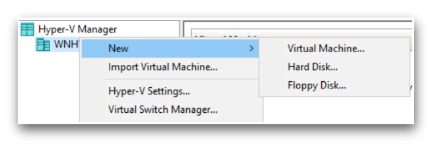
Deploy a New Virtual Machine:
- Open Hyper-V Manager and start the process to create a new Virtual Machine.
-
Configure the Virtual Machine:
- Enter a Name for the virtual machine.
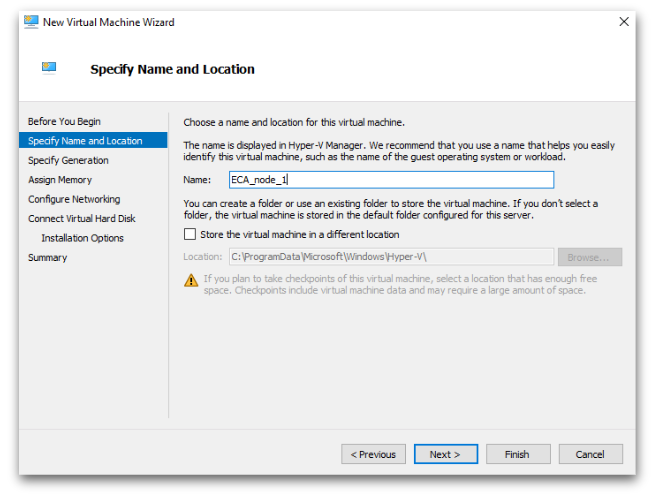
- Select Generation 1 for the virtual machine generation.
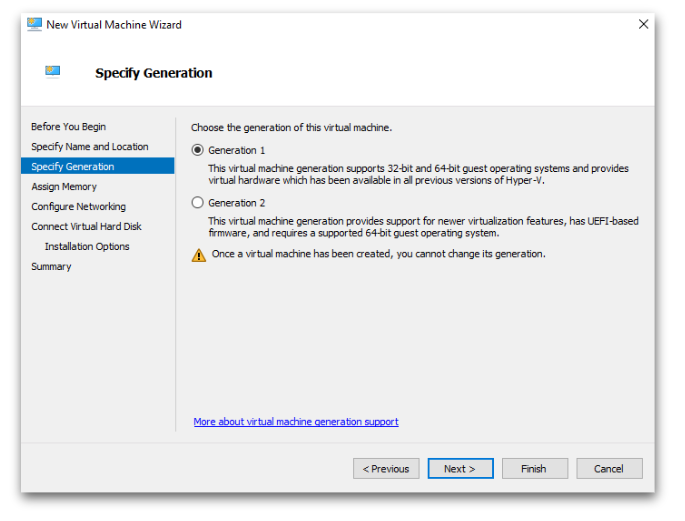
- Set the Startup Memory to 16384 MB (16 GB).
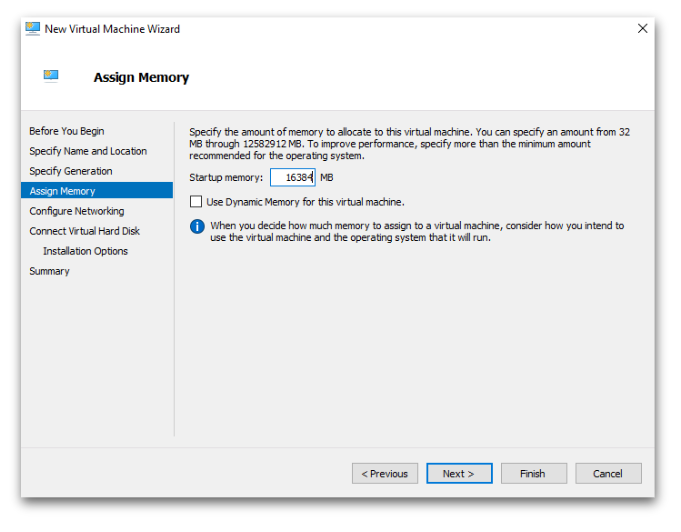
- Enter a Name for the virtual machine.
-
Configure Network:
- Select the appropriate Network Adapter for the virtual machine.
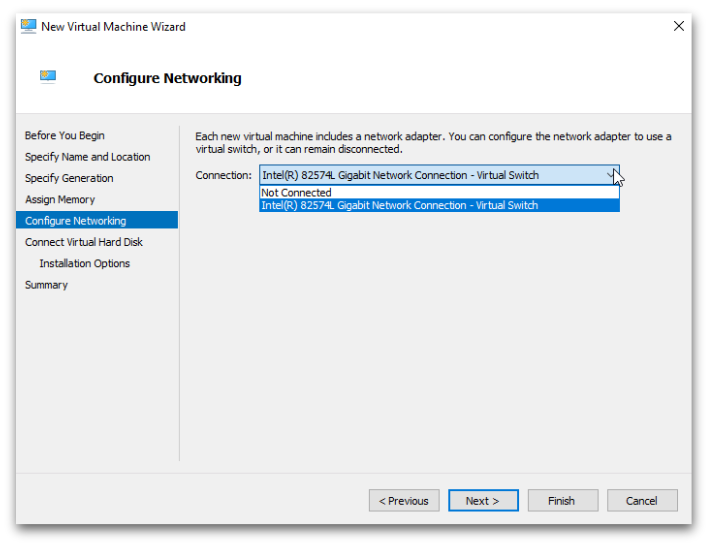
- Select the appropriate Network Adapter for the virtual machine.
-
Attach the ECA VHDX:
- In the virtual hard disk options, choose Use an existing virtual hard disk.
- Browse to and select the downloaded ECA vhdx file.
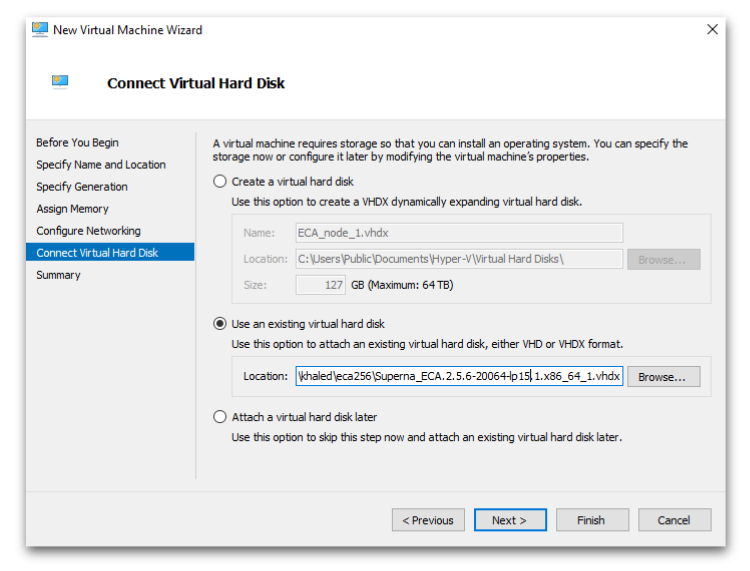
-
Complete the Wizard:
- Follow the prompts to complete the virtual machine creation process.
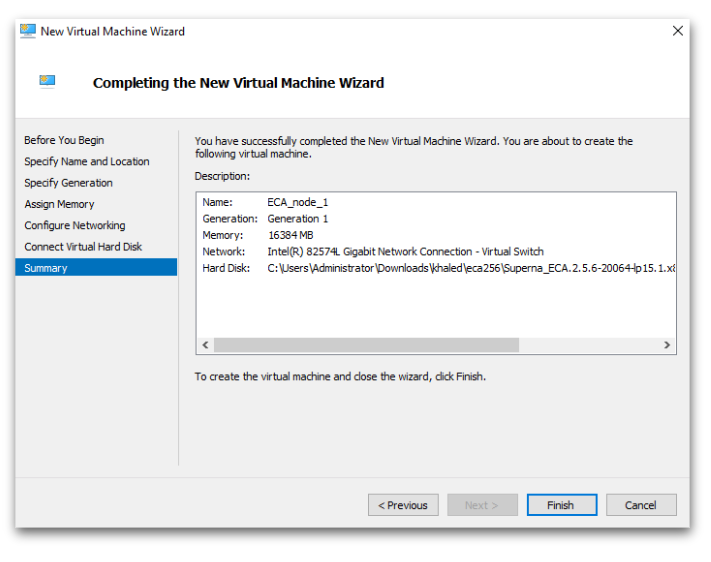
- Follow the prompts to complete the virtual machine creation process.
Configure ECA Data Disk
After deploying the Eyeglass Clustered Agent (ECA) Virtual Machine, follow the steps below to configure the data disk:
-
Open VM Settings:
- Go to the new VM in Hyper-V Manager.
- Right-click the VM and select Settings.
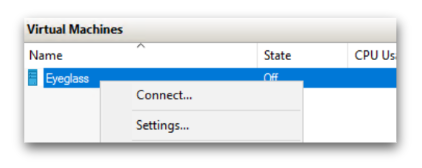
-
Add a Hard Drive:
- Under IDE Controller 0, click Add and select Hard Drive.
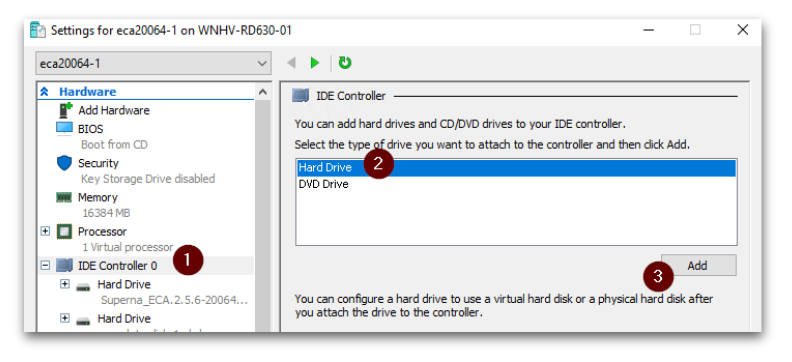
- Under IDE Controller 0, click Add and select Hard Drive.
-
Create a New Virtual Hard Disk:
- Choose Create New to configure a new virtual hard disk.
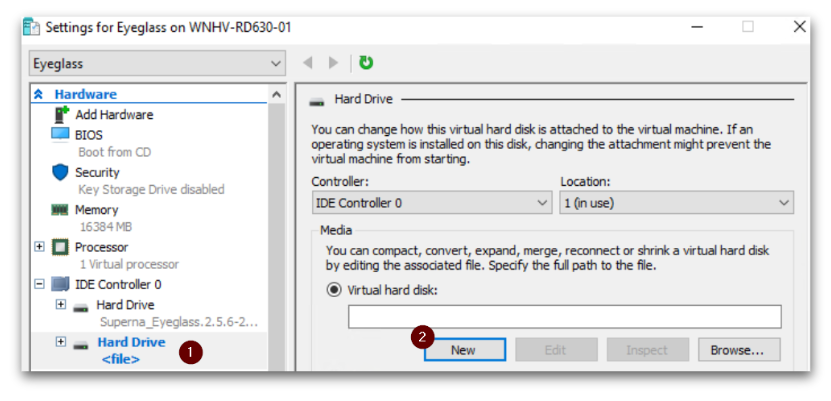
- Choose Create New to configure a new virtual hard disk.
-
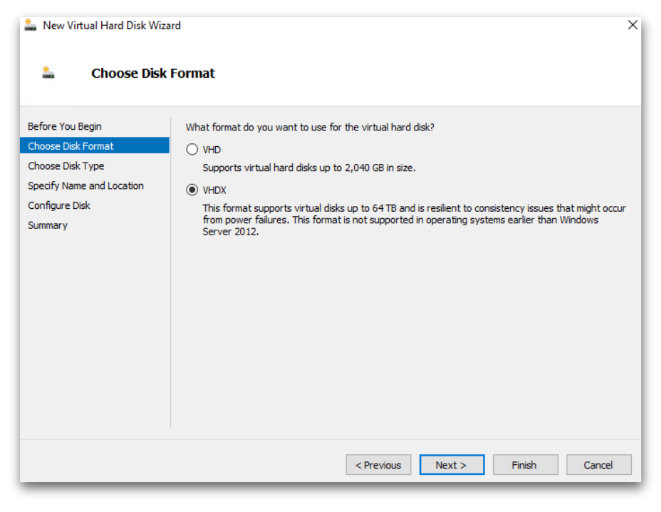
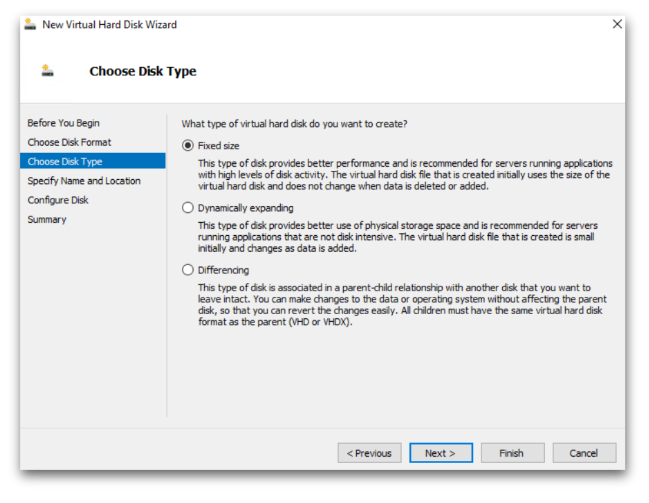
Configure Disk Format and Type:
- Disk Format: Select VHDX.
- Disk Type: Select Fixed size.
- Disk Format: Select VHDX.
-
Name and Size the Data Disk:
- Enter a Name for the data disk.
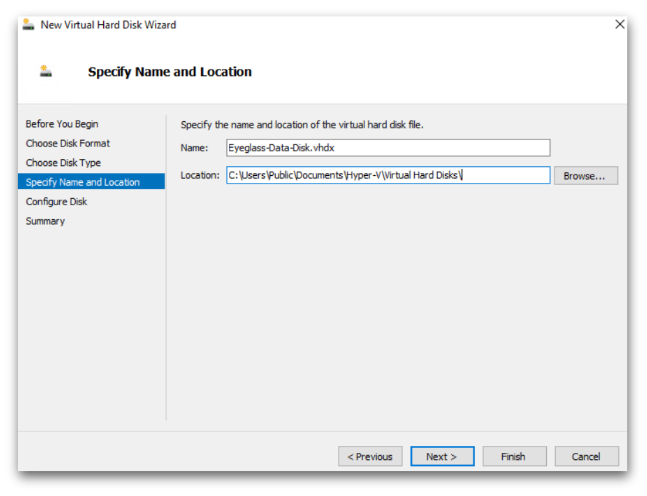
- Set the size to 80 GB for the new blank virtual hard disk.
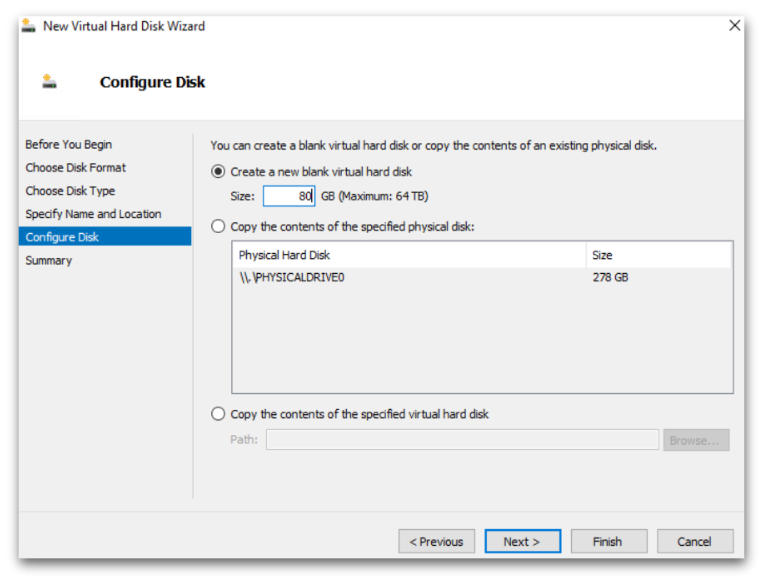
- Enter a Name for the data disk.
-
Complete the Wizard:
- Follow the prompts to complete the data disk creation process.
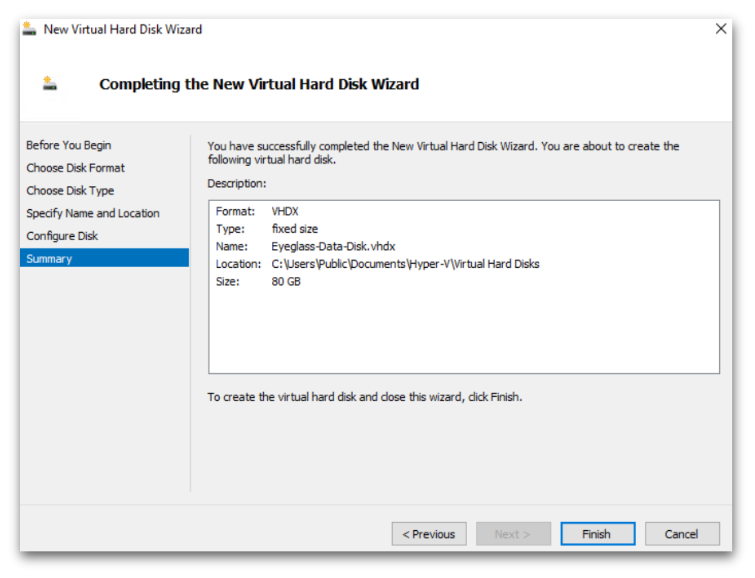
- Follow the prompts to complete the data disk creation process.
Configuration of ECA cluster
SSH Access
- Username:
\\<your-username> - Password:
\\<your-password>
Steps to Configure the ECA Cluster
-
Power Up the VM:
-
Start the ECA VM and wait 5-10 minutes for the Superna on-boot script to run.
-
To monitor the script, use the following command:
tail -2 /var/log/superna-on-boot.log -
Wait for the script to finish and follow the on-screen instructions.

-
-
Setup the First Node (Node 1):
-
Run the command to set up your ECA Hyper-V node 1:
sudo spy-hyperv-setup -
When prompted, enter the following network configuration details:
- Admin password
- IP Address
- Netmask
- Gateway
- Hostname
- DNS
- NTP
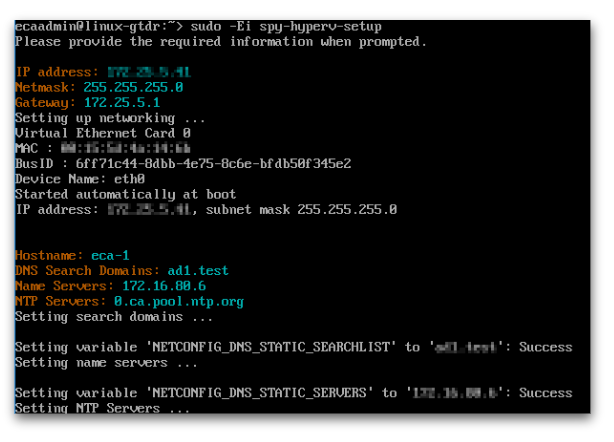
-
-
Configure the Cluster (Node 1):
- Follow the instructions carefully:
- Do not press
yuntil Node 2-N is configured. - Move on to the next step for Node 2-N setup.
- Do not press
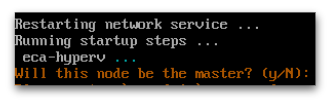
- Follow the instructions carefully:
-
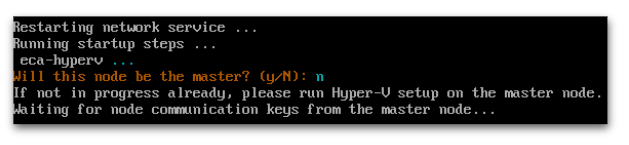
Setup Additional Nodes (Node 2-N):
- Repeat STEP 1 and STEP 2 on Node 2-N for each additional node you wish to deploy.
- When prompted for the master node during setup on Node 2-N, enter
n.
-
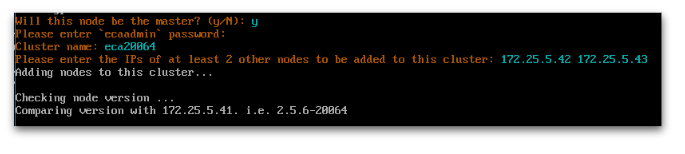
Complete Setup on the Master Node (Node 1):
- Return to Node 1 (the master node) and press
yto complete the setup. - Enter the following details:
- ECA Cluster Name (use lowercase, no uppercase, underscores, or special characters).
- Child Nodes IPs (space-separated).
- Return to Node 1 (the master node) and press
-
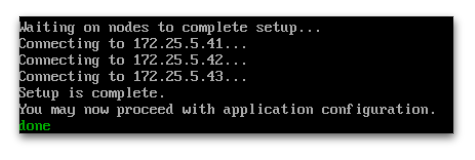
Verify Completion:
- After setup is complete, verify that all nodes are configured properly.
- You will see a "Setup complete" message once everything is successfully configured.
VMware OVA Installation Procedure
Installation ECA Vmware OVA
The deployment involves three ECA appliances. Follow the steps below to complete the installation.
-
Download the Superna Eyeglass™ OVF:
- Visit Superna Eyeglass Downloads to download the OVF file.
-
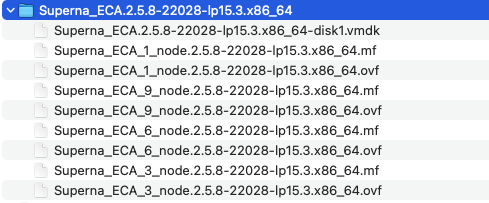
Unzip the OVF File:
- Extract the downloaded file into a directory on a machine with vSphere Client installed.
- Extract the downloaded file into a directory on a machine with vSphere Client installed.
-
OVA Contents:
-
The unzipped download contains 1, 3, 6, and 9 VM OVF files.
-
Use the 1 VM OVF if you do not have a VMware license for vAppliance objects and need to deploy N x VMs.
-
Select the 3, 6, 9 OVF + VMDK files to deploy an ECA cluster, matching the VM count from the scaling table in this guide.
-
-
Install the OVF using HTML vCenter Web Interface:
warningAccess vCenter with an FQDN DNS name, not an IP address. A bug in vCenter will generate an error during OVA validation.
-
MANDATORY STEP: Power on the vApp After Deployment to Ensure IP Addresses Get Assigned:
- DO NOT remove the VMs from the vApp before powering them on.
-
First Boot Verification:
-
Make sure the first boot steps complete by reviewing the logs. Run the following commands on each ECA VM:
- Check the status of the boot process:
sudo systemctl status superna-on-boot- Verify the process has completed:
cat /var/log/superna-on-boot.log- Ensure the log shows "done" before proceeding. Do not proceed until this step is complete.
-
-
Procedures After First Boot:
- Once the VMs are pingable, you can move the VMs from the vApp object if needed to rename each VM according to your naming convention.
note
Make sure the first boot script has completed using the procedures above on each VM. This can take up to 10 minutes per VM on the first boot as it sets up docker containers and must complete successfully along with SSH key creation.
- Once the VMs are pingable, you can move the VMs from the vApp object if needed to rename each VM according to your naming convention.
-
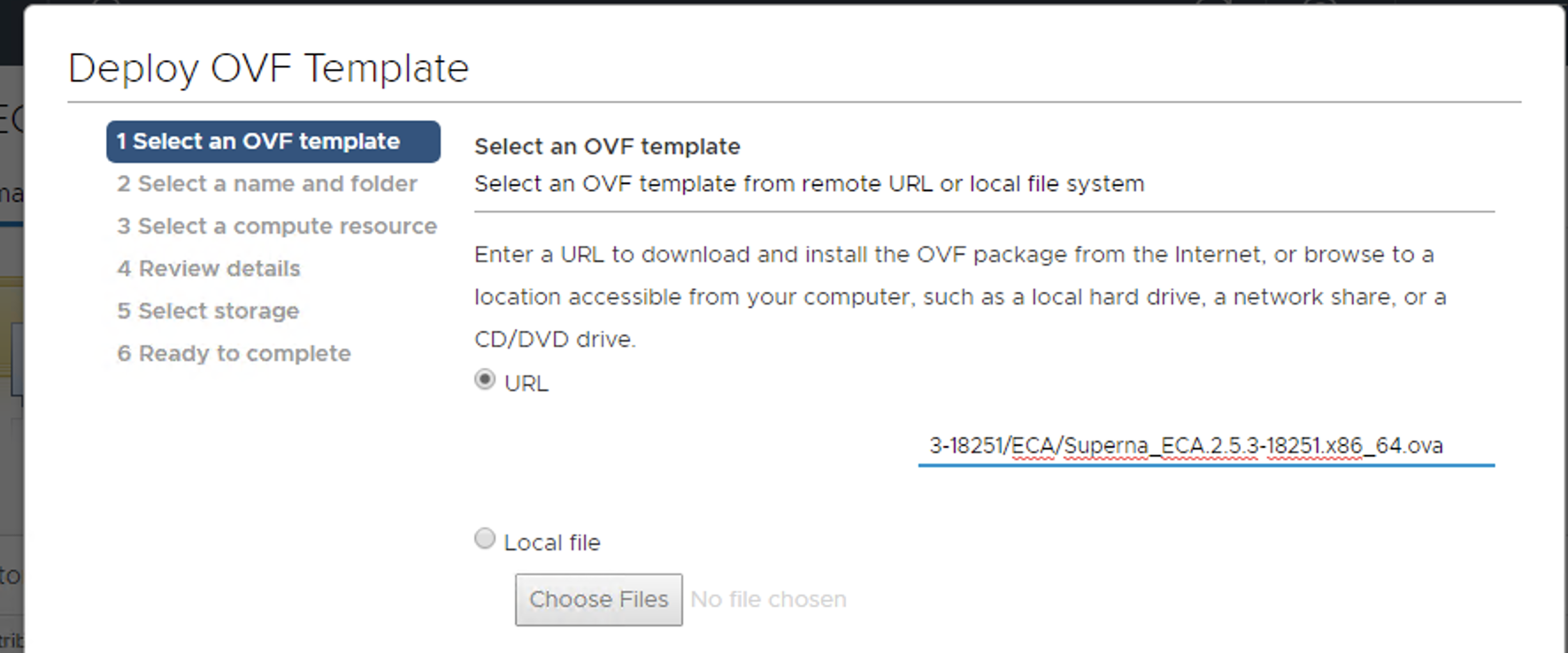
Deploy from a File or URL:
- Deploy the OVA from the file or URL where it was saved.
-
Configure VM Settings:
-
Using vCenter Client, set the required VM settings for datastore and networking.
-
NOTE: Leave the setting as Fixed IP address.
-
-
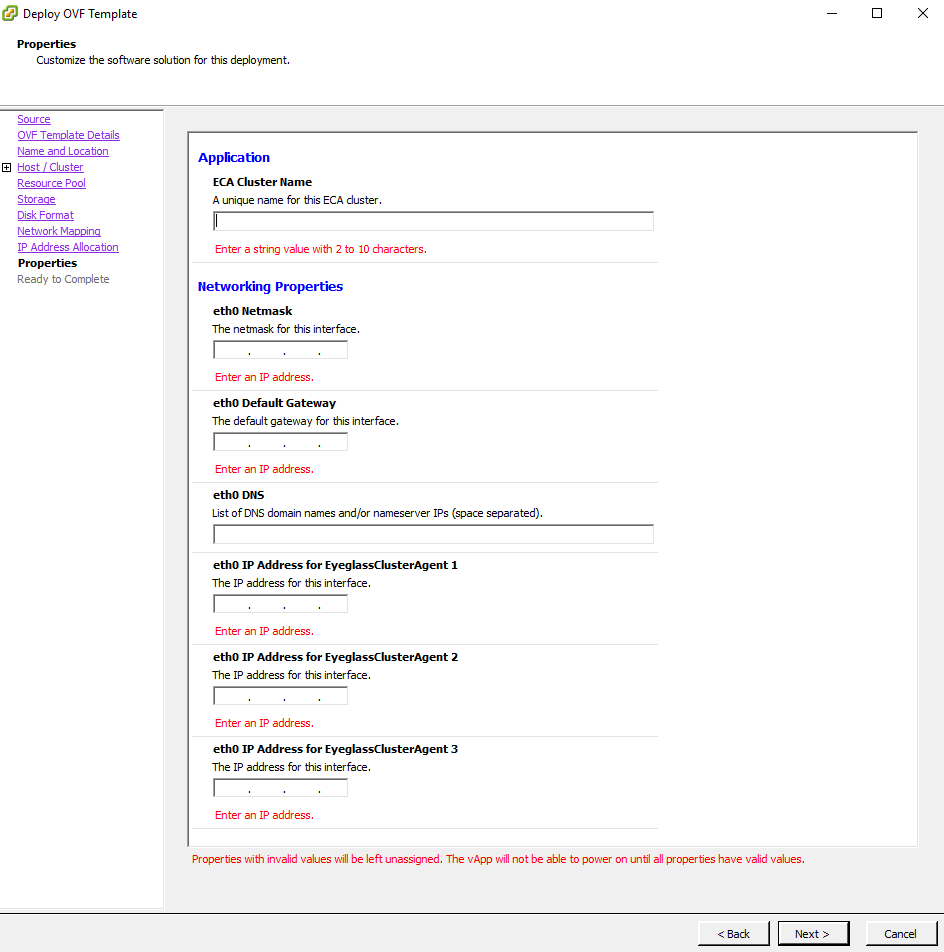
Complete the Networking Sections:
-
ECA Cluster Name:
-
The name must be lowercase, less than 8 characters, and contain no special characters, with only letters.
warningThe ECA cluster name cannot include underscores (
_) as this will cause some services to fail.
-
-
Ensure that all VMs are on the same subnet.
-
Enter the Network Mask (this will be applied to all VMs).
-
Enter the Gateway IP.
-
Enter the DNS Server:
- The DNS server must be able to resolve
igls.\\<your domain name here>. Use the nameserver IP address.
noteAgent node 1 is the master node where all ECA CLI commands are executed for cluster management.
- The DNS server must be able to resolve
-
-
vCenter Windows client example
- vCenter HTML Client Example
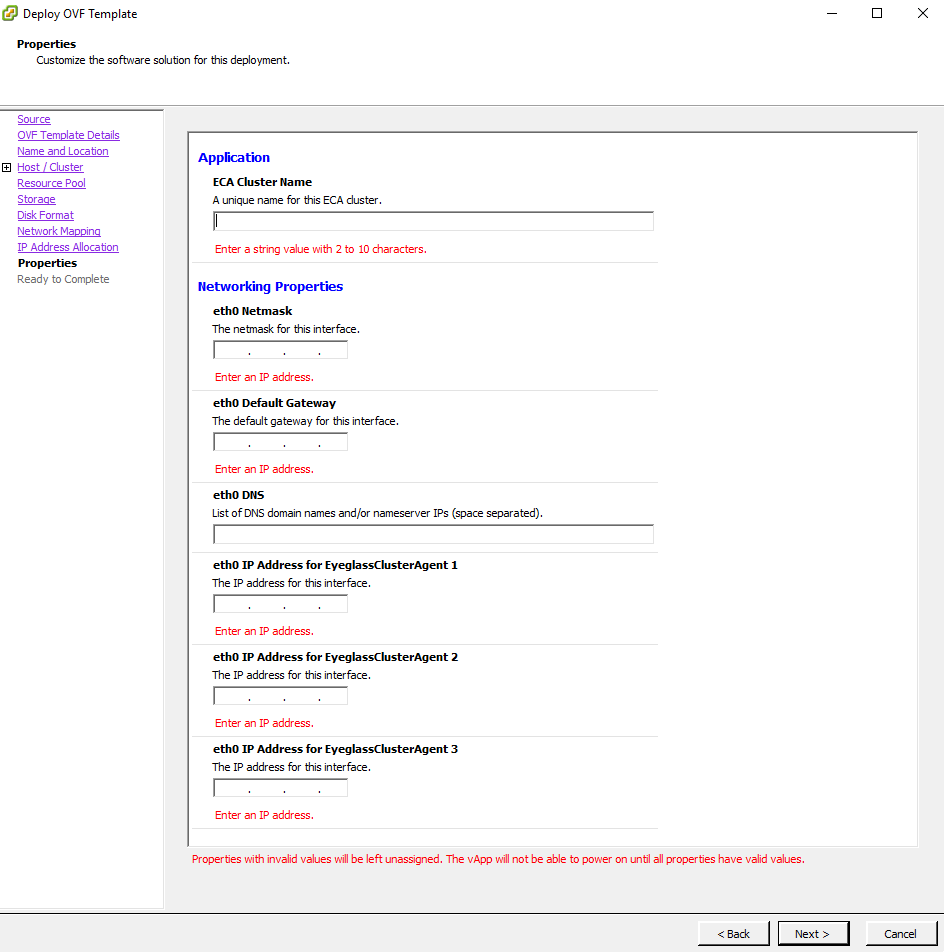
- vCenter HTML Client Example
-
Example OVA vAPP after deployment
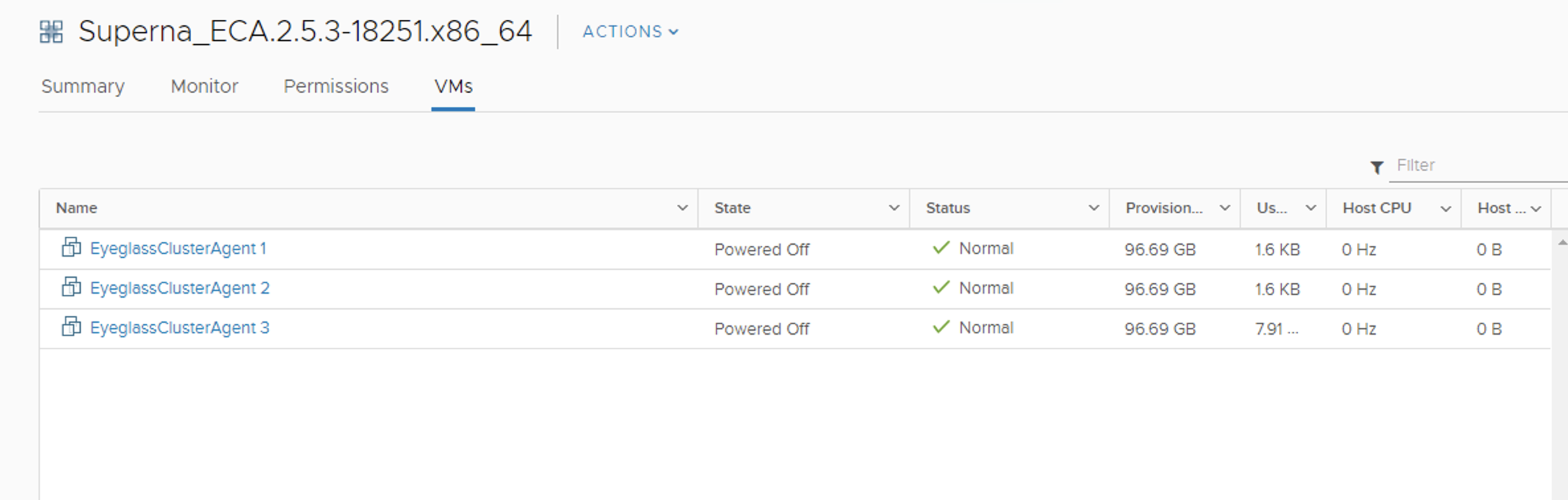
-
Enter IP Information:
- Enter all IP information for each ECA VM in the vCenter UI.
-
After Deployment is Complete:
-
Power on the vApp (Recommended to stop here and wait for services to complete the remaining steps).
-
Ping each IP address to make sure each node has finished booting.
-
Login to the Master Node:
- Login via SSH to Node 1 (the Master Node) using the
\\<your-user>account. - Default password: `F.
- Login via SSH to Node 1 (the Master Node) using the
-
Configure Keyless SSH:
-
Run the following command to configure keyless SSH for the
\\<your-user>to manage the cluster:ecactl components configure-nodes
-
-
Generate API Token on Eyeglass Appliance:
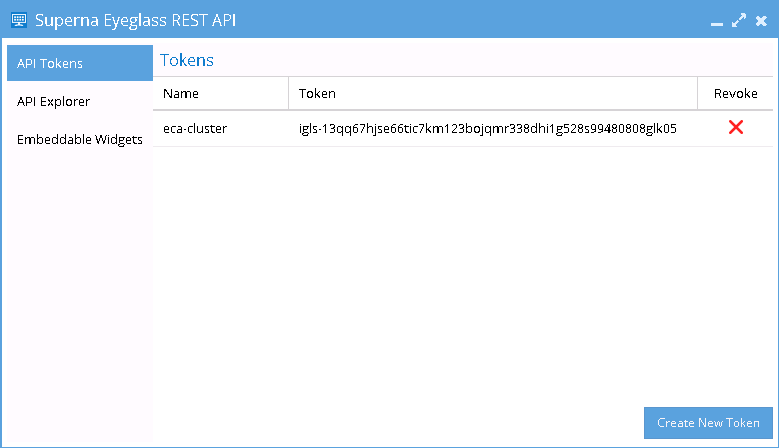
- On the Eyeglass Appliance, generate a unique API Token from the Superna Eyeglass REST API Window.
- Once the token is generated for the ECA Cluster, it will be used in the ECA startup command for authentication.
-
Login to Eyeglass:
-
Go to the main menu and navigate to the Eyeglass REST API menu item.
-
Create a new API token, which will be used in the startup file for the ECA cluster to authenticate with the Eyeglass VM and register ECA services.
-
-
-
On ECA Cluster Master node ip 1
-
Login to that VM using ass as the ecaadmin user default password
\\<your-password>. From this point on, commands will only be executed on the master node. -
On the master node, edit the file
nano /opt/superna/eca/eca-env-common.conf, and change these five settings to reflect your environment. Replace the variables accordingly. -
Set the IP address or FQDN of the Eyeglass appliance and the API Token (created above), uncomment the parameter lines before saving the file. For example:
export EYEGASS_LOCATION=ip_addr_of_eyeglass_appliance
export EYEGASS_API_TOKEN=Eyeglass_API_token -
Verify the IP addresses for the nodes in your cluster. It is important that NODE_1 be the master (i.e., the IP address of the node you're currently logged into).
infoAdd additional
ECA_LOCATION_NODE_X=x.x.x.xfor an additional node in the ECA cluster depending on ECA cluster size. All nodes in the cluster must be listed in the file. Copy a line and paste to add additional ECA nodes and make sure to change the node number example to add the 4th ECA VM, it would look like this:export ECA_LOCATION_NODE_4=export ECA_LOCATION_NODE_1=ip_addr_of_node_1 # set by first boot from the OVF
export ECA_LOCATION_NODE_2=ip_addr_of_node_2 # set by first boot from the OVF
export ECA_LOCATION_NODE_3=ip_addr_of_node_3 # set by first boot from the OVF -
Set the HDFS path to the SmartConnect name setup in the Analytics database configuration steps. Replace the FQDN
hdfs_sc_zone_namewith\\<your smartconnect FQDN>.noteDo not change any other value. Whatever is entered here is created as a subdirectory of the HDFS root directory that was set earlier.
-
export ISILON_HDFS_ROOT='hdfs://hdfs_sc_zone_name:8020/eca1'
-
-
Done: Continue on to the Cluster Auditing Configuration Section.
Isilon/PowerScale Protocol Audit Configuration - Required
This section configures PowerScale file auditing required to monitor user behaviors. The Audit protocol can be enabled on each Access Zone independently that requires monitoring.
Enable Protocol Access Auditing OneFS GUI
-
Click Cluster Management > Auditing.
-
In the Settings area, select Enable Configuration Change Auditing and Enable Protocol Access Auditing checkbox.
-
In the Audited Zones area, click Add Zones.
-
In the Select Access Zones dialog box, select one or more access zones, and click Add Zones (do not add Eyeglass access zone).
noteAny zone that does not have auditing enabled is unprotected.
Disable High Rate Audit Events OneFS 8.2 and Later (Mandatory Step)
Directory Open and Directory Close events generate unnecessary load on the cluster to log these event types. These events are not used by Data Security or Easy Auditor (Default settings do not store these events in the database). These events also cause performance issues on the cluster and high cluster overhead for these two events. It is required to disable these events.
Procedure to Disable High Rate Events
-
Log in to the OneFS cluster over SSH as the root user.
-
Replace the yellow highlight with access zone names that are enabled for auditing. This change takes effect immediately and will reduce audit overhead and increase auditing performance.
isi audit settings modify --zone=\\<zone_name> --remove-audit-success=open_directory,close_directory
Preparation of Analytics Database or Index - Required
Prerequisites Analytics Database or Index
- Easy Auditor only
- Must add a minimum of 3 PowerScale nodes to the new IP pool and assign the pool to the access zone created for the audit database.
- Must configure the SmartConnect zone name with FQDN.
- Must complete DNS delegation to the FQDN assigned to the new pool for HDFS access.
- Must enable the HDFS protocol on the new access zone (protocols tab in OneFS GUI) – Easy Auditor only.
- Must have an HDFS license applied to the cluster.
- Must configure a Snapshot schedule on the access zone path below every day at midnight with 30-day retention.
- Optional: Create a SyncIQ policy to replicate the database to a DR site.
Steps Analytics Database or Index
-
Activate a license for HDFS. When a license is activated, the HDFS service is enabled by default.
-
Create an "eyeglass" Access Zone with the path
"/ifs/data/eyeglass/analyticsdb"for the HDFS connections from Hadoop compute clients (ECA) and under Available Authentication Providers, select only the Local System authentication provider. -
Select/Create Zone Base Directory
 note
note- Ensure that the Local System provider is at the top of the list. Additional AD providers are optional and not required.
- In OneFS 8.0.1, the Local System provider must be added using the command line. After adding, the GUI can be used to move the Local System provider to the top of the list.
isi zone zones modify eyeglass --add-auth-providers=local:system-
Set the HDFS root directory in the Eyeglass access zone that supports HDFS connections:
(OneFS 8.x)
isi hdfs settings modify --root-directory=path_to_hdfs_root_dir --zone=access_zone_name_for_hdfsExample:
isi hdfs settings modify --root-directory=/ifs/data/igls/analyticsdb/ --zone=eyeglass -
Create an IP pool for HDFS access with at least 3 nodes in the pool to ensure high availability for each ECA node. The pool will be configured with round-robin load balancing.
(OneFS 8.0)
isi network pools create groupnet0.subnet0.hdfspool --ranges=172.22.1.22-172.22.1.22 --ifaces 1-4:10gige-1 --access-zone eyeglass --sc-dns-zone hdfs-mycluster.ad1.test --alloc-method static -
Configure virtual HDFS racks on the PowerScale Cluster:
noteThe
ip_address_range_for_clientrefers to the IP range used by the ECA cluster VMs.(OneFS 8.0)
isi hdfs racks create /hdfs_rack_name --zone=access_zone_name_for_hdfs --client-ip-ranges=ip_address_range_for_client --ip-pools=subnet:poolExample:
isi hdfs racks create /hdfs-iglsrack0 --client-ip-ranges=172.22.1.18-172.22.1.20 --ip-pools=subnet0:hdfspool --zone=eyeglass-
Verify the rack creation:
isi hdfs racks list --zone=eyeglassOutput:
Name        Client IP Ranges        IP Pools
-------------------------------------------------------------
/hdfs-rack0 172.22.1.18-172.22.1.20 subnet0:hdfspool
-------------------------------------------------------------
Total: 1
-
-
Create a local Hadoop user in the System access zone.
noteThe User ID must be
eyeglasshdfs.(OneFS 8.0)
isi auth users create --name=eyeglasshdfs --provider=local --enabled=yes --zone=systemExample:
isi auth users create --name=eyeglasshdfs --provider=local --enabled=yes --password-expires=no --zone=system -
Log in via SSH to the PowerScale cluster as the root user to change ownership, permissions, and block inherited permissions from parent folders on the HDFS path used by Eyeglass ECA clusters.
chown -R eyeglasshdfs:'Isilon Users' /ifs/data/igls/analyticsdb/
chmod -R 755 /ifs/data/igls/analyticsdb/
chmod -c +dacl_protected /ifs/data/igls/analyticsdb/noteIf using a cluster in compliance mode, do not run the commands above. Instead, run:
chmod 777 /ifs/data/igls/analyticsdb/
Configure an NFS Mount Point on Each ECA Node to Read Audit Data from Isilon/Powerscale OneFS - Required
Audit events are ingested over NFS mounts on ECA nodes 1 - X (where X is the size of your ECA cluster). Follow the steps below to add the export to each of the VMs.
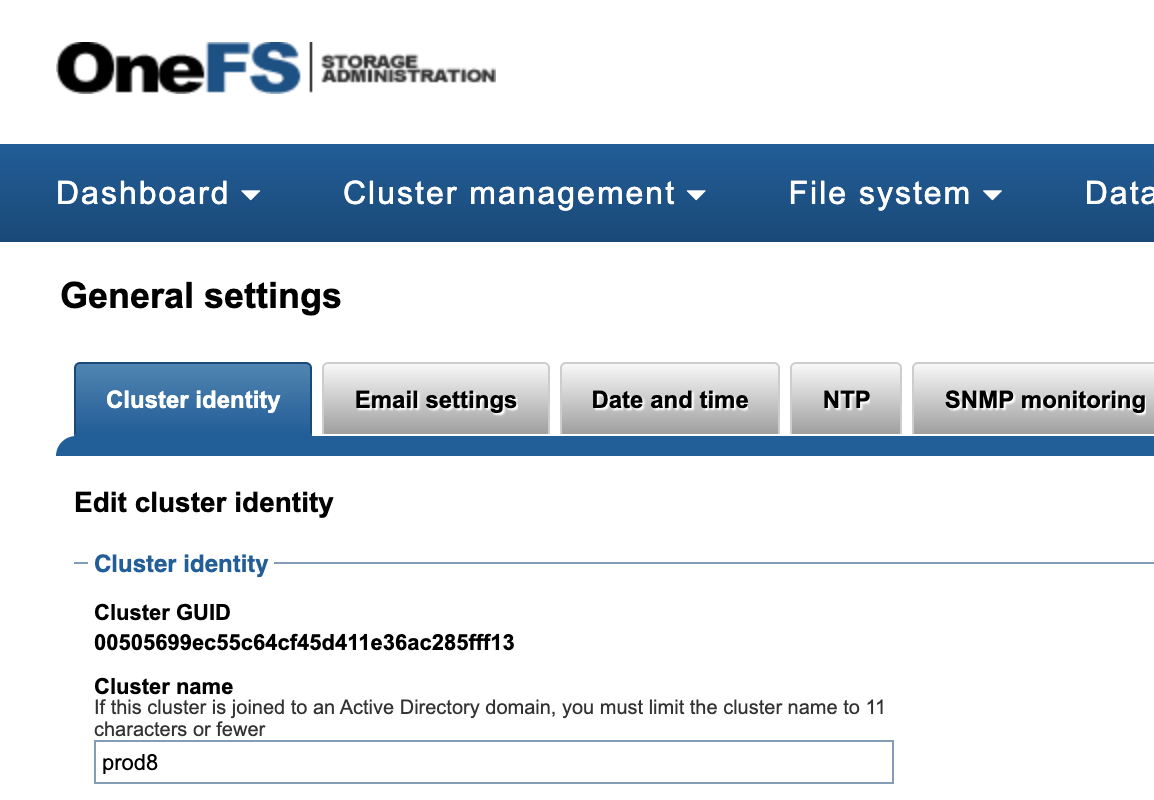
Make sure you have
- Cluster GUID and Cluster Name for each cluster to be indexed.
- Cluster Name as shown in the top-right corner after login to the OneFS GUI.
The cluster name is case-sensitive, and the NFS mount must match the exact case of the cluster name.
Refer to the example in the OneFS GUI for obtaining this information.
-
Log in to each ECA node.
-
Configure the NFS mount point for each node using the exact cluster name obtained from OneFS.
-
Repeat the process on nodes 2 - X, where X is the last node in the ECA cluster.
-
Login to ECA node 1:
ssh ecaadmin@x.x.x.x(where x.x.x.x is node 1 IP of the ECA cluster)
-
Create local mount directory and sync to all nodes:
-
Run the following command:
ecactl cluster exec "sudo mkdir -p /opt/superna/mnt/audit/GUID/clusternamehere/" -
Replace
GUIDandclusternameherewith the correct values.noteThe cluster name is case-sensitive and must match the cluster name case as shown in OneFS.
-
Enter the admin password when prompted on each ECA node.
-
Verify the folder exists on all ECA nodes
ecactl cluster exec "ls -l /opt/superna/mnt/audit/" -
-
NFS Mount Setup with Centralized Mount File for All Nodes with Auto-Mount
noteThis option will mount on cluster up using a centralized file to control the mount. This simplifies changing mounts on nodes and provides cluster-up mount diagnostics.
-
Configuration Steps for Auto-Mount:
-
Open the configuration file:
nano /opt/superna/eca/eca-env-common.conf -
Add a variable to ensure the cluster stops if the NFS mount fails:
export STOP_ON_AUTOMOUNT_FAIL=true -
SSH to ECA node 1 as
\\<your-username>user to enable auto-mount and ensure it starts on OS reboot.noteFor each node, you will be prompted for the
\\<your-username>password. -
Enable auto-mount:
ecactl cluster exec "sudo systemctl unmask autofs"
ecactl cluster exec "sudo systemctl start autofs" -
Check and ensure the service is running:
ecactl cluster exec "sudo systemctl status autofs"
-
-
Add a New Entry to
auto.nfsFile on ECA Node 1:note-
The FQDN should be a smartconnect name for a pool in the System Access Zone IP Pool.
\\<NAME>is the cluster name collected from the section above. GUID is the cluster GUID from the General Settings screen of OneFS. -
Add 1 line for each Isilon/Powerscale cluster that will be monitored from this ECA cluster.
-
For NFS v3:
echo -e "\n/opt/superna/mnt/audit/\\<GUID>/\\<NAME> --fstype=nfs,nfsvers=3,ro,soft \\<FQDN>:/ifs/.ifsvar/audit/logs" >> /opt/superna/eca/data/audit-nfs/auto.nfs -
For NFS v4.x:
echo -e "\n/opt/superna/mnt/audit/\\<GUID>/\\<NAME> --fstype=nfs,nfsvers=4,ro,soft \\<FQDN>:/ifs/.ifsvar/audit/logs" >> /opt/superna/eca/data/audit-nfs/auto.nfs -
Verify the contents of the
auto.nfsfile:cat /opt/superna/eca/data/audit-nfs/auto.nfs
-
-
Push the Configuration to All ECA Nodes:
ecactl cluster push-config -
Start Auto-Mount and Verify the Mount:
-
Restart auto-mount:
ecactl cluster exec "sudo systemctl restart autofs"noteYou will be asked to enter the
\\<your-username>password for each ECA node. -
Check the mount by typing the following command:
mount
-
-
Cluster Up Command:
- Run the cluster up command and mount each ECA node during cluster up.
-
Start up the ECA Cluster
-
Start up the cluster:
- At this point, you can start up the cluster.
-
SSH to ECA node 1:
- SSH to ECA node 1 as
\\<your-username>and run the following command:ecactl cluster up- Note: This process can take 5-8 minutes to complete.
- SSH to ECA node 1 as
-
Verify startup and post-startup status:
- Refer to the troubleshooting section below for commands to verify startup and post-startup status.
Creating and Configuring ECA Nodes
Mini-ECA Deployment Diagram
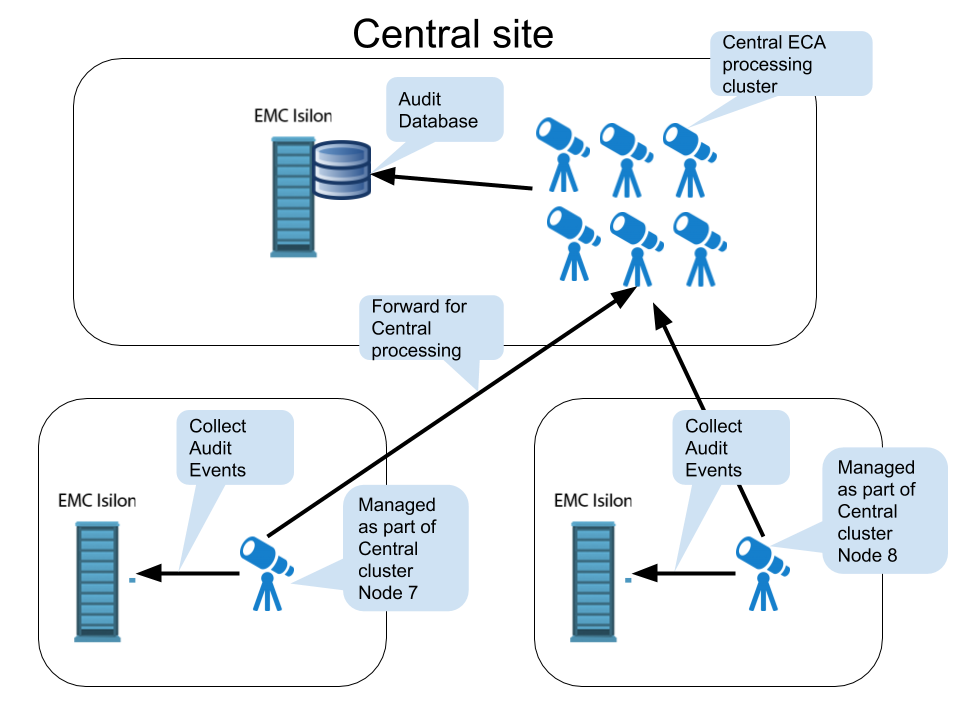
How to Deploy Mini-ECA VM's
-
Deploy the OVA:
- Follow the standard ECA OVA deployment instructions to deploy the OVA.
-
Delete ECA Nodes:
- For a single Mini-ECA deployment, delete ECA node 2 and ECA node 3.
noteMini-ECA supports High Availability (HA) configurations and can operate with ECA nodes 1 and 2. If you want to enable HA, only delete node 3 from the vApp.
-
Completion:
- After deleting the necessary nodes, the deployment is complete.
Network and Storage Setup
Configuring NFS Mounts and Network Settings
How to configure NFS mount on Mini-ECA
Each mini ECA will need to mount the cluster it has been assigned. Follow the steps below to create the export and mount the cluster on each ECA node.
-
Create the export:
- The steps to create the export are the same as in the section How to Configure Audit Data Ingestion on the Vast/PowerScale OneFS.
-
Add the mount to
/etc/fstab:-
Create mount path:
sudo mkdir -p /opt/superna/mnt/audit/GUID/clusternamehere/- Replace
GUIDandclusternameherewith the correct values. - Note: The cluster name is case-sensitive and must match the cluster name as shown in OneFS.
- Enter the admin password when prompted on each ECA node.
- Replace
-
Edit
/etc/fstab:- This will add a mount for content indexing to
/etc/fstabon all nodes. - Build the mount command using cluster GUID and cluster name, replacing the highlighted sections with correct values for your cluster.
- Note: This is only an example.
- You will need a SmartConnect name to mount the snapshot folder on the cluster. The SmartConnect name should be a system zone IP pool.
- Replace
SmartConnect FQDNand\\<>with a DNS SmartConnect name. - Replace
\\<GUID>with the cluster GUID. - Replace
\\<name>with the cluster name.
- This will add a mount for content indexing to
-
-
On the mini ECA VM:
- SSH to the node as
ecaadmin. - Run the command:
sudo -s. - Enter the
ecaadminpassword. - Run the command:
echo '\\<CLUSTER_NFS_FQDN>:/ifs/.ifsvar/audit/logs /opt/superna/mnt/audit/GUID/clusternamehere/ nfs defaults,nfsvers=3 0 0' | sudo tee -a /etc/fstab
- Mount the filesystem:
mount -a
- Verify the mount.
- Exit.
- SSH to the node as
-
Completion:
- Done.
- Start up the cluster on all nodes. Log in to node 1 of the ECA cluster.
- Run
ecactl cluster up. - Verify any startup issues on all nodes.
- Generate test events on each cluster.
- Use the wiretap feature to view these events on each managed cluster.
Setting Up Audit Data Ingestion
How to Configure Audit Data Ingestion on the VAST/PowerScale OneFS
Prerequisites Audit Data NFS Export
- SmartConnect Name: Configure a SmartConnect name in the system zone for the NFS export, created on
/ifs/.ifsvar/audit/logs. - IP Pool Configuration: Set the PowerScale OneFS IP pool to dynamic mode for the NFS mount used by ECA cluster nodes, ensuring high availability.
- Firewall:
- Open Port TCP 8080 from each ECA node to all PowerScale OneFS nodes in the management pool within the system zone for audit data ingestion.
- Ensure NFS Ports are open from all ECA nodes to all PowerScale OneFS nodes in the management pool for audit data ingestion.
- NFS Support:
- NFS v4.x is supported with Appliance OS version 15.3 and later.
- Kerberized NFS is not supported.
Create a Read-Only NFS Export on the PowerScale OneFS Cluster(s) to Be Managed
-
NFS v4.x (recommended for all deployments) – NFSv3 is also supported.
-
Create the NFSv4 or NFSv3 export from the CLI using the following command:
isi nfs exports create /ifs/.ifsvar --root-clients="\\<ECA_IP_1>,\\<ECA_IP_2>,\\<ECA_IP_3>" --clients="\\<ECA_IP_1>,\\<ECA_IP_2>,\\<ECA_IP_3>" --read-only=true -f --description "Easy Auditor Audit Log Export" --all-dirs true
Prerequisite
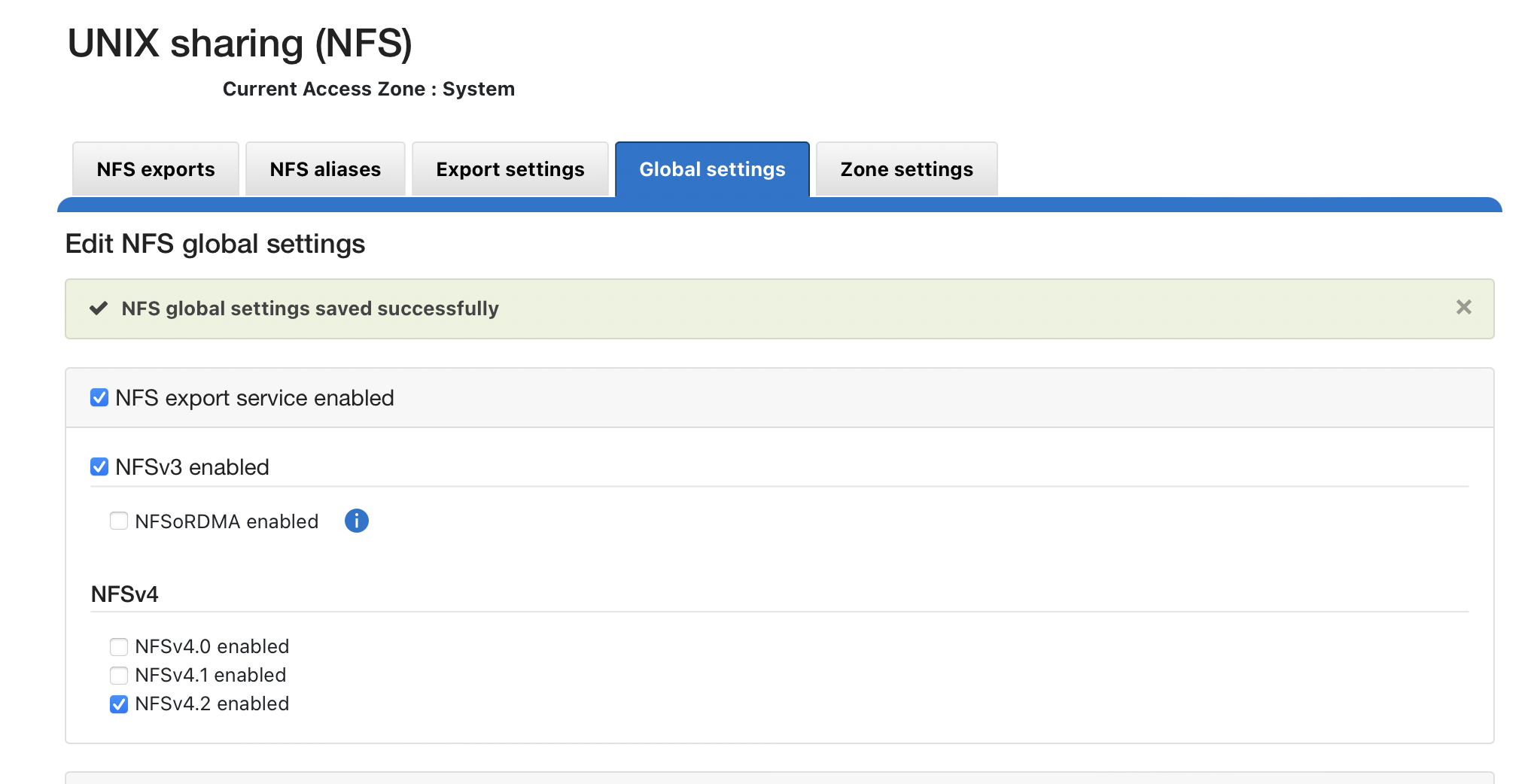
- Enable NFS 4.2.
You should not enable NFSv4 if your hosts do not specify the mount protocol in fstab or auto-mount. Before enabling NFSv4, consult the Dell technical team for considerations and an enabling checklist.
REST API Audit Ingestion - Mandatory for All deployments
Prerequisites API Audit
- Version Requirements: 2.5.8.1 or higher
- NFS Requirements: NFS v4 or NFSv3
- Update the Eyeglass service account role and add backup read permissions to the Eyeglass admin role. Add the permissions for either 9.x or 8.2 as shown below.
Steps
-
Login to the Eyeglass VM.
-
Run
sudo -s(enter the admin password). -
Open the system file using
nano /opt/superna/sca/data/system.xml. -
Locate the
\\<process>tag. -
Search for the
\\<syncIsilonsToZK>tag within the\\<process>section:- If it exists: Change its value from
falsetotrue - If it doesn't exist: Add the following line:
importantEnsure there is only ONE instance of this tag in the file.
\\<syncIsilonsToZK>true\\</syncIsilonsToZK> - If it exists: Change its value from
-
Save and exit using
control + x. -
Restart the service:
systemctl restart sca. -
Done.
Role Permissions for Backup
-
For 9.x clusters, add Backup Files from /Ifs:
isi auth roles modify EyeglassAdmin --add-priv-ro ISI_PRIV_IFS_BACKUP -
For 8.2 or later, add the following permissions to the role:
isi auth roles modify EyeglassAdmin --add-priv-ro ISI_PRIV_IFS_BACKUP
isi auth roles modify EyeglassAdmin --add-priv-ro ISI_PRIV_IFS_RESTORE
You should not enable NFSv4 if your hosts do not specify the mount protocol in fstab or auto-mount. Before enabling NFSv4, consult the Dell technical team for considerations and an enabling checklist.
On Each Source Cluster to Be Protected
Follow these steps to enable REST API audit folder monitoring:
-
Login as the root user and create the following symlink:
ln -s /ifs/.ifsvar/audit/logs /ifs/auditlogs -
Login to ECA node 1.
-
Open the configuration file:
nano /opt/superna/eca/eca-env-common.conf -
Add this variable:
export TURBOAUDIT_AUDITLOG_PATH=/ifs/auditlogs -
Save the file and exit (use
control + x). -
Restart the cluster for the change to take effect:
ecactl cluster down
ecactl cluster upnoteECA VMs require port https TCP 8080 to be open from ECA to the protected cluster.
Final Configuration
Configuring Services and Joining the Central ECA Cluster
-
Login to the Central ECA Node:
- SSH into ECA Central Node 1 as
your-user.
- SSH into ECA Central Node 1 as
-
Edit the Configuration File:
-
Open the configuration file:
vim /opt/superna/eca/eca-env-common.conf -
Add additional Mini-ECA nodes by adding a line for each Mini-ECA at remote sites, incrementing the node ID for each new line:
export ECA_LOCATION_NODE_7=x.x.x.x
-
-
Configure Passwordless SSH for New Nodes:
-
Run the following command to add Mini-ECA nodes for passwordless SSH:
ecactl components configure-nodes
-
-
Modify the
neOverrides.jsonFile:-
Open the
neOverrides.jsonfile:vi /opt/superna/eca/data/common/neOverrides.json -
Copy and edit the following text based on your configuration, ensuring to:
- Replace the cluster names with the Mini-ECA cluster names.
- Align the nodes mapping to correspond with the ECA node IDs configured in the
eca-env-common.conffile.
-
Example:
[
  {
    "name": "SC-8100A",
    "nodes": ["2", "3"]
  },
  {
    "name": "SC-8100B",
    "nodes": ["7"]
  }
]noteEnsure the mapping is done correctly to process and tag events for the correct cluster.
-
Save the file by typing
:wq.
-
-
Configure Services for Mini-ECA Nodes:
-
Use the overrides file to specify services for Mini-ECA nodes:
cp /opt/superna/eca/templates/docker-compose.mini_7_8_9.yml /opt/superna/eca/docker-compose.overrides.yml
noteThis file automatically configures the services for Mini-ECA nodes 7-9, if they exist. No additional configuration is required.
-
Verifying the Installation and Network Setup
Verify ECA Remote Monitoring Connection from the Eyeglass Appliance
- Login to Eyeglass as the admin user.
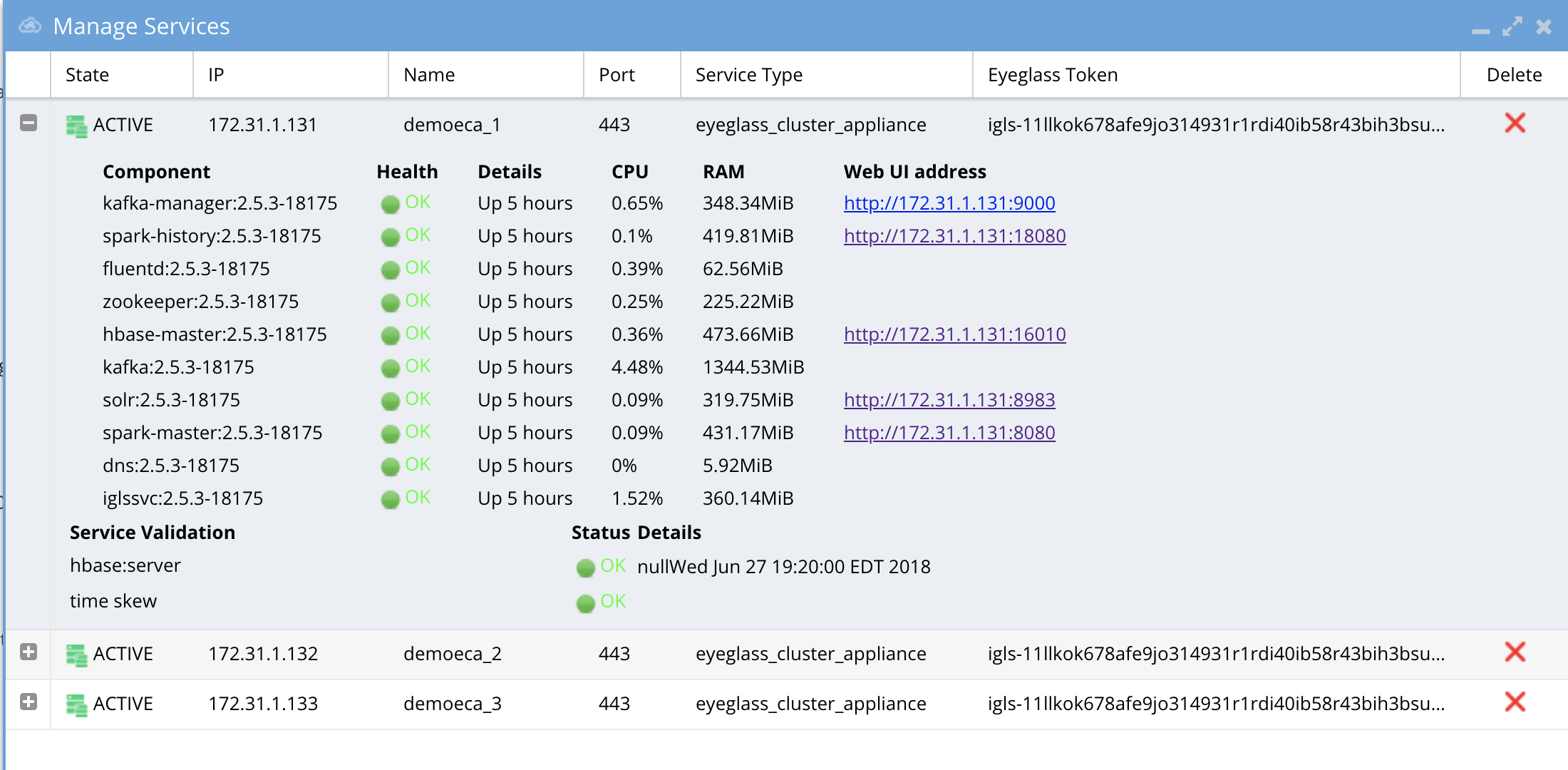
- Check the status of the ECA Cluster. Click the Manage Service icon and then click the + to expand the container or services for each ECA node (review the image below).
- Verify the IP addresses of the ECA nodes are listed.
- Verify that all cluster nodes and all Docker containers show green health.
HBase status can take up to 5 minutes to transition from warning to green.
Use the PowerScale native SnapshotIQ feature to backup the audit data
How to Upgrade the ECA cluster Software For Easy Auditor , Data Security and Performance Auditor
Important Notes for Upgrading
-
Contact support first before upgrading the cluster to ensure compatibility with the Eyeglass version. Both Eyeglass and ECA must be running the same version.
-
Upgrade assistance is scheduled and is a service not covered under 24/7 support. Please review the EULA terms and conditions.
-
Always take a VM-level snapshot before any upgrade steps to allow for rollback to the previous release if needed.
Steps to Carrier Grade Upgrade - No downtime
-
Requirements:
- 2.5.8.2 or later release
-
Login to node 1 as
\\<your-username>and copy the run file to node 1. -
Change file permissions:
chmod 777 xxxx (name of the run file) -
Run the upgrade with the following command:
./eca-xxxxx.run --rolling-upgrade -
Provide the password for
\\<your-username>when prompted. -
Nodes will be upgraded in a manner that allows audit data and all ECA products to continue operating fully.
-
The upgrade will manage all node upgrades and will exit when done. The final state will have all containers running the new code.
Steps to Upgrade
-
Take a Hypervisor-level VM snapshot to enable a rollback if needed. This is a mandatory step.
-
Disable Data Security, Easy Auditor, and Performance Auditor functionality before beginning the upgrade – required first step:
- Log in to ECA Node 1 using
\\<your-username>credentials. - Issue the following command:
ecactl cluster down. - Wait for the procedure to complete on all involved ECA nodes.
- Done!
- Log in to ECA Node 1 using
-
Upgrade Eyeglass VM first and download the latest release from here.
noteEyeglass and ECA cluster software must be upgraded to the same version.
-
Download the latest GA Release for the ECA upgrade, following instructions from here.
-
Log in to ECA Node 1 using
\\<your-username>credentials. -
note
ECA is in a down state –
ecactl cluster downwas already done in step 1. -
Verify by executing the following command:
ecactl cluster status -
Ensure no containers are running.
-
If containers are still running, stop them by executing the command and waiting for it to complete on all nodes:
ecactl cluster down -
Once the above steps are complete:
-
Use WinSCP to transfer the run file to Node 1 (Master Node) in
/home/ecaadmindirectory. -
SSH to ECA Node 1 as
\\<your-username>:ssh ecaadmin@x.x.x.x
cd /home/ecaadmin
chmod +x ecaxxxxxxx.run (xxxx is the name of the file)
./ecaxxxxxxx.run -
Enter the
\\<your-username>password when prompted. -
Wait for the installation to complete.
-
Capture the upgrade log for support if needed.
-
-
Complete the software upgrade.
-
Bring up the ECA cluster:
-
Execute:
ecactl cluster exec "sudo systemctl enable --now zkcleanup.timer"(Enter the
\\<your-username>password for each node.) -
Start the cluster:
ecactl cluster up -
Wait until all services start on all nodes. If there are any errors, copy the upgrade log and use WinSCP to transfer it to your PC or attach it to a support case.
-
-
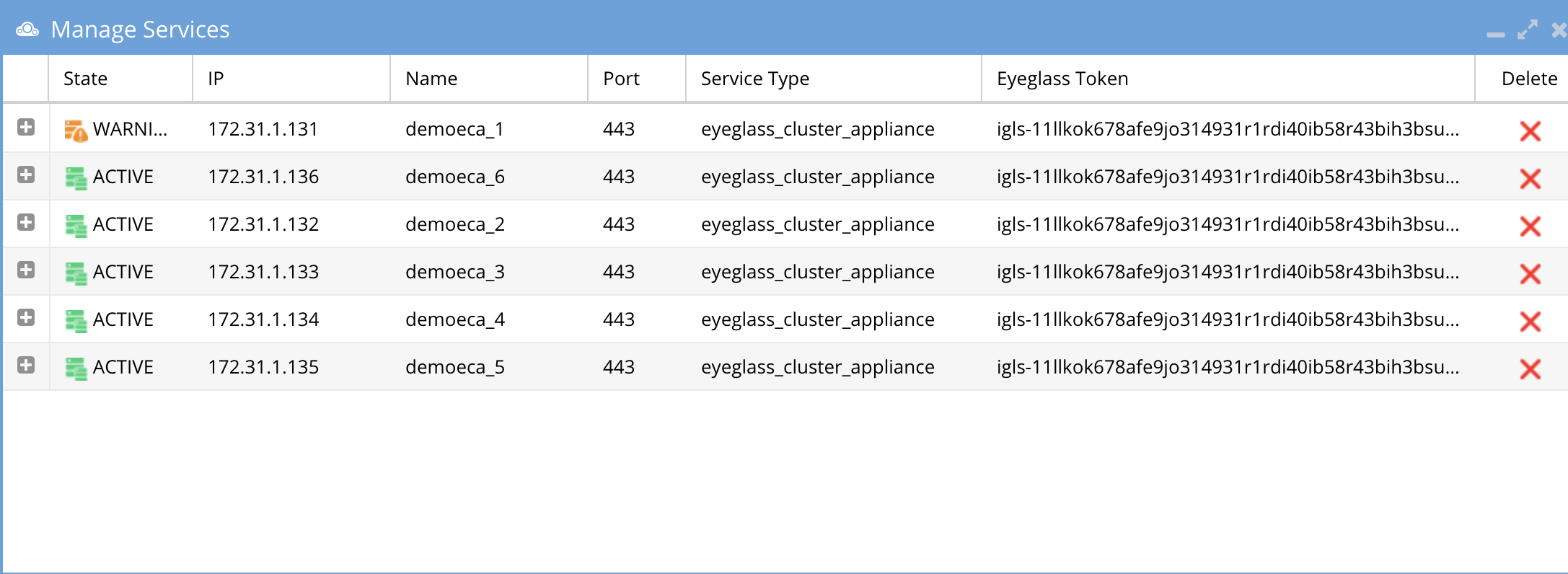
Once completed, log in to Eyeglass, open the Manage Services icon, and verify that all ECA nodes show green and are online. If any services show a warning or are inactive, wait at least 5 minutes. If the condition persists, open a support case.
-
If all steps pass and all ECA nodes show green:
- Use the Security Guard test in Data Security or run the RoboAudit feature in Easy Auditor to validate that audit data ingestion is functioning.
-
Consult the admin guide for each product to start a manual test of these features.
How to Migrate ECA cluster settings to a new ECA cluster deployment - To upgrade Open Suse OS
To upgrade an ECA cluster OS, it is easier to migrate the settings to a new ECA cluster deployed with the new OS. Follow these steps to deploy a new ECA cluster and migrate configuration to the new ECA cluster.
-
Retrieve the ECA Cluster Name:
- The ECA cluster has a logical name shared between nodes. When deploying a new OVA, the deployment will prompt for the ECA cluster name. This should be the same as the previous ECA cluster name.
- To get the ECA cluster name:
-
Log in to ECA Node 1 via SSH as
\\<your-username>(e.g.,ssh ecaadmin@x.x.x.x). -
Run the following command:
cat /opt/superna/eca/eca-env-common.conf | grep ECA_CLUSTER_ID -
Use the value returned after the
=sign when deploying the new ECA cluster. -
Use WinSCP to copy the following files from ECA Node 1 of the existing ECA cluster (logged in as
\\<your-username>):/opt/superna/eca/eca-env-common.conf/opt/superna/eca/docker-compose.overrides.yml/opt/superna/eca/conf/common/overrides/ThreatLevels.json/opt/superna/eca/data/audit-nfs/auto.nfs
-
noteThis procedure assumes the IP addresses will stay the same, so the cluster NFS export doesn't need to be changed, and there will be no impact on any firewall rules.
-
Deploy a New OVA:
- Deploy a new OVA ECA cluster using the latest OS OVA, following the instructions
- Follow the deployment instructions and use the same ECA cluster name captured earlier when prompted during the installation of the OVA.
noteUse the same IP addresses as the current ECA cluster.
-
Shutdown the Old ECA Cluster:
-
Log in to Node 1 as
\\<your-username>. -
Run the following command:
ecactl cluster down -
Wait for the shutdown to finish.
-
Using the vCenter UI, power off the VApp.
-
-
Startup the New ECA Cluster:
-
Power on the VApp using the vCenter UI.
-
Ping each IP address in the cluster until all VMs respond.
warningDo not continue if you cannot ping each VM in the cluster.
-
Using WinSCP, log in as
\\<your-username>and copy the files from the steps above into the new ECA OVA cluster. -
On Node 1, replace the files with the backup copies:
/opt/superna/eca/eca-env-common.conf/opt/superna/eca/docker-compose.overrides.yml/opt/superna/eca/conf/common/overrides/ThreatLevels.json/opt/superna/eca/data/audit-nfs/auto.nfs
-
On Nodes 1 to X (where X is the last node in the cluster):
- On each node, complete the following steps:
-
SSH to the node as
\\<your-username>:ssh ecaadmin@x.x.x.x -
Run the following commands:
sudo -s
mkdir -p /opt/superna/mnt/audit/\\<cluster GUID/cluster name>
Example:
/opt/superna/mnt/audit/0050569960fcd70161594d21dd22a3c10cbe/prod-cluster-8 -
Repeat for each cluster managed by this ECA cluster. View the contents of the
auto.nfsfile to get the cluster GUID and name.
-
- On each node, complete the following steps:
-
Restart the Autofs process to read the
auto.nfsfile and mount all clusters:-
Run the following commands on each node:
ecactl cluster exec "sudo systemctl restart autofs"
ecactl cluster exec "mount" -
Verify that the mount is present on all nodes in the output from the
mountcommand.
-
-
Start up the new ECA cluster:
-
Log in to ECA Node 1 as
\\<your-username>:ecactl cluster up -
Review startup messages for errors.
-
-
Done.
-
Monitor Health and Performance of an ECA Cluster - Optional
The sections below provide instructions on how to monitor the health and performance of an ECA cluster. Always contact support before taking any actions. Note that ECA clusters are designed to consume high CPU resources for most operations, and it is expected to see high CPU usage on all nodes most of the time.
Verifying ECA Cluster Status
To check the status of an ECA cluster, follow these steps:
-
Access the master node and run the following command:
ecactl db shell -
Once in the shell, execute the command:
status -
The output should show:
- 1 active master
- 2 backup master servers

Verifying ECA Containers are Running
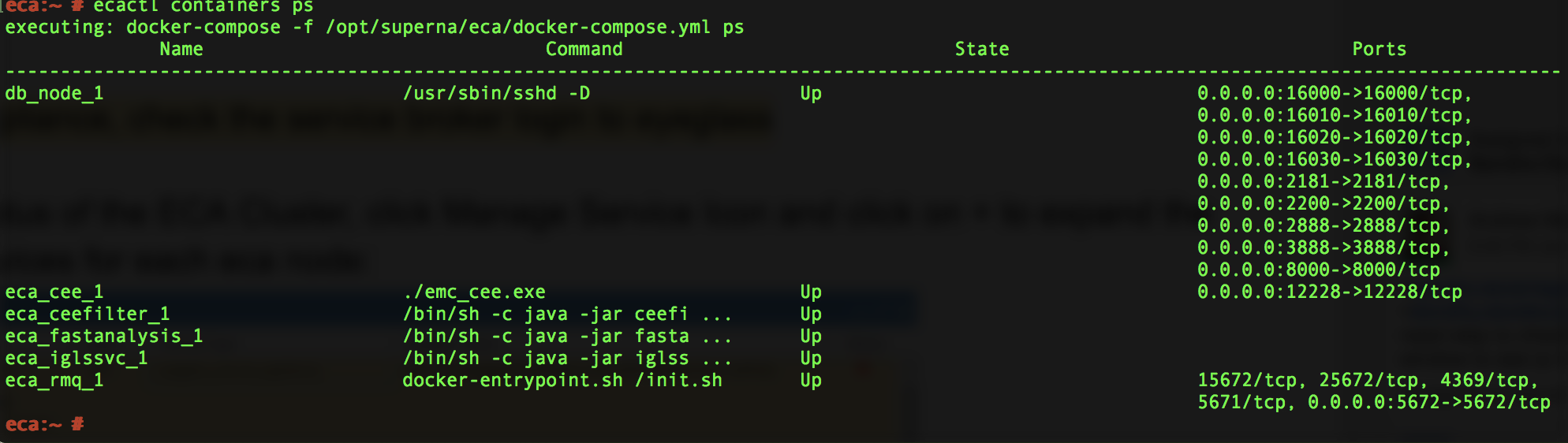
To verify that ECA containers are running, execute the following command:
ecactl containers ps
Check Cluster Status and Verify Analytics Tables - Optional
This section explains how to check the status of the cluster and ensure all analytics tables are available for Data Security, Easy Auditor, and Performance Auditor.
-
Run the following command to check the cluster status:
ecactl cluster statusThis command verifies:
- All containers are running on every node.
- Each node can mount the necessary tables in the Analytics database.
-
If any errors are encountered, follow these steps:
- Open a support case to resolve the issue.
- Alternatively, retry the cluster commands below:
ecactl cluster down
ecactl cluster up -
Once the cluster is back up, send the ECA cluster startup log to support for further assistance.
Check ECA Node Container CPU and Memory Usage - Optional
To monitor the real-time CPU and memory usage of containers on an ECA node, follow these steps:
-
Log in to the ECA node as the
\\<your-username>user. -
Run the following command to view the real-time resource utilization of the containers:
ecactl stats
Enable Real-time Monitoring of ECA Cluster Performance (If Directed by Support)
Follow this procedure to enable container monitoring and ensure that CPU GHz are set correctly for query and writing performance to PowerScale.
Steps to Enable Monitoring
-
To enable cadvisor across all cluster nodes, add the following line to the
eca-env-common.conffile:export LAUNCH_MONITORING=trueThis will launch cadvisor on all ECA cluster nodes.
-
If you need to launch cadvisor on a single node, log in to that specific node and run the following command:
ecactl containers up -d cadvisor -
Once the cadvisor service is running, you can access the web UI by navigating to:
http://\\<IP OF ECA NODE>:9080Replace
\\<IP OF ECA NODE>with the actual IP address of the node.
Done! You can now monitor the real-time performance of the ECA cluster.
ECA Cluster Modification Procedures - Optional
How to Expand Easy Auditor Cluster Size
Always contact support before proceeding. Support will determine if your installation requires expansion.
To enhance analytics performance for handling higher event rates or long-running queries in a large database, follow these steps to add 3 or 6 more VMs:
- Deploy the ECA OVA.
- Copy the new VMs into the vAPP.
- Remove the vAPP created during the deployment.
The ECA name during the OVA deployment is not important, as it will be synchronized from the existing ECA cluster during the cluster startup procedures.
-
Log in to the master ECA node.
-
Run the following command to take the cluster down:
ecactl cluster down -
Deploy one or two more ECA clusters. No special configuration is needed on the newly deployed ECA OVA.
-
Edit the configuration file to add more nodes:
nano /opt/superna/eca/eca-env-common.conf -
Add the IP addresses of the new nodes, for example:
ECA_LOCATION_NODE_4: \\<IP>
ECA_LOCATION_NODE_5: \\<IP> -
You can add nodes from 4 to 9, depending on the number of VMs added to the cluster.
-
Run the following command to configure the new nodes:
ecactl components configure-nodes -
Bring the cluster back up:
ecactl cluster up -
This will expand the HBASE and Spark containers for faster read and analytics performance.
-
Log in to Eyeglass and open the managed services.
-
Now balance the load across the cluster for improved read performance:
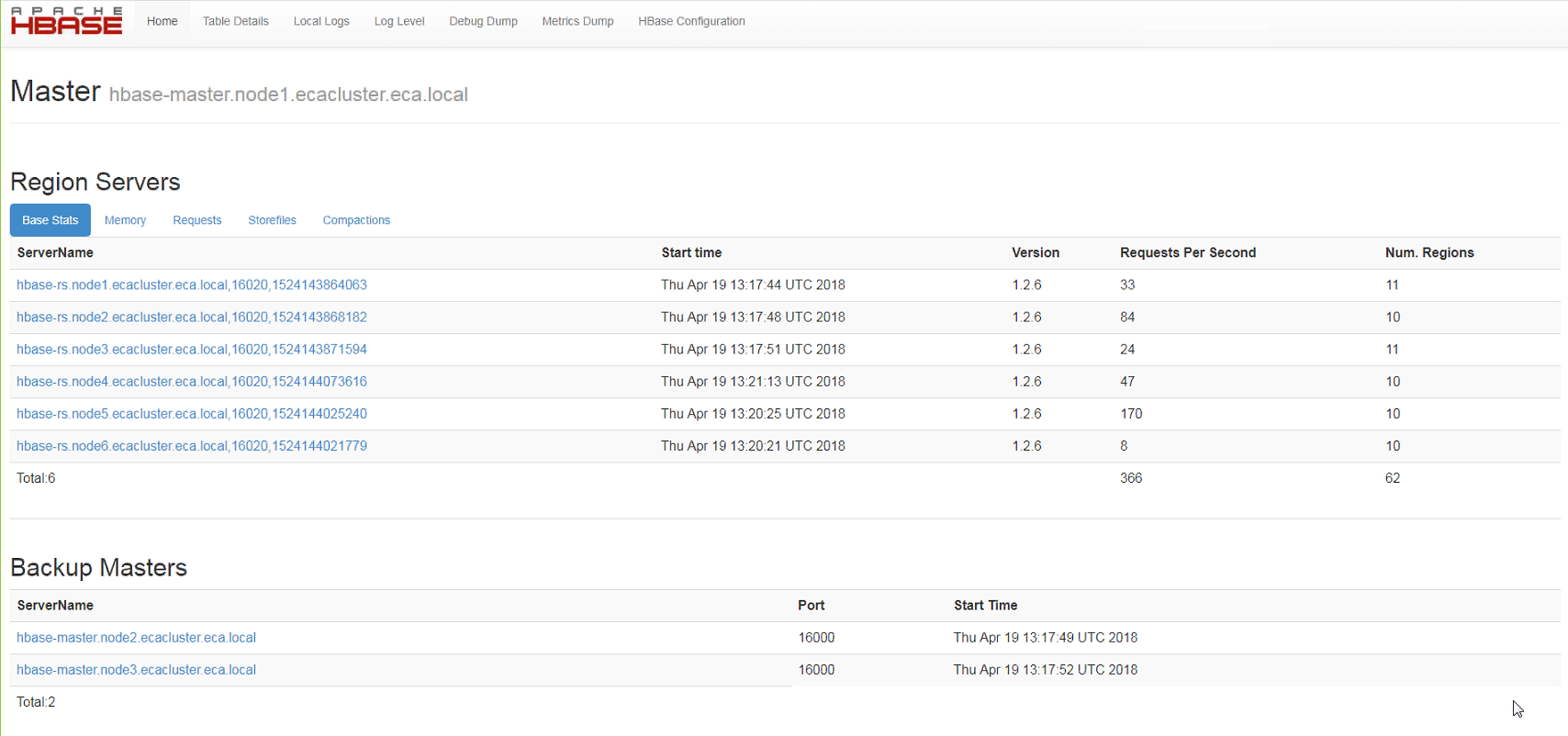
- Log in to the Region Master VM (typically node 1).
- Open the UI at
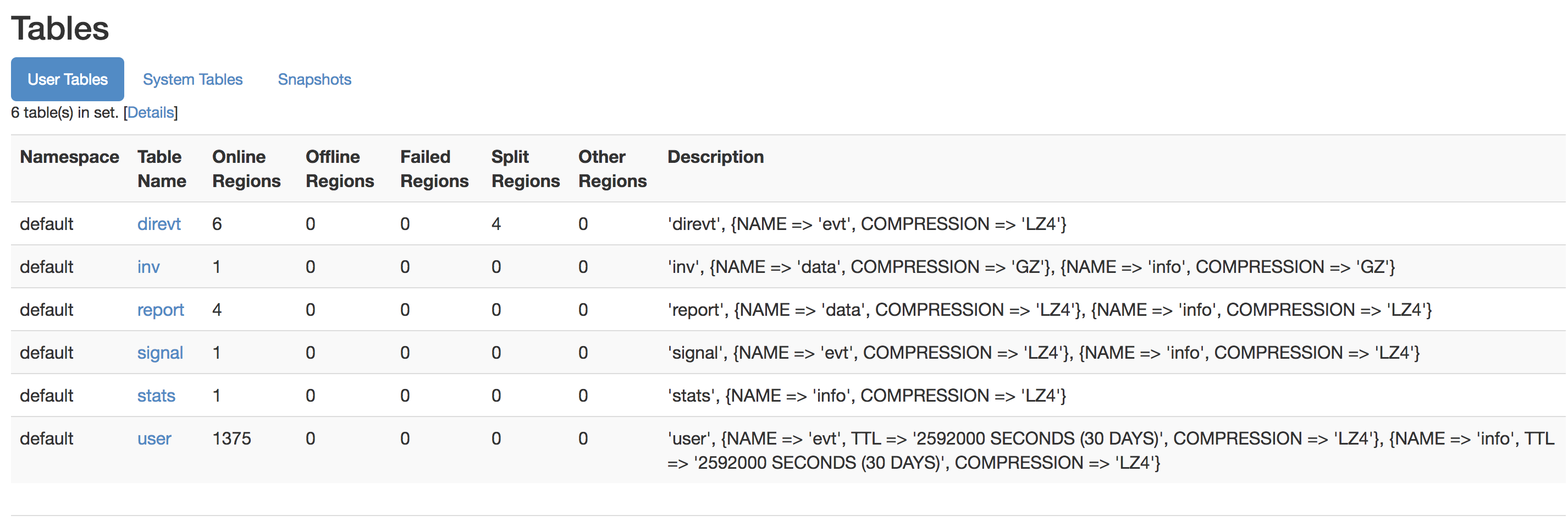
http://x.x.x.x:16010/and verify that each region server (6 total) is visible. - Ensure each server has assigned regions and verify that requests are visible for each region server.
- Check that the tables section shows no regions offline, and no regions are in the "other" column.
- Example screenshots of six region servers with regions and normal table views can be used for reference.
Advanced Configurations
How to Configure a Data Security Only Configuration (Skip if Running Multiple Products)
Follow this procedure before starting up the cluster to ensure unnecessary Docker containers are disabled during startup.
-
Log in to node 1 over SSH as the
\\<your-username>user. -
Open the configuration file:
nano /opt/superna/eca/eca-env-common.conf -
Add the following variable:
export RSW_ONLY_CFG=true -
Save and exit the file:
:wq -
Continue with the startup steps below.
How to Configure NFS Audit Data Ingestion with Non-System Access Zone
-
Create an access zone in
/ifs/named "auditing". -
Create an IP pool in the new access zone with 3 nodes and 3 IPs in the pool.
-
Create a SmartConnect name and delegate this name to DNS.
-
Auditing will be disabled by default in this zone.
-
Use this SmartConnect name in the
auto.nfsfile. -
Log in to node 1 of the ECA as
\\<your-username>. -
Open the
auto.nfsfile:nano /opt/superna/eca/data/audit-nfs/auto.nfs -
Follow the syntax in this guide to enter the mount of the cluster audit folder, then save the file with
Control + X. -
Log in to the cluster and move the NFS export used for auditing to the new access zone:
isi nfs exports modify --id=1 --zone=system --new-zone=auditing --force -
Verify the new export:
isi nfs exports list --zone=auditing -
Restart the autofs service to remount the NFS export in the new zone:
-
Push the updated config:
ecactl cluster push-config -
Restart the autofs service on all nodes:
ecactl cluster exec sudo systemctl restart autofs
-
-
Enter the
\\<your-username>password on each node when prompted.
Done.