Reports
The Data Forensics Reports system provides comprehensive tools for viewing, analyzing, and exporting the results of your forensic queries. Reports are automatically generated when queries are executed and provide detailed insights into security events and user activities.
Report Generation Overview
Reports are created automatically when:
- Queries are executed manually using the run button
- Scheduled queries execute based on their configured timing
- Bulk query operations are performed on multiple queries
Each report contains filtered security events based on the query parameters and provides detailed information about user activities, file operations, and system events.
Report Interface Layout
Split-Panel Design
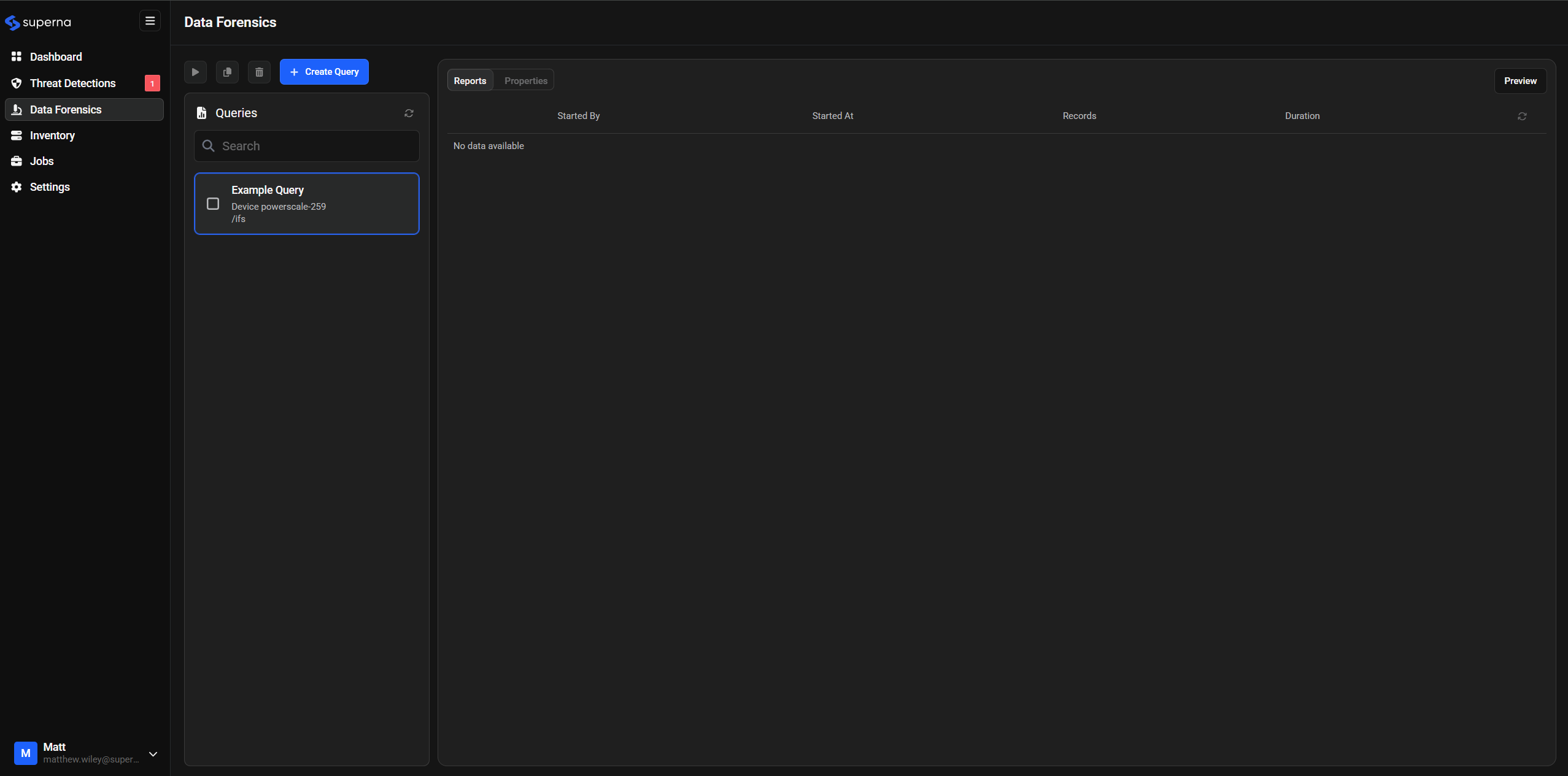
The Data Forensics interface uses a split-panel design:
- Left Panel: Query list with selection checkboxes and search functionality
- Right Panel: Report results and detailed information for the selected query
Report List View
When queries have been executed, the report list displays:
- Query Status: Visual indicators showing execution success or failure
- Query Name: The configured name of the executed query
- Execution Information: Details about when and by whom the query was run
Report Execution Details
Report Status Indicators
Reports display clear visual status indicators:
- Successful Execution
- In Progress
- Failed Execution
Green Checkmark Icon
- Indicates the query completed successfully
- Report data is available for analysis
- All configured parameters were processed correctly
Loading/Spinner Icon
- Query is currently executing
- Real-time progress updates when available
- Estimated completion time may be displayed
Red Error Icon
- Query encountered an error during execution
- Error details available in the execution log
- May require query parameter adjustment or system troubleshooting
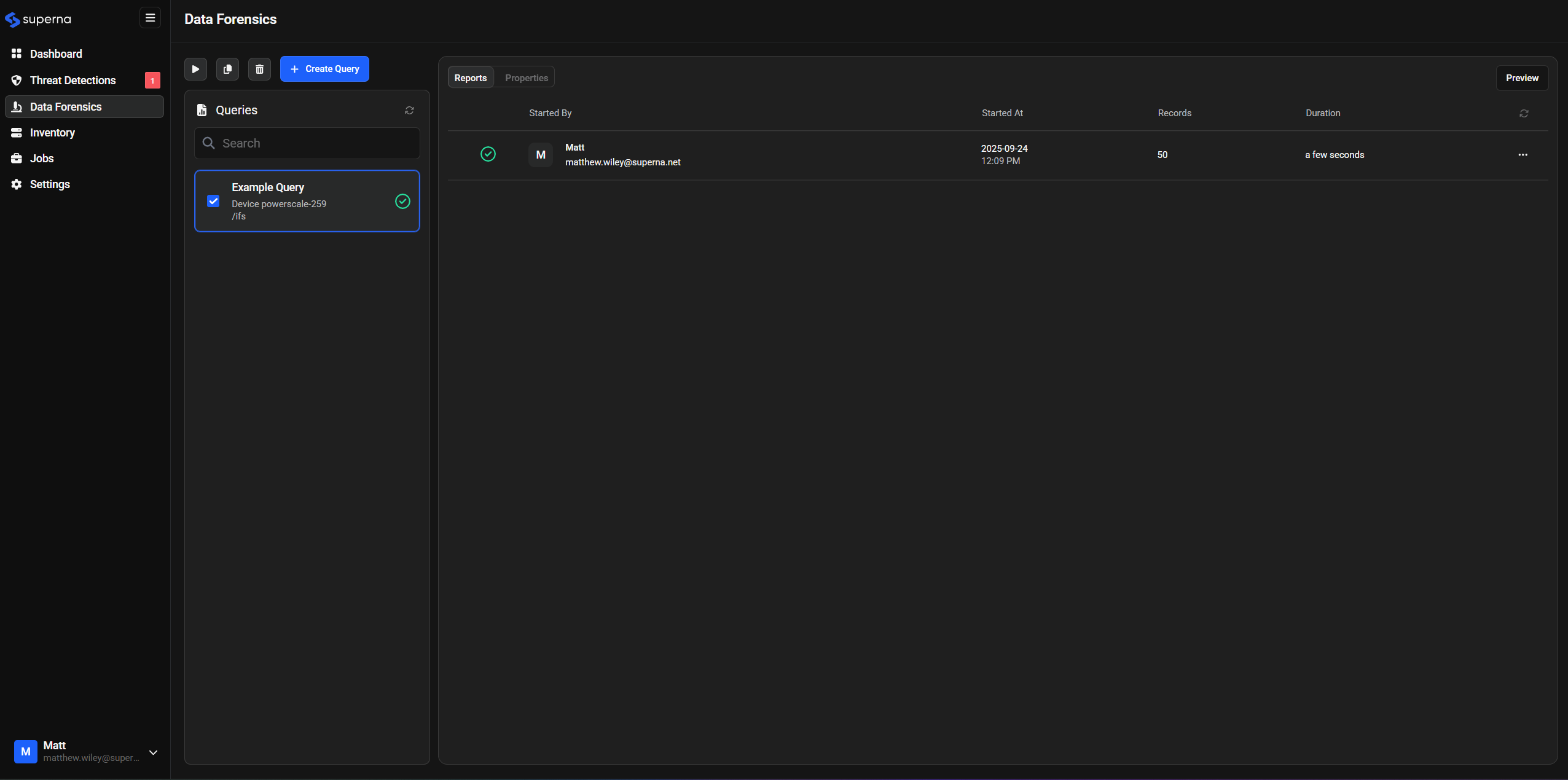
Report status indicators are shown in the interface with clear visual cues for each execution state.
Execution Metadata
Each report provides execution details:
Started By Information
- User Identity: Shows the username and email address of the user who initiated the query (or "System" for scheduled queries)
Start Date and Time
- Execution Timestamp: Precise date and time when the query began
- Time Zone Information: Local time zone for accurate reference
Record Counts
- Total Records: Number of events matching the query criteria
Execution Duration
- Processing Time: Total time required to complete the query
Report Analysis and Viewing
Report Preview Function
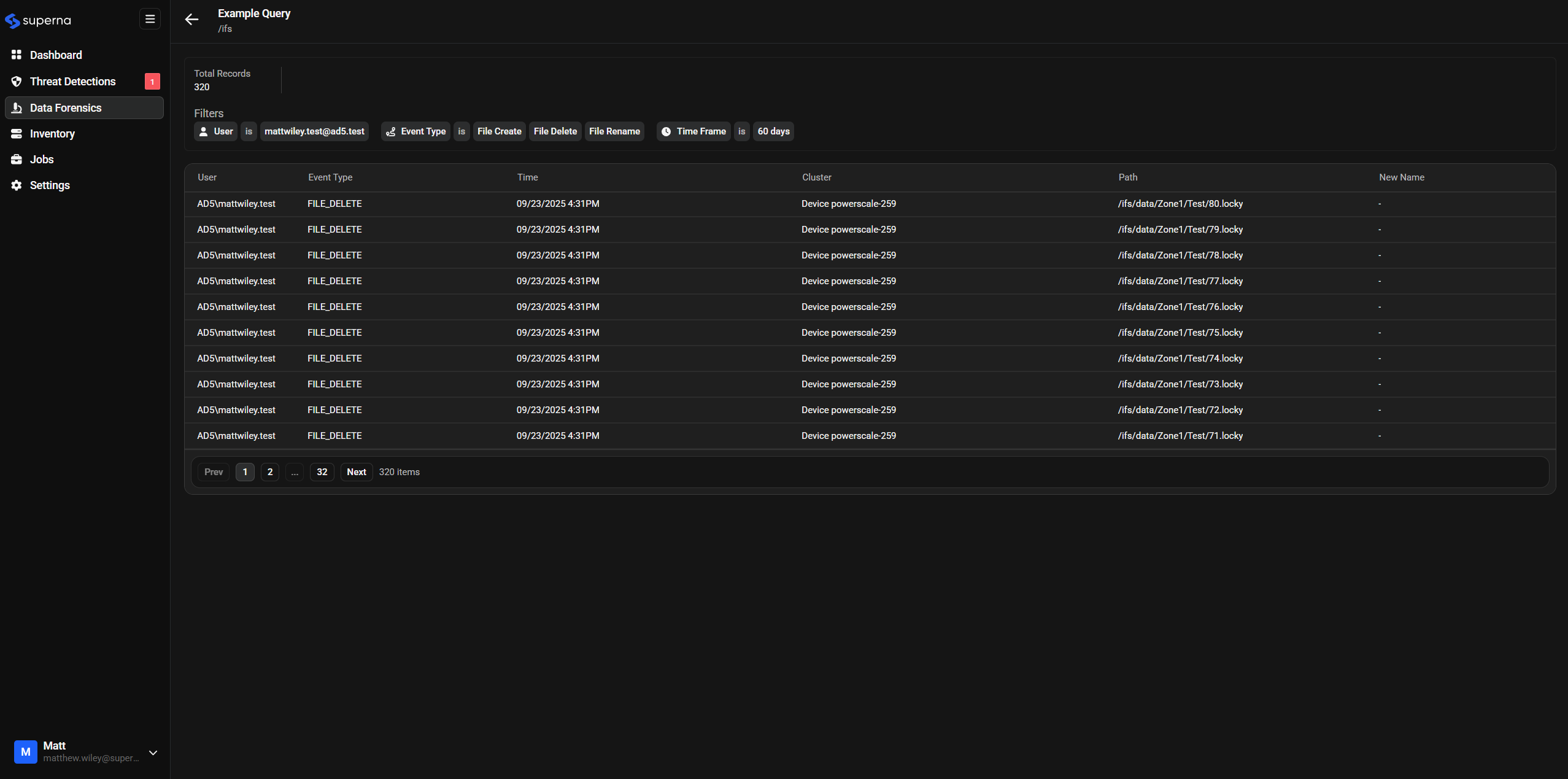
The Preview button allows you to view query results after the query has been saved:
Preview Features:
- Live Results: Shows all events matching your query criteria
- Full Data View: Displays complete query results without applying the maximum results limit
Usage Process:
- Save your query
- Click the Preview button to view the results
- Review the data in a tabular format
Detailed Event Analysis
Reports provide comprehensive event data including:
Event Information
- Event Type: Specific security event or file operation
- Timestamp: Precise date and time of the event
- User Account: Associated user identity
- Source Location: File system path or network location
- Event Details: Additional context specific to the event type
File and Directory Operations
- File Names: Complete file paths and names
- Operation Types: Create, modify, delete, copy, move operations
- Event Timestamps: Date and time when the audit event occurred
Security Context
- Access Attempts: Successful and failed access events
- Permission Changes: Modifications to file or directory permissions
- User Activities: Account activities and access patterns
- System Events: Administrative and system-level activities
The detailed event analysis provides comprehensive information for each security event captured by the query.
Report Export and Sharing
CSV Export Functionality
Reports can be exported in CSV (Comma-Separated Values) format for:
- External Analysis: Import into spreadsheet applications or analytics tools
- Data Sharing: Distribute findings to team members or stakeholders
- Long-term Storage: Archive investigation results for compliance
- Integration: Feed data into other security tools or SIEM systems

Export Process
- Access Download: Click the three-dot menu button next to the report
- Select Export: Choose the download option from the menu
- File Generation: System generates the CSV file with all report data
- Download Completion: File is downloaded to your local system
Export Data Format
CSV exports include all available report data:
- Complete Event Data: All captured event information
- Metadata Fields: Timestamps, user information, file paths
- Event Context: Additional details specific to each event type
Using Exported Data
Once exported, CSV files can be used for:
- Team Collaboration: Share findings with security team members
- Management Reporting: Provide detailed findings to stakeholders
- Compliance Documentation: Support audit and compliance requirements
- SIEM Integration: Import data into Security Information and Event Management systems
- Analytics Platforms: Feed data into business intelligence or analytics tools
- Incident Response: Support incident response processes with detailed forensic data
Report Organization
- Query Association: Reports are linked to their originating queries
- Chronological Ordering: Reports sorted by execution time for easy reference
The comprehensive reporting system provides powerful capabilities for analyzing security events, supporting investigations, and maintaining audit trails for compliance and security purposes.