Query Management
The Data Forensics Query Management interface allows you to create, configure, and manage forensic queries to investigate and analyze security events across your environment.
Accessing Query Management
Navigate to Data Forensics in the main navigation menu to access the Queries and Reports page.
Initial Interface
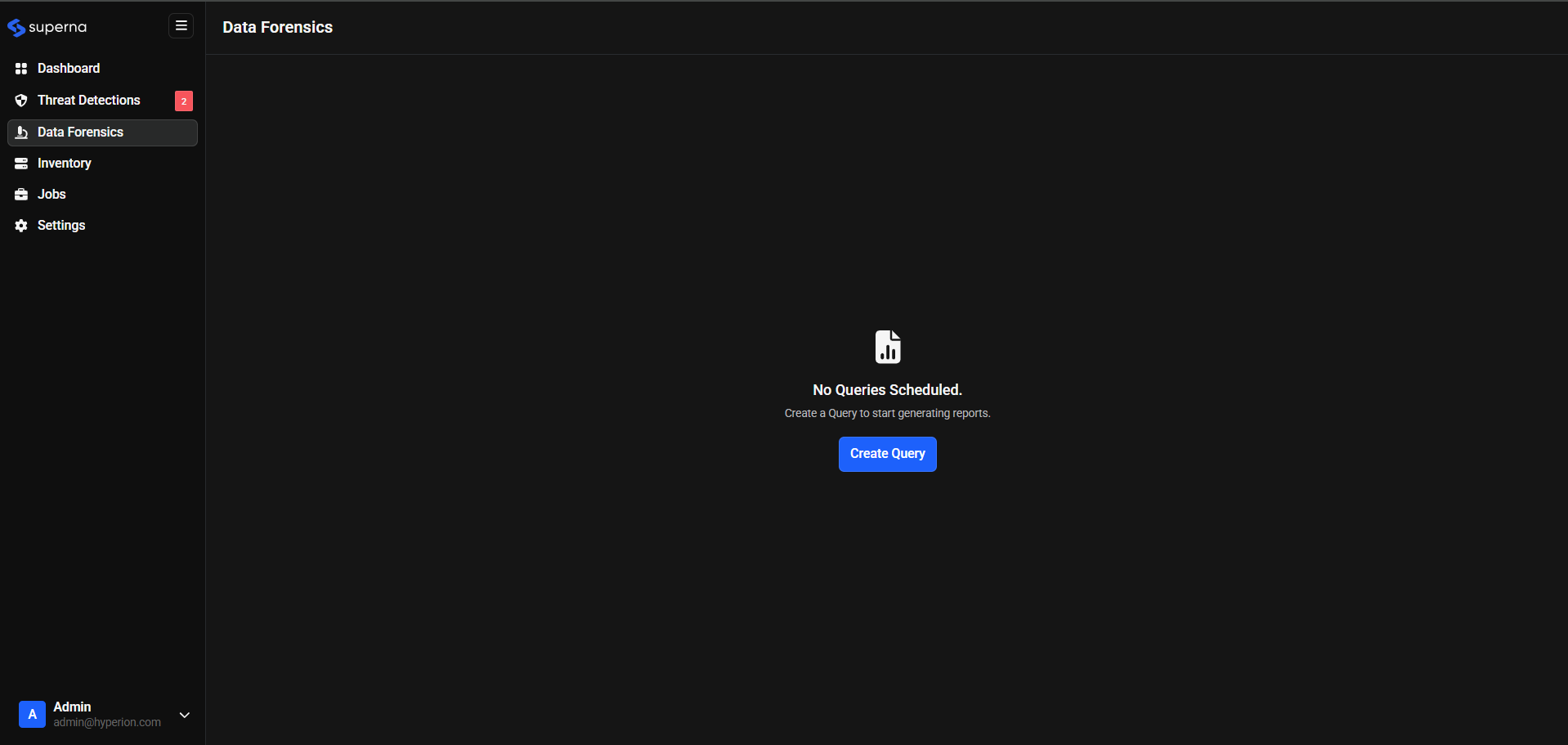
When first accessing the Data Forensics interface, you'll see:
- A message stating "No Queries Scheduled"
- A "Create Query" button to begin creating your first query
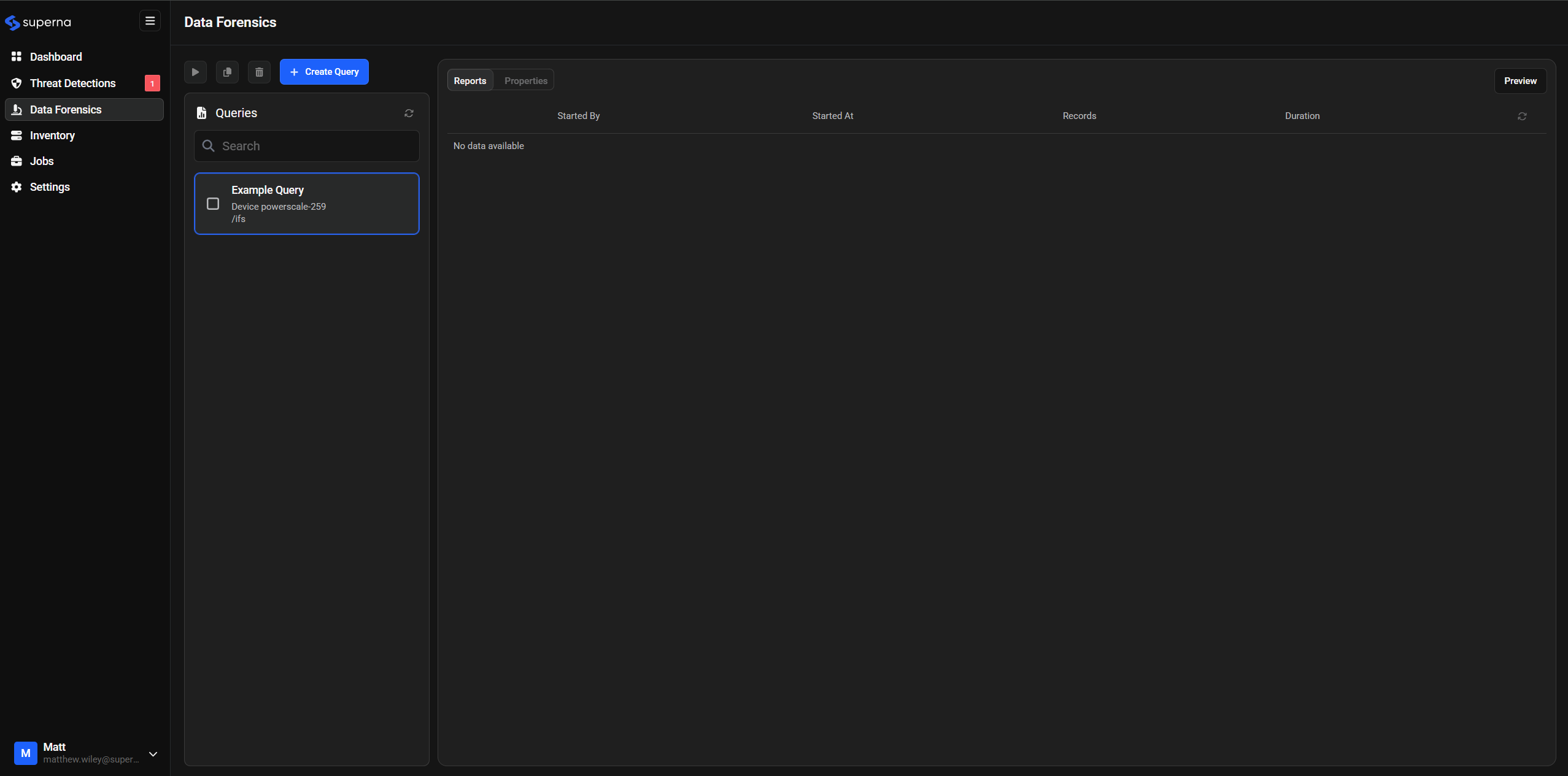
Once you create a query, the query list will appear on the left side of the interface.
Creating New Queries
Step-by-Step Query Creation
-
Access Query Creation
- Click the Create Query button from the main Data Forensics page
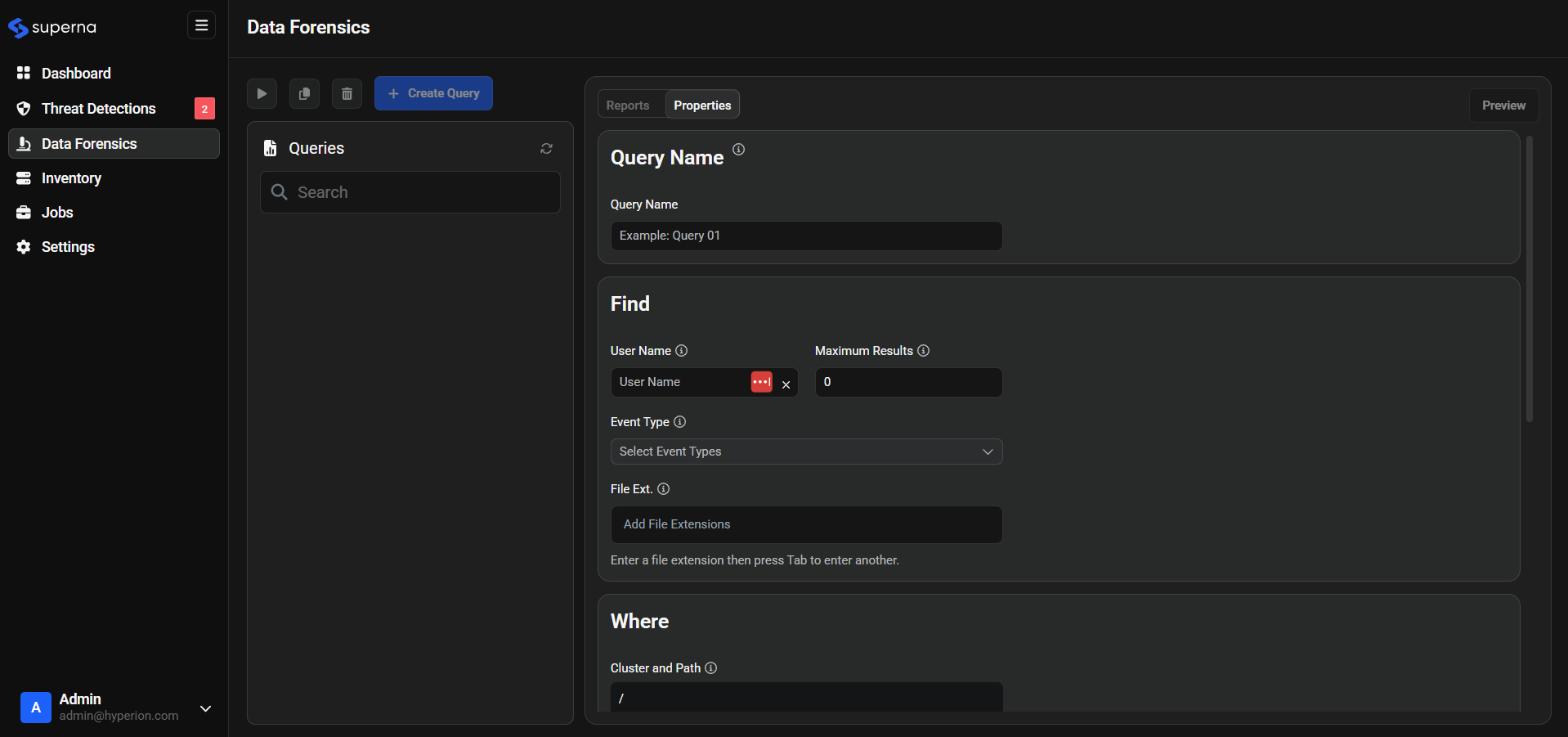
- The query creation form will open on the right side of the interface
-
Configure Query Properties
- Complete the required and optional fields as described in the sections below
- Save the query to make it available for execution. You can then use the Preview button to test the query.
Query Configuration Fields
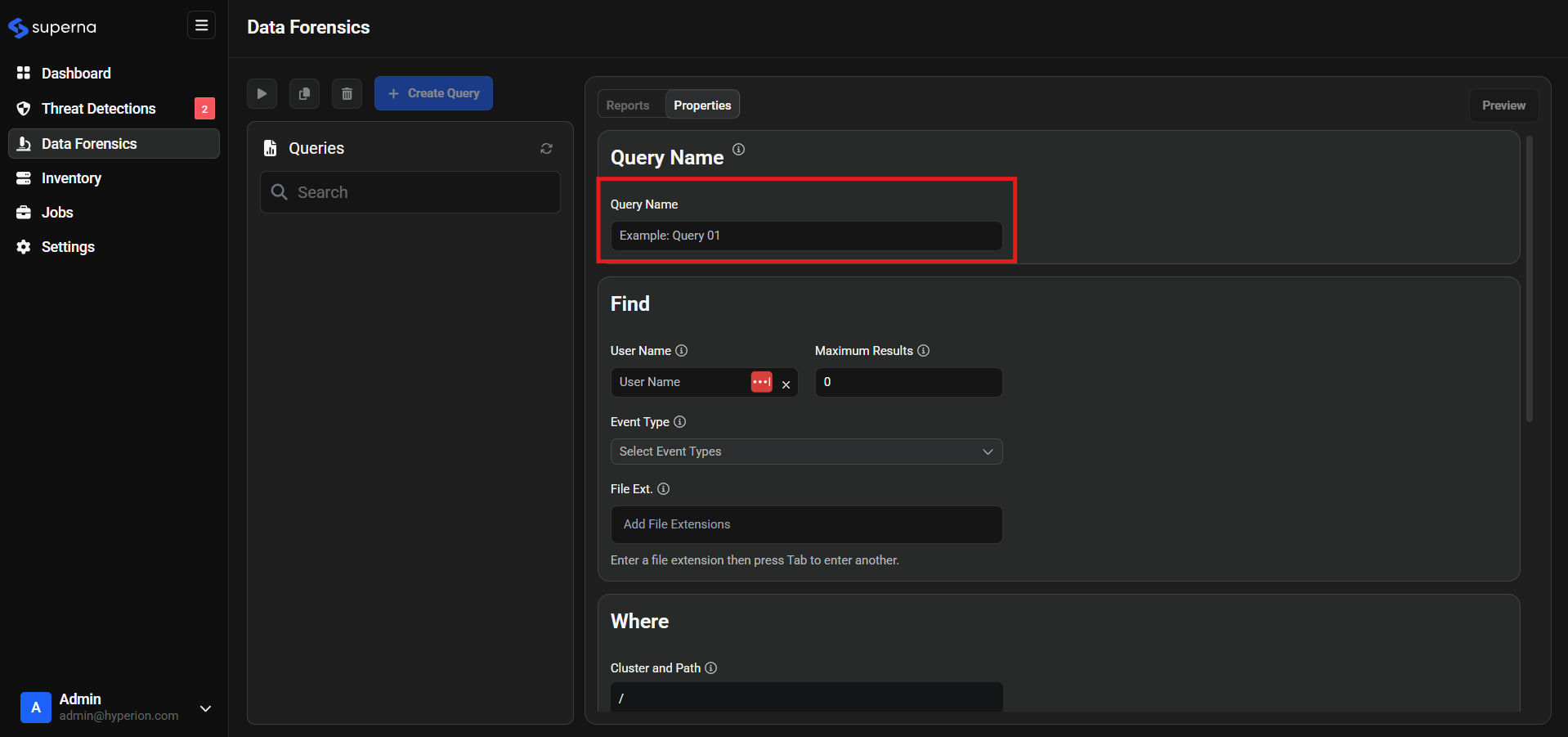
Query Name (Required)
- Purpose: Provides a unique identifier for your query
- Requirements: Must be provided - field is mandatory
- Best Practice: Use descriptive names that indicate the purpose or scope of the query
User Name (Optional)
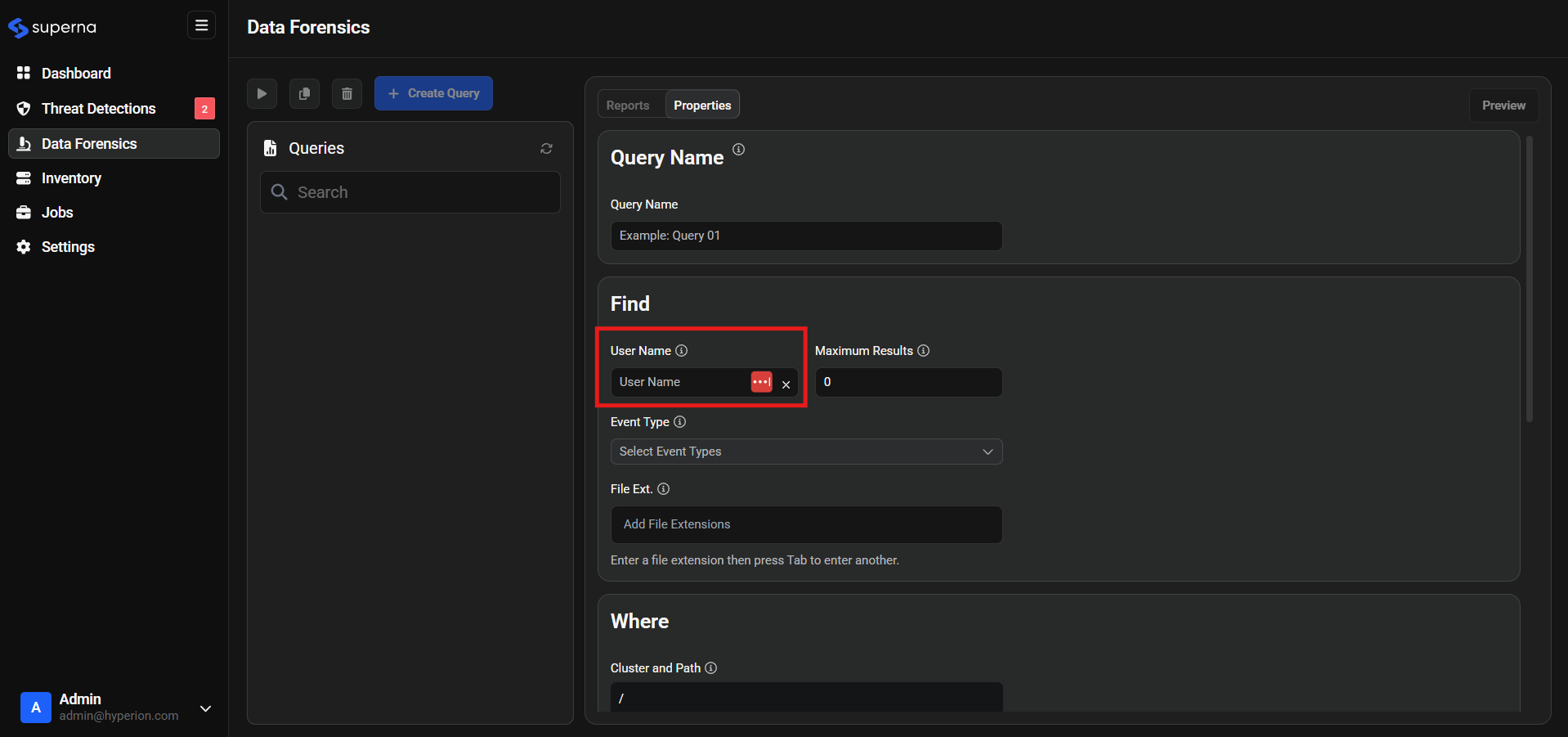
- Purpose: Filters events by specific user accounts
- Behavior:
- If provided: Only events associated with the specified user will be included
- If left empty: User name will not be used as a filter criterion
- Format: Accept any valid username from your environment
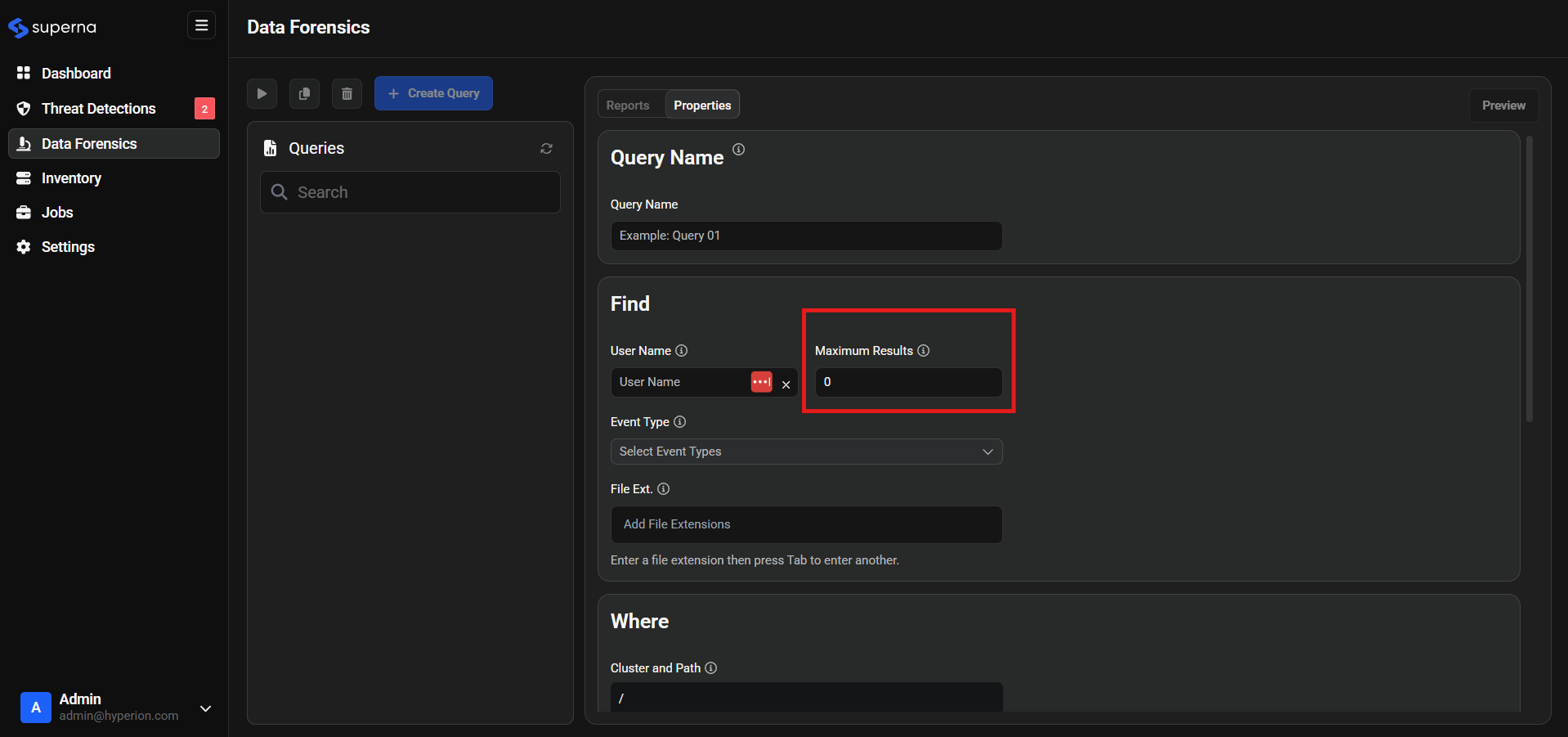
Maximum Results (Required)
- Purpose: Limits the number of events returned by the query
- Requirements: Must specify a numeric value
- Important: Newest events are gathered first - older events will be excluded if the maximum result limit is reached
- Recommendation: Set appropriate limits based on your analysis needs and system performance
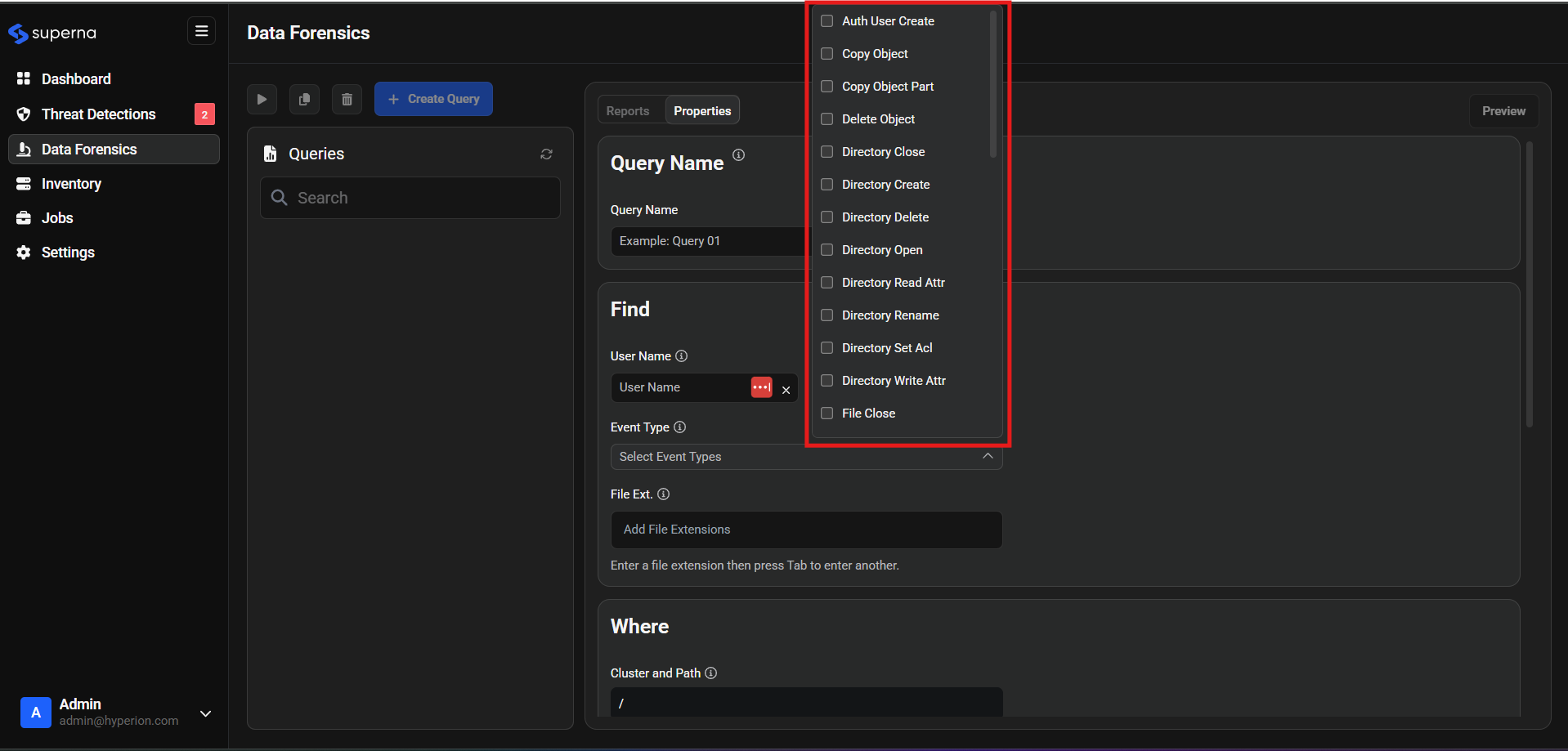
Event Types (Optional)
Select specific event types to focus your forensic analysis:
- File Operations
- Security Operations
- Audit User Create: User account creation events
- Copy Object: File copy operations
- Copy Object Part: Partial file copy operations
- Delete Object: File deletion events
- Directory Create: Directory creation events
- Directory Delete: Directory removal events
- Directory Rename: Directory renaming operations
- Directory Open: Directory access events
- Directory Read: Directory listing operations
- Directory Stat Xat: Directory metadata access
- Directory Rename: Directory renaming events
- Directory Stat Set: Directory status modifications
- Directory Write Attr: Directory attribute changes
- File Close: File closing operations
Configuration Notes:
- If no event types are selected, this filter will not be applied
- Multiple event types can be selected simultaneously
- Choose event types based on your specific investigation needs
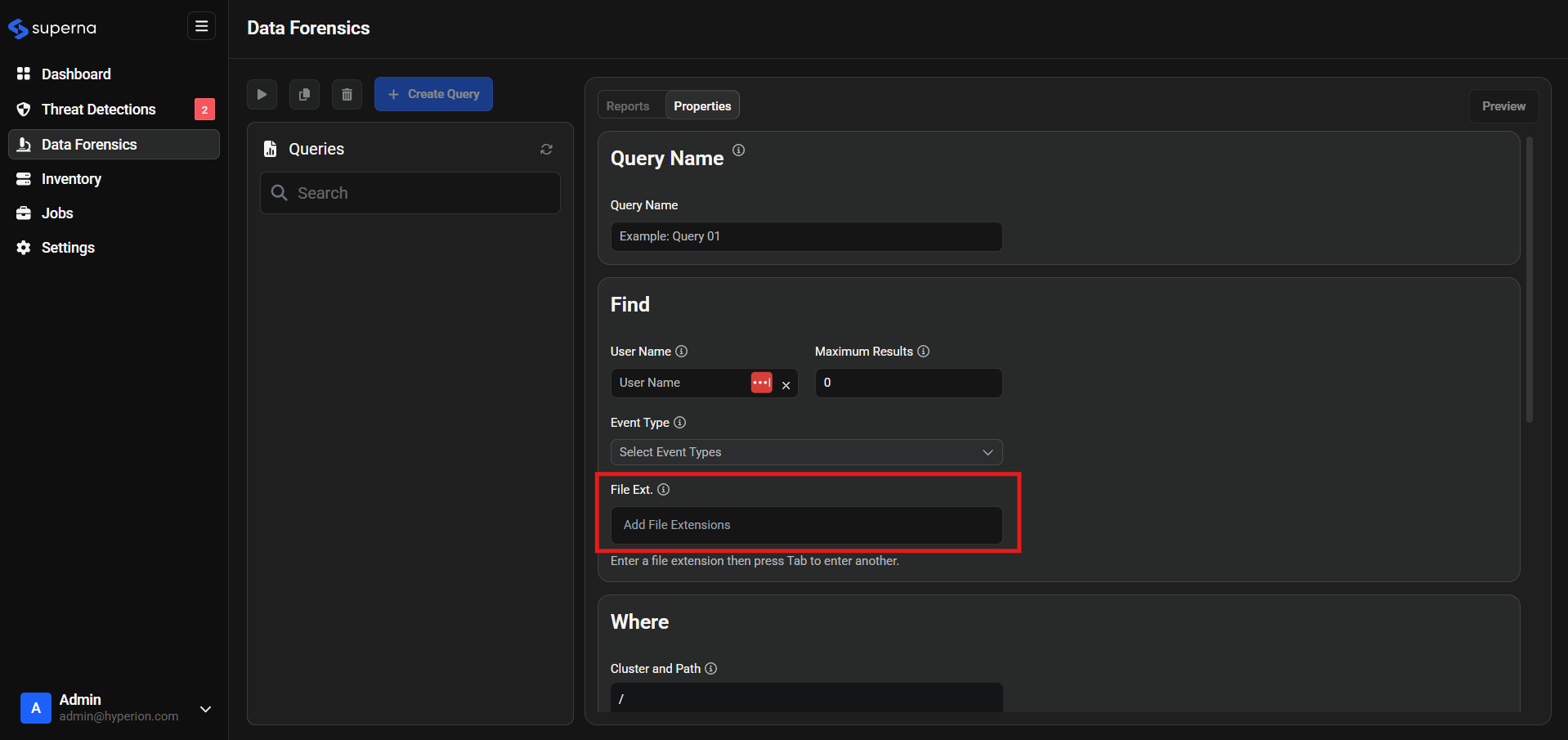
File Extensions (Optional)
- Purpose: Filter events by specific file types
- Format: Accepts extensions in the format
.<extension>(e.g.,.txt,.pdf,.docx) - Capability: Can accept multiple file extensions
- Use Cases: Focus on specific file types relevant to your investigation
Location Parameters
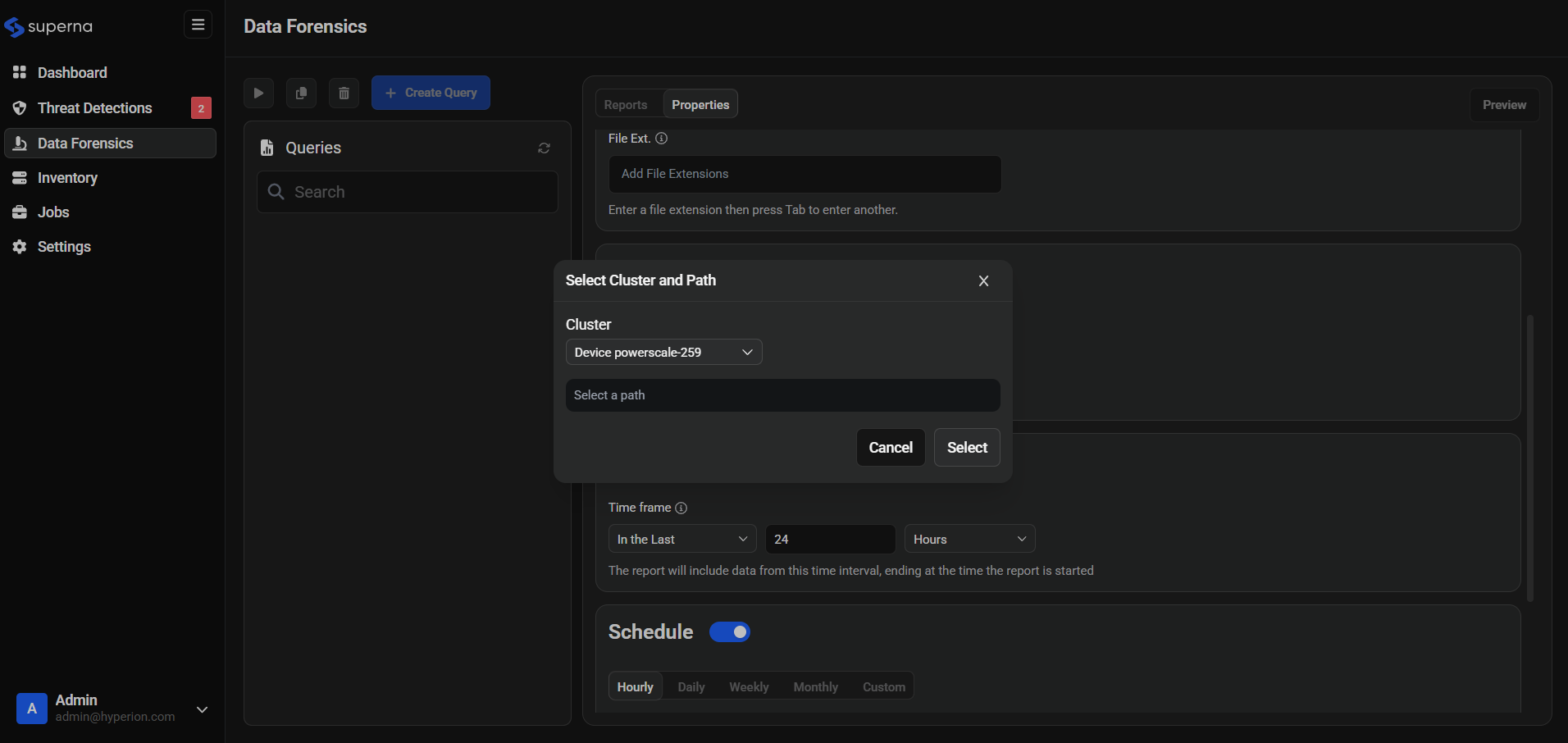
Cluster and Path Selection (Required)
- Purpose: Specifies which managed device to gather events from
- Path Configuration:
- Root Path: Use "/" to gather all events from the selected device
- Specific Path: Specify a particular directory path to limit scope
- Selection Process:
- Click the "Select" button in the Cluster and Path field
- Choose the appropriate cluster from the dropdown
- Specify the path or use "/" for comprehensive coverage
Time Parameters
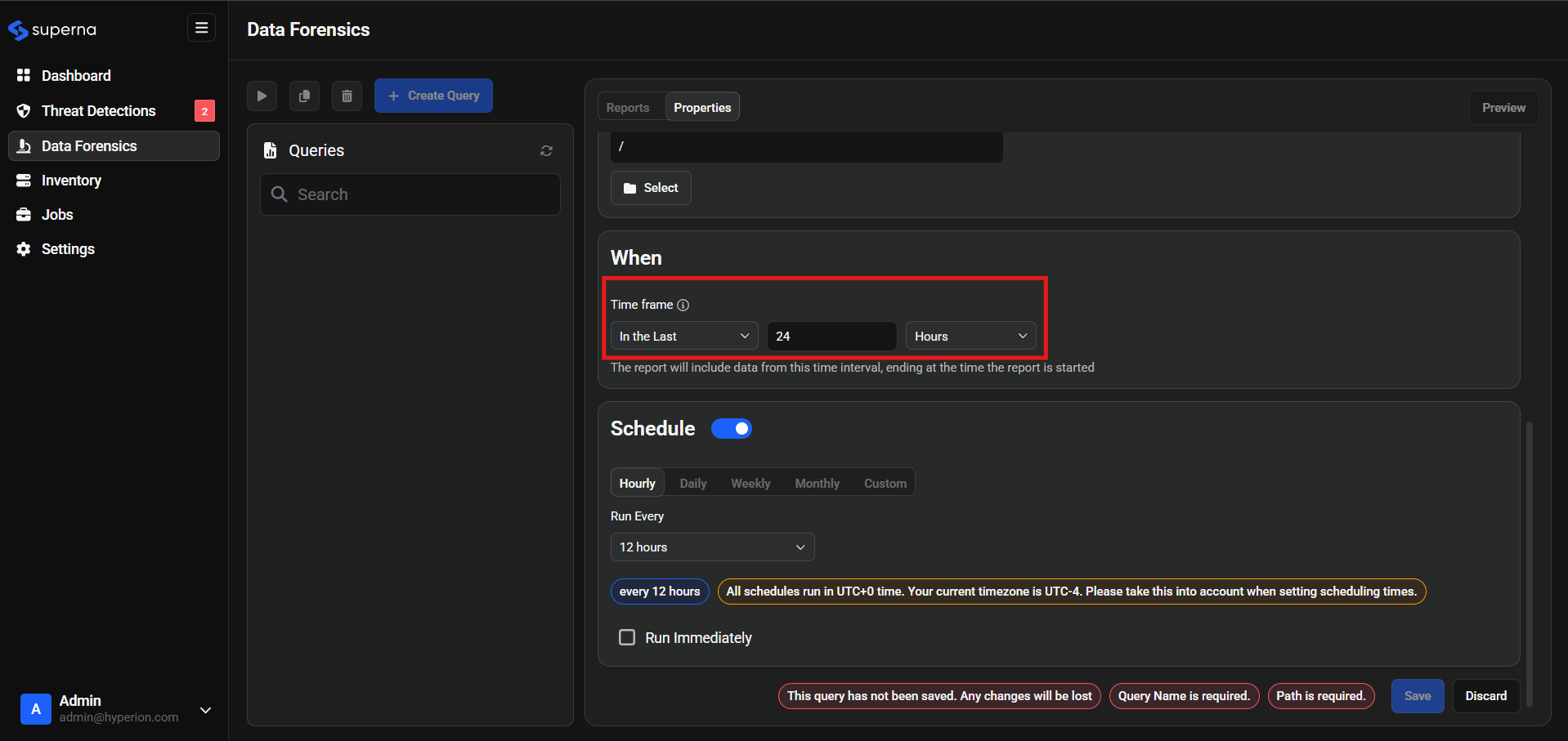
Timeframe Configuration (Required)
Choose from three different time range options:
- Recent Events
- Date Range
- Specific Date
In the last <value> days/hours/minutes
- Captures events from a specified time period up to the current moment
- Ideal for investigating recent incidents
- Time units available: days, hours, minutes
Between <date> and <date>
- Specifies events from the start of the first date to the start of the second date
- Useful for investigating specific time periods
- Provides precise control over the investigation timeframe
Specific date <date>
- Retrieves events for a single day only
- Helpful for targeted daily investigations
- Events gathered for the full 24-hour period of the specified date
Query Scheduling
Automatic Execution Configuration
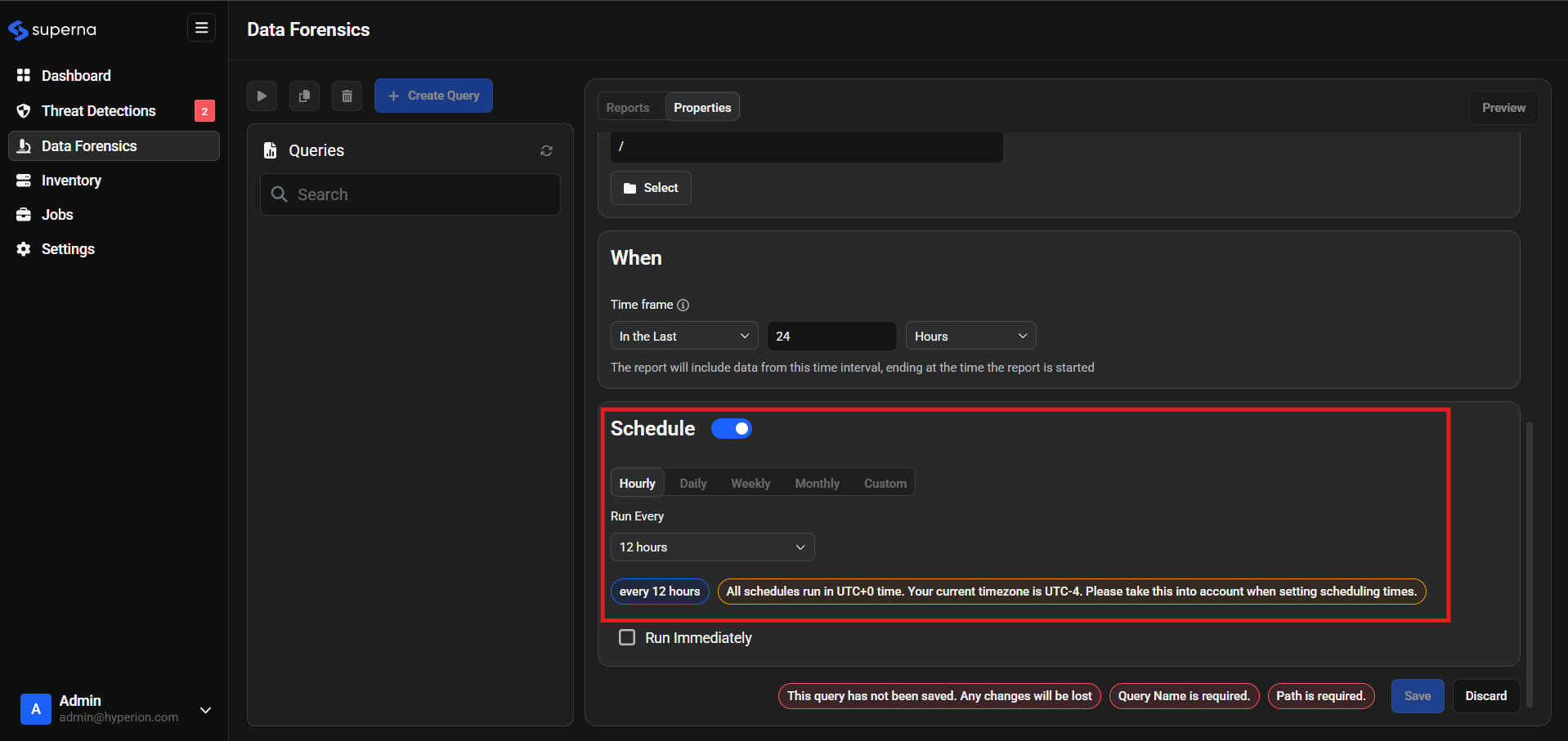
Configure queries to run automatically using the Schedule toggle:
Schedule Options:
- Hourly Jobs: Execute every 1-24 hours at specified intervals
- Daily Jobs: Run at a specific hour and minute each day
- Weekly Jobs: Execute at a specific time on a particular day of the week
- Monthly Jobs: Run at a specific time on a designated day of the month
- Custom Schedule: Define complex scheduling patterns using cron-like expressions
Configuration Steps:
- Toggle the Schedule switch to enable automatic execution
- Select your preferred frequency (Hourly, Daily, Weekly, Monthly, Custom)
- Configure the specific timing parameters for your chosen frequency
- Save the query to activate the schedule
Important Notes:
- Scheduled queries will run automatically based on your configuration
- Toggle the Schedule switch to "off" to disable automatic execution
- Scheduled queries can be manually executed at any time using the run button
Managing Existing Queries
Query List Operations
Once queries are created, the interface displays:
- Query List: Left panel showing all configured queries
- Reports Panel: Right panel displaying generated reports
- Query Controls: Action buttons for managing selected queries
Bulk Query Operations
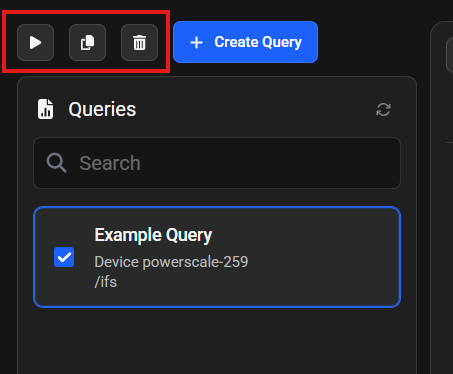
Use the three action buttons at the top of the query list when one or more queries are selected:
- Run Button (Play icon): Execute all selected queries immediately
- Copy Button (Duplicate icon): Create copies of the selected queries
- Delete Button (Trash icon): Remove all selected queries permanently
Selection Process:
- Use the checkboxes next to each query name to select multiple queries
- Actions will apply to all selected queries simultaneously
Query Properties Modification
- Access: Click the Properties tab when a query is selected
- Functionality: Update any configuration values for the selected query
- Application: Changes are saved automatically and affect future query executions
Query Execution and Results
Running Queries
Queries can be executed in two ways:
- Manual Execution: Select one or more queries and click the run button to execute them immediately
- Scheduled Execution: Automatic execution based on configured schedules (scheduled queries can also be run manually at any time)
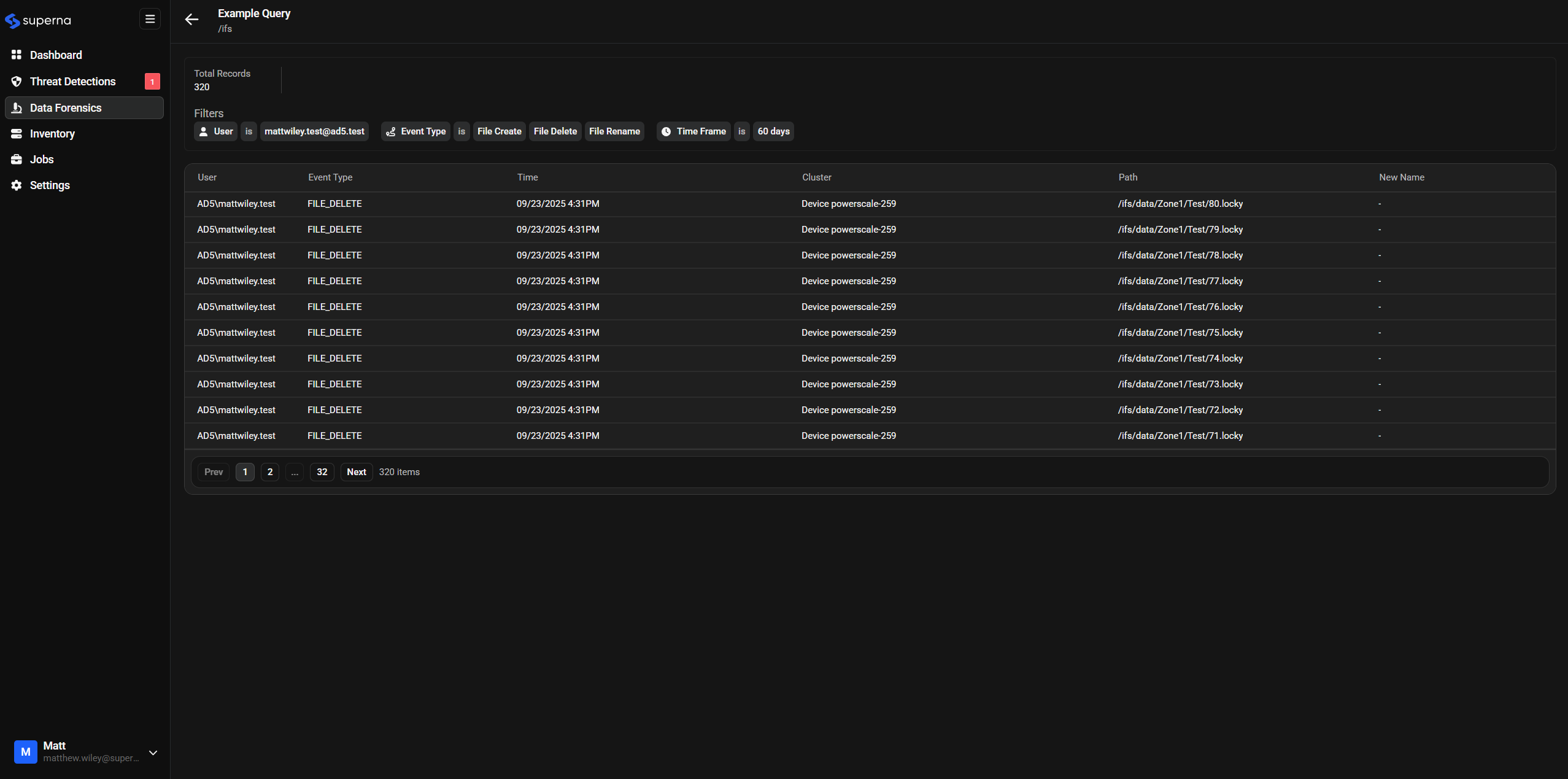
Viewing Results
After query execution, results appear in the right panel:
- Execution Status: Visual indicators showing query completion status
- Report Details: Information about the generated report including record counts
- Quick Actions: Options to preview, download, or analyze results
The comprehensive query management system provides flexible options for creating, configuring, and managing forensic investigations while maintaining ease of use and powerful functionality.